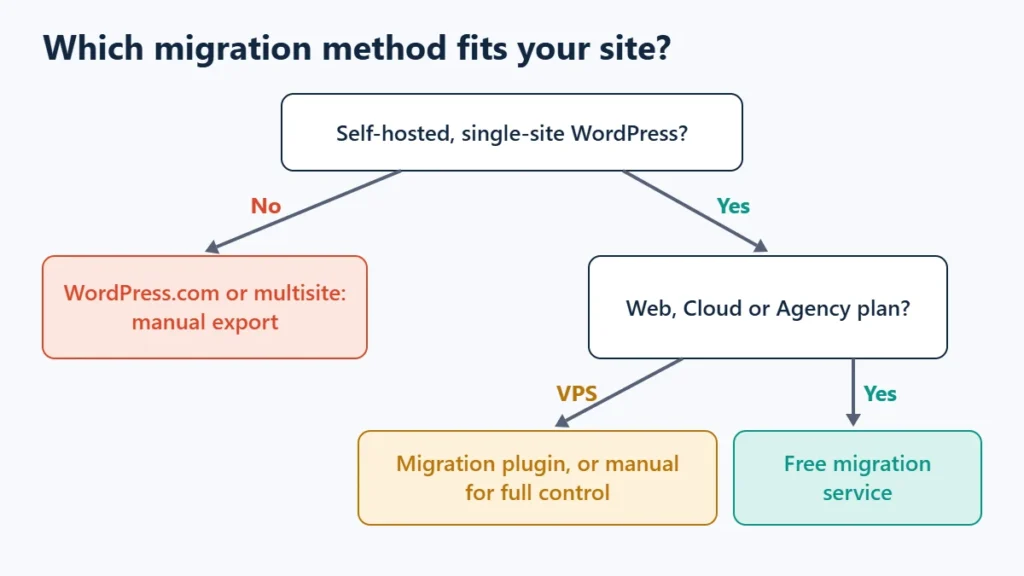
The easiest way to migrate WordPress to Hostinger is its free migration service: you submit a request from the hosting dashboard, Hostinger’s team copies the site, and you test it before moving your domain. It covers self-hosted, single-site WordPress on Web, Cloud and Agency plans. If you are on a VPS, or moving from WordPress.com or a multisite network, use a plugin or a manual migration instead.
Whichever method you use, the order matters more than the tool: copy the site, test the copy, and only then point your domain. Keep the old hosting active until you have confirmed everything works, including email, which is not part of the migration.
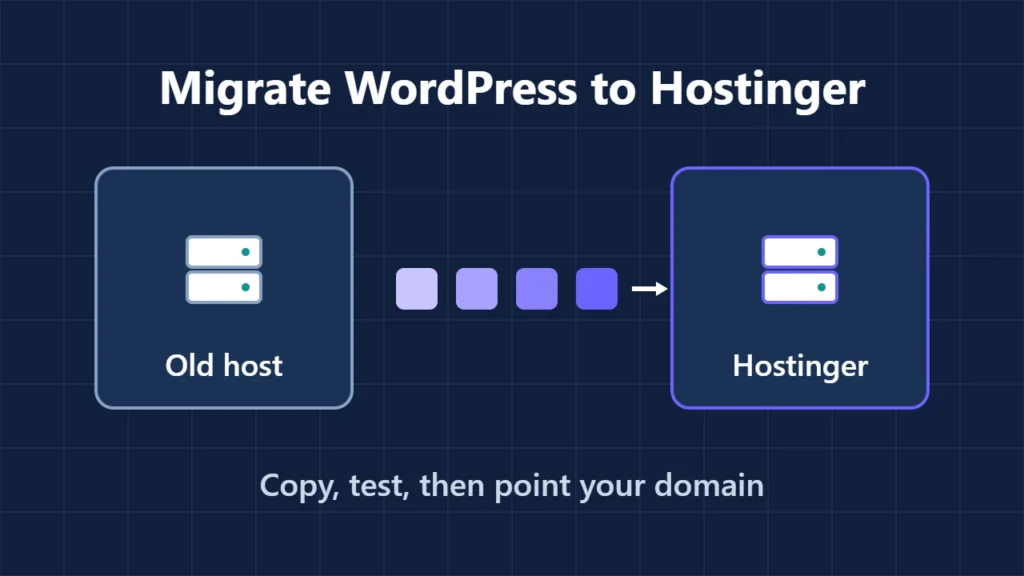
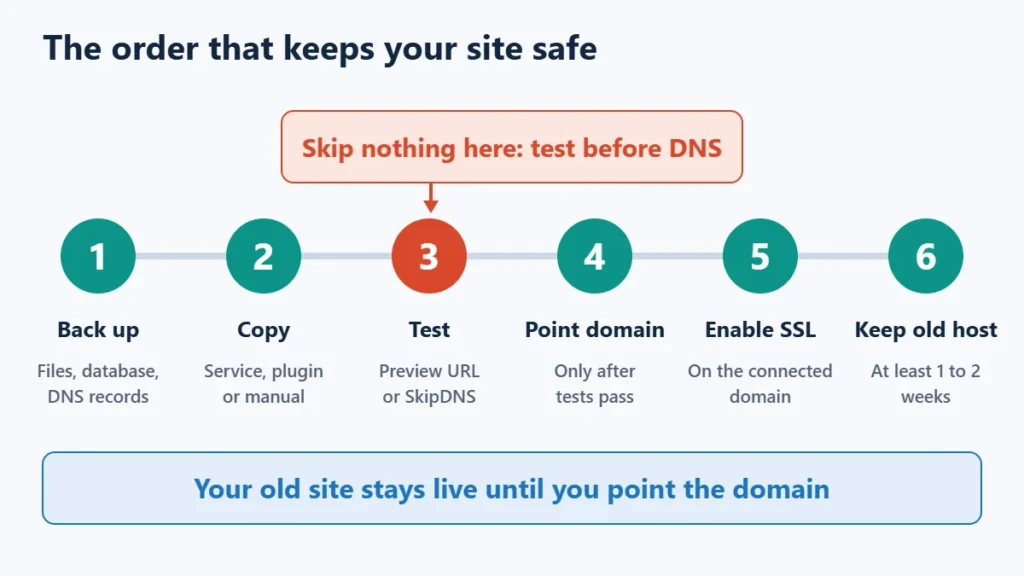
Table of Contents
- 1Which Migration Method Should You Use?
- 2Before You Start
- 3Method 1: Hostinger’s Migration Service
- 4Method 2: Use a Migration Plugin
- 5Method 3: Migrate Manually
- 6Test the Copy Before You Touch DNS
- 7Point Your Domain, and Don’t Lose Your Email
- 8After the Move
- 9If Something Goes Wrong
- 10Not on Hostinger Yet?
- 11Frequently Asked Questions
- Is Hostinger’s WordPress migration free?
- How long does a migration to Hostinger take?
- Will my site go down during the migration?
- Can Hostinger migrate a WordPress.com site?
- Does my email move with the website?
- Will migrating affect my SEO?
Which Migration Method Should You Use?
| Method | Best for | What you need | Main limit |
|---|---|---|---|
| Hostinger migration service | Most self-hosted sites | WordPress admin login, or a files archive plus .sql export | Web, Cloud and Agency plans only. Queue can take up to 48 hours. |
| Migration plugin | VPS users, or doing it yourself today | WordPress installed on both sides | Upload and server limits can stall large sites. |
| Manual migration | Large or unusual sites, and full control | File Manager or SFTP, phpMyAdmin, ideally SSH | Most steps, most room for error. |
Before You Start
Fifteen minutes here prevents most migration problems:
- Take a full backup of files and database, and download it to your own computer. Do not rely on a backup that lives only at the host you are leaving.
- Write down your DNS records, especially MX, SPF, DKIM and any subdomains. You will need them if you change nameservers.
- Note your PHP version in Tools → Site Health → Info → Server, so you can match it first and update it safely later as a separate job.
- Lower your DNS TTL to around 300 seconds a day ahead, if your DNS provider allows it, so the final switch reaches visitors sooner.
- Plan a content freeze. Your old site stays live during the copy, so a new post, comment or WooCommerce order made after the copy will exist only on the old site. For a shop, schedule the move for a quiet period.
Method 1: Hostinger’s Migration Service
Hostinger says it transfers the site at no additional cost and that the original stays live throughout. Its requirements are a Web, Cloud or Agency plan (VPS plans are not eligible) and a self-hosted, single-site WordPress install.
- In the Hostinger dashboard, open Websites and start a migration (Add Website → Migrate Website, or Import site → Migrate from another host).
- Enter the URL of your current site and choose WordPress as the platform.
- Provide a WordPress admin username and password. The login path defaults to
/wp-admin, so change it if your login page has a custom address. - Choose the destination website and data centre, then review the summary and submit.
- Track progress under Websites → Migrations. Hostinger says this typically takes up to 48 hours depending on size and queue, and it emails you when finished.
If automated login is still blocked, use the upload option instead. It accepts a files archive (.zip, .tar, .tar.gz, .tgz, .7z or .gz) and a full .sql database export containing both schema and data.
Method 2: Use a Migration Plugin
Hostinger’s tutorial names three widely used free options, each with a different weakness:
- All-in-One WP Migration exports the site as one
.wpressfile. The free version imports up to your hosting plan’s upload limit. If your file is larger, upload it towp-content/ai1wm-backups/with File Manager and restore it from the plugin’s Backups screen. - Migrate Guru runs on external servers, which avoids upload limits and keeps the load off your source site.
- Duplicator packages the site as an archive and installer. It has no plugin-imposed size limit in the free version, but tight storage or processing limits on shared hosting can still stall it.
The general process is to install WordPress on Hostinger, add the same plugin on both sides, export from the old site and import on the new one. The import overwrites the destination site, so never run it on a site that already has content you want to keep.
Method 3: Migrate Manually
- Copy the files. Compress the WordPress root folder at your old host and upload it to the new site’s folder using File Manager.
- Export the database with phpMyAdmin (Export → Quick → SQL) or
mysqldump. - Create a new database and user under Databases → Management in the Hostinger dashboard.
- Import the database using phpMyAdmin. It accepts compressed files such as
.sql.gz. - Update
wp-config.phpwith the new database name, user, password and host. - If your address is changing, replace the old URL across the database. Do a dry run first:
wp search-replace 'https://old-domain.tld' 'https://new-domain.tld' --dry-runRemove --dry-run once the replacement count looks right. Use WP-CLI or a dedicated tool for this rather than a plain text find-and-replace on the SQL file. WordPress stores some settings as serialized PHP data, which records string lengths, and WP-CLI handles that safely. Keeping the same domain means you can skip this step entirely.
Test the Copy Before You Touch DNS
Hostinger recommends testing on the temporary preview URL it assigns, or with its SkipDNS tool against your hosting IP. This is the step people skip, and it is the only moment you can find problems while your visitors still see the working site.
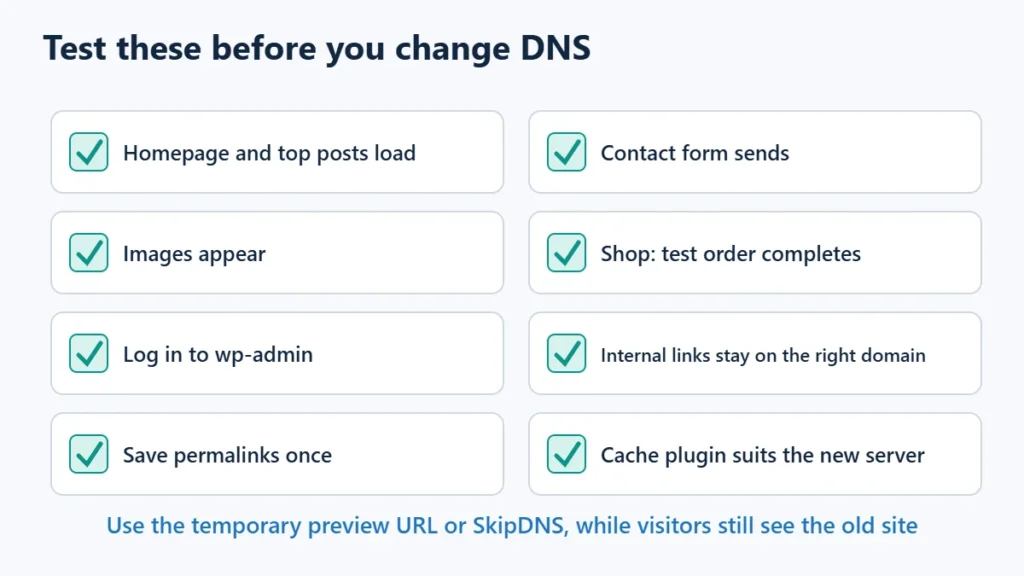
- Open the homepage and your highest-traffic posts, and check that images load.
- Log in to
/wp-adminand open Settings → Permalinks, then click Save to refresh the rewrite rules. - Submit a contact form and, for a shop, run a test order.
- Click internal links and confirm they do not send you to the old domain.
- Check that your cache plugin is the right one for the new server. If you moved from Apache or Nginx, your existing page cache may no longer be the best fit. The LiteSpeed Cache settings guide explains what to use on Hostinger’s servers.
Point Your Domain, and Don’t Lose Your Email
Only point the domain after the migration email arrives and your tests pass. There are two ways to do it, and this is where email most often breaks.
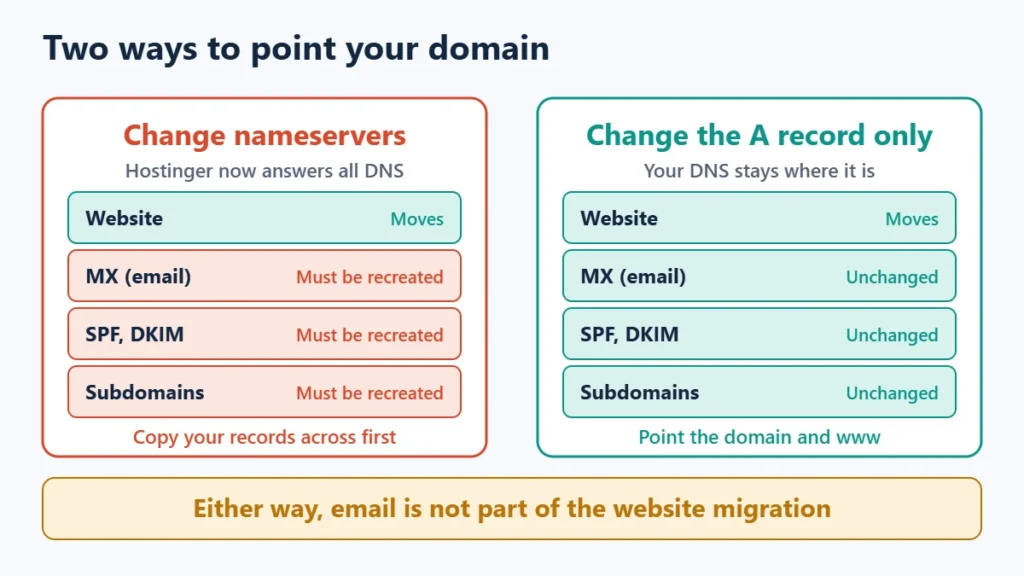
- Change the nameservers at your registrar. This is simple, but Hostinger then answers all DNS for the domain. Your MX, SPF and DKIM records must exist there first, or email can stop arriving.
- Change only the A record for the domain and
www. Your DNS stays where it is, so existing email routing is untouched.
Hostinger’s documentation states that email is not part of website migration. If your mailboxes were at your old host, set them up on Hostinger and use its Email Import tool to copy messages over IMAP. Do this before you cancel the old account.
Propagation usually takes a few hours and can take up to 24 to 48. During that window some visitors will reach the old server, so avoid publishing anything important. Then enable SSL for the connected domain.
After the Move
- Tidy up access. Delete the temporary administrator, re-enable 2FA, and change any password you shared.
- Remove old-host plugins such as a previous host’s caching or management tools, then purge your cache so visitors do not get stale pages.
- Check search basics. Confirm your sitemap still loads and that nothing is set to noindex. If you use Rank Math and the sitemap misbehaves, see how to fix it. With the same domain, your Search Console property carries on as before.
- Turn on backups at the new host and make one manual backup straight away.
- Keep the old host for at least a week or two before cancelling, so you have a fallback.
If Something Goes Wrong
| Problem | Likely cause | Fix |
|---|---|---|
| Migration request rejected or stuck | 2FA or anti-bot still active, or credentials changed | Confirm both are off and the login works, then reply on the request in the dashboard. Or upload a backup instead. |
| Links still go to the old domain | URLs not replaced in the database | Run wp search-replace with a dry run first. |
| “Error establishing a database connection” | Wrong details in wp-config.php | Recheck the database name, user, password and host. |
| Redirect loop after pointing the domain | A CDN and the server disagree about HTTPS | Use one CDN at a time. See Hostinger CDN vs Cloudflare. |
| Email stopped arriving | MX records not recreated | Add your mail records at the new DNS provider. |
| Visitors still see the old site | DNS propagation or a cached page | Wait out propagation, then purge caches. |
Not on Hostinger Yet?
Moving is a good moment to check that you are choosing a host for the right reasons. Look at the renewal price rather than the first-term offer, because that is what you will pay in the long run: the guide to real hosting renewal prices shows the difference. The Hostinger review covers what you get, and Hostinger vs SiteGround and Hostinger vs Cloudways are worth reading if you are undecided. The Hostinger coupon code page tracks the current discount.
If you have decided Hostinger fits, you can see the current Hostinger plans here. Affiliate link: I may earn a commission at no extra cost to you. Check that your plan is a Web, Cloud or Agency plan if you want to use the free migration service.
Frequently Asked Questions
Is Hostinger’s WordPress migration free?
Yes. Hostinger says its migration service has no additional cost on eligible Web, Cloud and Agency plans. VPS plans are not eligible.
How long does a migration to Hostinger take?
Hostinger says up to 48 hours depending on site size and queue. DNS propagation is separate and usually takes a few hours, up to 24 to 48.
Will my site go down during the migration?
Your original site stays live during the copy. If you test first and keep the old host active while DNS updates, visitors should keep reaching a working site. Point the domain only after the migration is complete.
Can Hostinger migrate a WordPress.com site?
Not through the automated flow. Hostinger says WordPress.com and WordPress multisite need a manual export.
Does my email move with the website?
No. Email is not part of website migration. Set up mailboxes separately and use Hostinger’s Email Import tool to copy messages over IMAP.
Will migrating affect my SEO?
Moving hosts while keeping the same domain and URLs does not change your addresses, so there is nothing to redirect. Problems usually come from accidents such as a noindex setting, missing pages or a slower server, which is why testing before you switch matters.

Affiliate disclosure: some links on this page are affiliate links, so I may earn a commission if you buy, at no extra cost to you.