
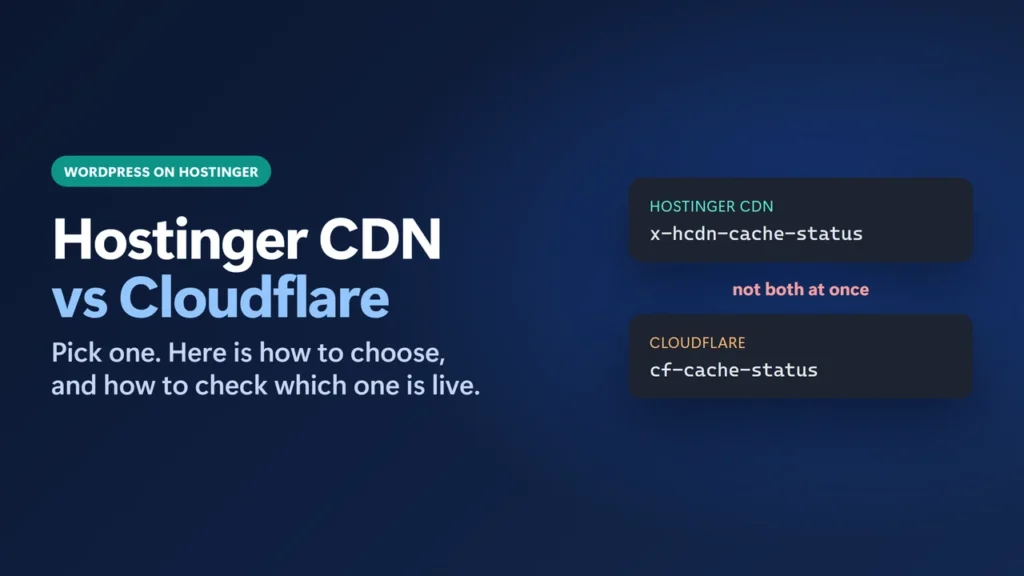
Hostinger CDN vs Cloudflare comes down to one rule: use one or the other, not both. Keep Hostinger CDN if your domain uses Hostinger’s nameservers and you want a CDN with no set-up; it is included in Hostinger web hosting and switches on from the dashboard. Choose Cloudflare if you want its DNS, firewall rules or HTML caching rules, or you run sites on more than one host. Hostinger says running Cloudflare in front of Hostinger CDN is not a supported setup.
Below: what each one does, how to check which one your site is using right now, and how to switch safely.
How I worked this out: I run WordPress sites on Hostinger with each setup. This site, harshilbarot.com, uses Hostinger CDN; justwebworld.com, another Hostinger-hosted WordPress site I manage, has Cloudflare in front instead. On 26 October 2026 I read the response headers of both and timed 20 requests to this site from Chrome in India. What each CDN offers comes from Hostinger’s help pages and documentation and from Cloudflare’s plans page and developer docs, checked the same day. I did not measure the two sites against each other for speed: they are different sites, so that would not be a fair test. This guide has no affiliate links.
Key takeaways
- Use one CDN. Hostinger says only one should be enabled at a time, and that Cloudflare in front of Hostinger CDN is not supported.
- Hostinger CDN costs nothing extra on Hostinger web hosting and is turned on under Websites → Dashboard → Performance → CDN.
- Cloudflare’s Free plan adds DNS, unmetered DDoS protection and a free managed WAF ruleset, but it does not cache HTML by default.
- Your response headers tell you which one is live: x-hcdn-cache-status for Hostinger CDN, cf-cache-status for Cloudflare.
- Switching to Cloudflare? Turn Hostinger CDN off first, or you risk redirect loops and SSL errors.
Table of Contents
- 1Hostinger CDN vs Cloudflare at a Glance
- 2Can You Use Hostinger CDN and Cloudflare Together?
- 3How to Check Which CDN Your Site Uses
- 4When to Choose Hostinger CDN
- 5When to Choose Cloudflare
- 6How to Switch from Hostinger CDN to Cloudflare
- 7Troubleshooting After a CDN Change
- 8Frequently Asked Questions
- Is Hostinger CDN free?
- Is Hostinger CDN better than Cloudflare?
- Can I use Cloudflare with Hostinger?
- Should I disable Hostinger CDN if I use Cloudflare?
- How do I know if Hostinger CDN is working?
- Does Cloudflare’s free plan cache WordPress pages?
Hostinger CDN vs Cloudflare at a Glance
| Hostinger CDN | Cloudflare (Free plan) | |
|---|---|---|
| Cost | Included in Hostinger web hosting, Cloud and Agency plans; not on VPS | $0; Automatic Platform Optimization (APO) for WordPress is a $5/month add-on |
| Set-up | A switch in the Hostinger dashboard | Add the site in Cloudflare, change nameservers at your registrar, check DNS records |
| Nameservers | Hostinger’s nameservers | Cloudflare’s nameservers |
| HTML pages | Docs say PHP pages are never CDN-cached (but see below) | Not cached by default; needs a cache rule or APO |
| Security | DDoS resilience, a threat-score challenge, IP and country blocking, a TLS 1.3-only option | Unmetered DDoS protection, Free Managed Ruleset (WAF), simple bot protection |
| Images | WebP conversion and smart image sizing | Not compared here |
| Clearing the cache | Flush cache (whole site) | Purge from the Cloudflare dashboard, or automatically from LiteSpeed Cache |
| Network | No location count published | Cloudflare lists more than 300 cities |
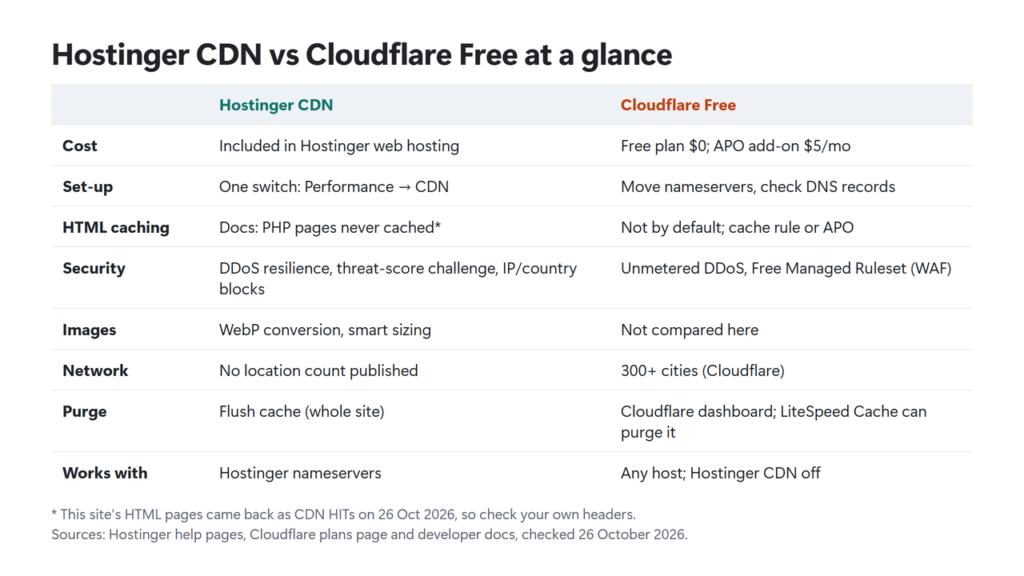
Hostinger’s own pages disagree slightly on which plans include the CDN: its support article says all web hosting plans plus Cloud and Agency, while its developer docs say Premium and higher. Premium was the cheapest web hosting plan on Hostinger’s site on 26 October 2026, so in practice both point the same way, but check your own dashboard. Since August 2026 Hostinger switches the CDN on automatically for eligible web hosting sites and emails the owner first.
Can You Use Hostinger CDN and Cloudflare Together?
No, not in the usual “Cloudflare in front” way. Hostinger’s help page on this exact question says running Cloudflare in front of Hostinger CDN is not a supported setup, and that it rate-limits traffic it confirms is passing through both. The problems it lists are redirect loops from conflicting HTTPS rules, stale content from two caches, and the wrong visitor IP addresses in analytics and security tools.
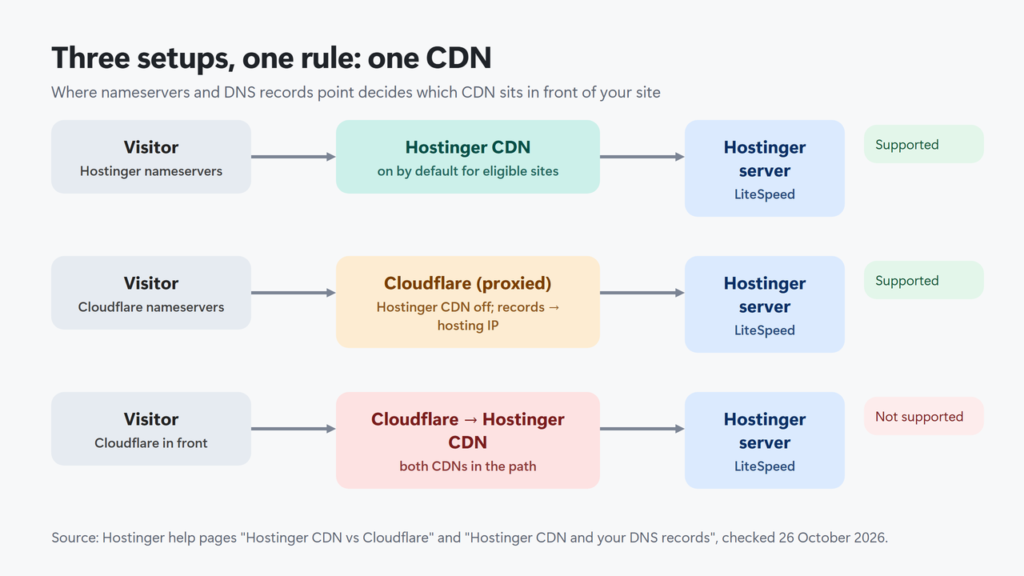
This is a common way to end up with both by accident. Hostinger’s comparison page notes that a domain on Cloudflare nameservers can still send traffic through Hostinger CDN if its DNS records point at Hostinger’s CDN. While Hostinger CDN is on, your A, AAAA and www records point to the CDN instead of your server, so if Cloudflare copies those records when you add the site, Cloudflare ends up in front of Hostinger CDN. When you move to Cloudflare, make sure the records there point to your hosting server’s IP address.
How to Check Which CDN Your Site Uses
You do not need dashboard access for this. Open your site in a private window, press F12, go to the Network tab, reload, click the first request and read the Response Headers. Or run this in a terminal:
curl -sIL https://example.com/ | grep -iE "server|x-hcdn|cf-cache-status|x-litespeed-cache"If curl returns 403 Forbidden, the site’s protection is blocking the command line (this site did that to my curl GET requests); use the browser method instead. On Windows, run the command in PowerShell or Git Bash, or drop the grep part and read the output.
| You see | It means |
|---|---|
x-hcdn-cache-status and x-hcdn-request-id | Hostinger CDN is serving the site |
cf-cache-status and cf-ray | Cloudflare is proxying the site |
| Both in the same response | Two CDNs stacked, which Hostinger does not support |
| Neither | No CDN on the page request (it may still serve images from one) |
Here are real responses from my two sites on 26 October 2026:
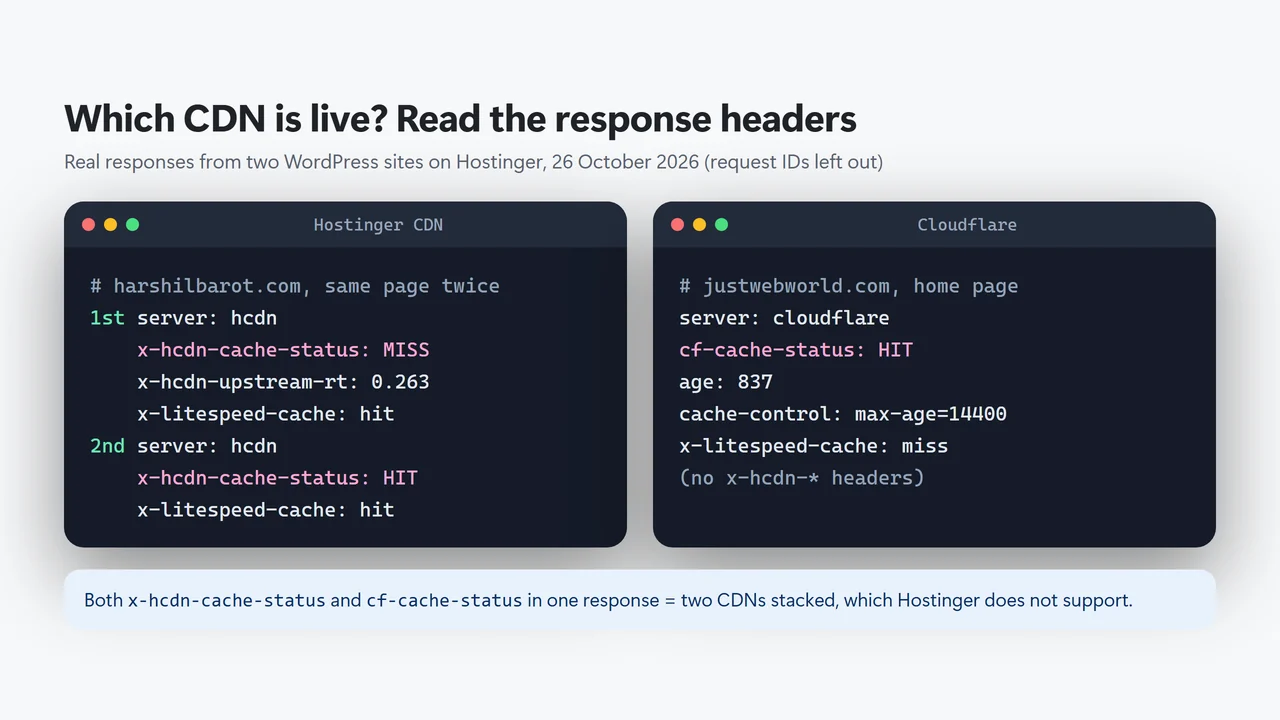
What the headers showed. On this site, the first request for a page came back x-hcdn-cache-status: MISS with x-litespeed-cache: hit (the CDN fetched LiteSpeed’s cached copy from the server), and the same page 1.5 seconds later came back HIT from the same CDN edge. On justwebworld.com, Cloudflare answered with cf-cache-status: HIT and an age of 837 seconds, and there were no Hostinger CDN headers. That site has a Cloudflare rule that caches HTML; without one, Cloudflare’s docs say a normal WordPress page shows DYNAMIC.
x-hcdn-cache-status on your own pages rather than assuming either way.When to Choose Hostinger CDN
- Your domain already uses Hostinger’s nameservers and you do not want to move DNS.
- You want no set-up. It is one switch, and it may already be on.
- You want image help without a plugin: WebP conversion and smart sizing are in its settings.
- You prefer one support desk. Hosting, DNS and CDN problems all go to Hostinger.
To turn it on or off: Hostinger dashboard → Websites → Dashboard next to your site → Performance → CDN. The same page has Flush cache (clears the CDN’s copies for the whole site) and Development mode (bypasses the CDN cache while you test changes). Hostinger notes that Development mode only affects the CDN; your server and plugin caches still apply. My Hostinger review covers Hostinger’s plans in more detail.
When to Choose Cloudflare
- You want Cloudflare’s DNS and security tools, such as the free managed WAF ruleset and your own firewall (WAF) rules.
- You want HTML cached at the edge with your own rules, through a Cache Rule or the paid APO add-on for WordPress.
- You run sites on several hosts and want one dashboard for all of them.
- You are on a Hostinger VPS, where Hostinger CDN is not included.
Hostinger says Cloudflare’s DNS, CDN, firewall and Universal SSL work on all its hosting plans. There is no one-click Cloudflare integration in the Hostinger dashboard; you connect the domain yourself by changing nameservers.
How to Switch from Hostinger CDN to Cloudflare
- Turn Hostinger CDN off first (Performance → CDN → Disable). Hostinger warns that skipping this step can cause redirect loops and SSL errors during the change.
- Add the site in Cloudflare and check the imported DNS records. Make sure the A, AAAA and www records point to your Hostinger server’s IP, not to Hostinger’s CDN, and re-add anything missing, such as email (MX) and DKIM records.
- Change the nameservers at your domain registrar to the two Cloudflare gives you. Hostinger’s guide allows up to 24 hours for the change.
- Check the SSL/TLS mode in Cloudflare and use Full (strict) if your Hostinger SSL certificate is valid. Cloudflare strongly recommends Full or Full (strict); in Flexible mode, the connection from Cloudflare to your server is not encrypted.
- Check the headers: you should now see
cf-cache-statusand nox-hcdn-*headers.
If you use LiteSpeed Cache, its CDN → Cloudflare tab can connect to your Cloudflare account with an API token, so you do not need a separate Cloudflare plugin (unless you use APO, which Cloudflare says needs its own WordPress plugin). Turn on Clear Cloudflare cache there and Cloudflare is purged whenever LiteSpeed runs Purge All. My guide to purging LiteSpeed Cache explains which purge clears what.
Going the other way, from Cloudflare back to Hostinger CDN, means pointing the nameservers back to Hostinger first and then enabling the CDN.
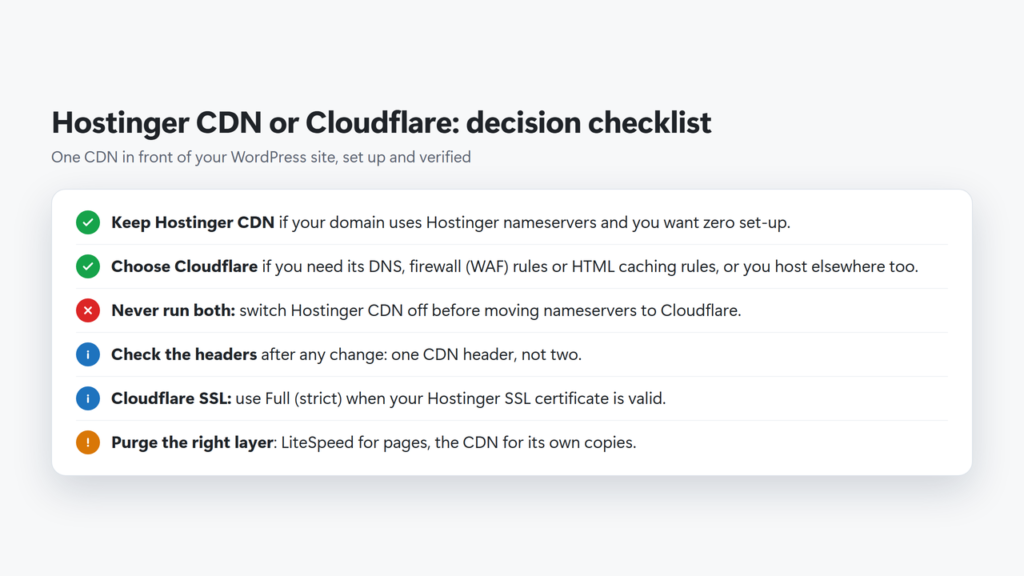
The checklist in text: keep Hostinger CDN if your domain uses Hostinger nameservers and you want no set-up; choose Cloudflare if you need its DNS, firewall (WAF) rules or HTML caching rules, or host elsewhere too; never run both, and switch Hostinger CDN off before moving nameservers; after any change, check that only one CDN header appears; with Cloudflare, use Full (strict) SSL when your certificate is valid; and purge the right layer, LiteSpeed for pages and the CDN for its own copies.
Troubleshooting After a CDN Change
| Problem | Likely cause | Fix |
|---|---|---|
| Too many redirects | Two CDNs, or conflicting HTTPS rules | Turn one CDN off; in Cloudflare check the SSL mode |
| Both CDN headers in one response | Cloudflare in front of Hostinger CDN | Disable Hostinger CDN and point the A, AAAA and www records in Cloudflare to your hosting IP |
| Old page after an update | A cached copy in the page cache or the CDN | Purge LiteSpeed, then the CDN; check the headers again |
| Email stopped after moving to Cloudflare | MX or DKIM records not copied | Re-add them in Cloudflare DNS |
| Every page shows cf-cache-status: DYNAMIC | Cloudflare does not cache HTML by default | Normal; add a cache rule or APO only if you need it |
If LiteSpeed always shows a miss behind either CDN, the page cache itself needs fixing; my guide to x-litespeed-cache: miss walks through it, and my LiteSpeed Cache settings guide shows how this site’s cache is set up. If you are comparing paid CDNs instead, my BunnyCDN review covers a pay-as-you-go option. To see what a CDN hit saves compared with your server, my guide on how to reduce TTFB in WordPress times each cache layer on this site.
Frequently Asked Questions
Is Hostinger CDN free?
It costs nothing extra. Hostinger says the CDN is part of the hosting plan on its web hosting, Cloud and Agency plans. VPS plans do not include it.
Is Hostinger CDN better than Cloudflare?
Neither is better for every site. Hostinger CDN is simpler and needs no DNS change; Cloudflare gives you its DNS, firewall rules and HTML caching rules. Pick based on the features you need, not on a speed claim.
Can I use Cloudflare with Hostinger?
Yes. Hostinger supports Cloudflare’s DNS, CDN, firewall and Universal SSL on all its hosting plans. Turn Hostinger CDN off before you move the nameservers to Cloudflare.
Should I disable Hostinger CDN if I use Cloudflare?
Yes. Hostinger says only one CDN should be enabled at a time, and that Cloudflare in front of Hostinger CDN is not a supported setup.
How do I know if Hostinger CDN is working?
Check the response headers of your page. An x-hcdn-request-id header shows the response came through Hostinger CDN, and x-hcdn-cache-status shows HIT, MISS or another status.
Does Cloudflare’s free plan cache WordPress pages?
Not by default. Cloudflare caches files such as images, CSS and JavaScript; to cache HTML you need a cache rule or the paid Automatic Platform Optimization add-on.