To purge LiteSpeed Cache in WordPress, hover over the LiteSpeed diamond icon in the admin toolbar and click Purge All. To clear only one page, open that page while logged in and choose Purge this page – LSCache from the same menu. For anything more specific, go to LiteSpeed Cache → Toolbox → [1] Purge.
This guide shows each method with real screenshots from this site, explains what every purge button actually clears, and what to do when old content still shows after a purge.
How I worked this out: the screenshots come from this site’s dashboard on 23 October 2026 (LiteSpeed Cache 7.9.2). The descriptions of what each button clears come from the plugin’s own text, LiteSpeed’s documentation and the 7.9.2 source code. I have used Purge All on this site after publishing changes; I did not press Empty Entire Cache for this guide.
Key takeaways
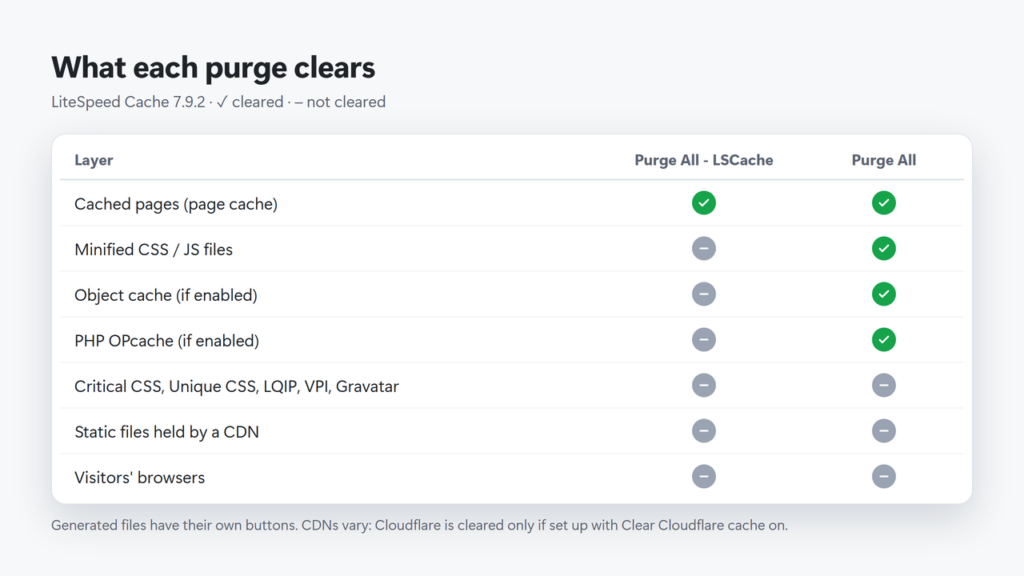
- Purge All clears the page cache and CSS/JS files, plus the object cache and OPcache if you use them. It keeps Critical CSS, Unique CSS, LQIP, VPI and Gravatar files.
- Purge All – LSCache clears only cached pages, which is usually all you need after a content change.
- Empty Entire Cache clears everything in the server cache for this site, including other web apps on it; LiteSpeed says to use it only when things are cached incorrectly.
- A purge does not clear your browser, and it may not clear a CDN. Test in a private window, and clear the CDN in its own dashboard if old content persists.
- LiteSpeed Cache already purges the post and related pages automatically when you publish or update it.
Table of Contents
- 1What a Purge Actually Clears
- 2Method 1: The Admin Toolbar (Fastest)
- 3Method 2: The Toolbox Purge Tab (Most Control)
- Purge specific URLs or posts
- 4Method 3: WP-CLI (for Developers)
- 5You Often Don’t Need to Purge at All
- 6Still Seeing Old Content After a Purge?
- 7Which Purge Do I Need?
- 8Frequently Asked Questions
- How do I clear LiteSpeed Cache in WordPress?
- What is the difference between Purge All and Purge All – LSCache?
- Is Empty Entire Cache safe?
- Does purging LiteSpeed Cache clear Cloudflare?
- How do I purge one page in LiteSpeed Cache?
- Can I purge LiteSpeed Cache from the command line?
What a Purge Actually Clears
LiteSpeed Cache keeps several different caches. Knowing which one is stale tells you which button to press, and avoids clearing more than you need.
Method 1: The Admin Toolbar (Fastest)
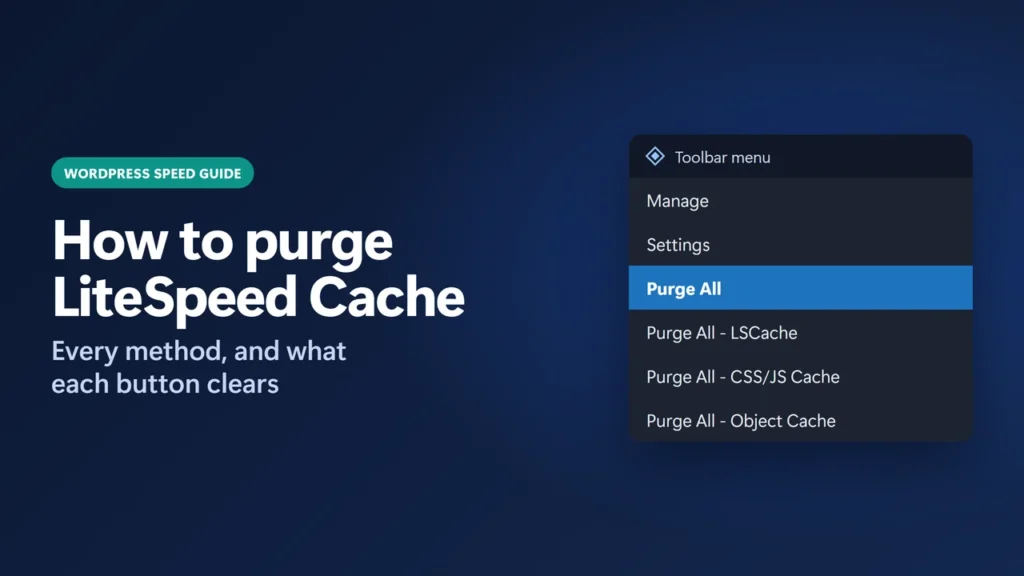
When you are logged in as an administrator, a LiteSpeed diamond icon appears in the black toolbar at the top of the screen. Hover over it to open this menu:
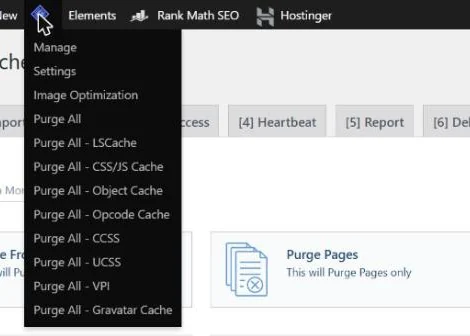
- Purge All: the broad clear-out (see the table below for exactly what it covers).
- Purge All – LSCache: cached pages only.
- Purge All – CSS/JS Cache: the minified CSS and JavaScript files the plugin creates, plus all cached pages so they rebuild with the new files.
- Purge All – Object Cache and Opcode Cache: shown when those caches are in use.
- CCSS, UCSS, VPI, Gravatar: generated files for features you have switched on.
On the front end of your site the same menu also offers Purge this page – LSCache, the quickest way to refresh a single post after an edit.
Method 2: The Toolbox Purge Tab (Most Control)
Go to LiteSpeed Cache → Toolbox and open the [1] Purge tab. Each button describes what it removes:
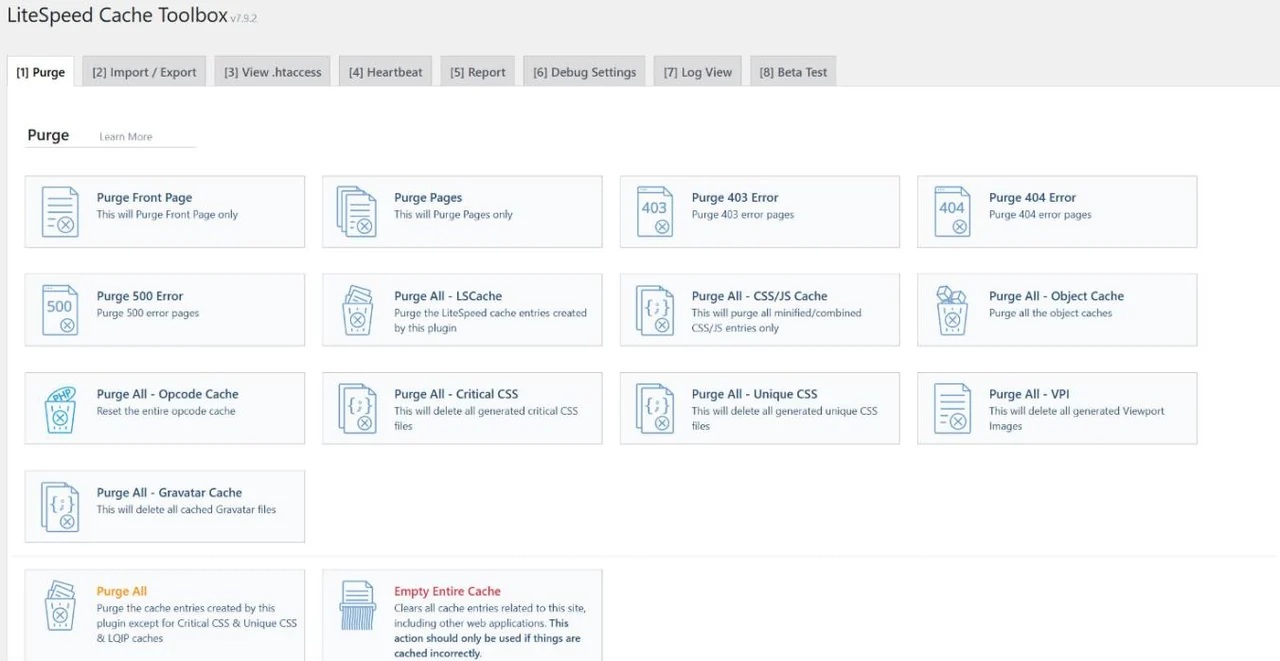
| Button | What it clears | Use it when |
|---|---|---|
| Purge Front Page / Purge Pages | Only the home page, or only Pages | Only the home page or a static Page shows old content |
| Purge 403 / 404 / 500 Error | Cached error pages | You fixed a broken page that was cached as an error |
| Purge All – LSCache | All cached pages created by the plugin | Most content or design changes |
| Purge All – CSS/JS Cache | Minified/combined CSS/JS files, and all cached pages so they rebuild with the new files | You changed theme CSS or a script while CSS/JS minify or combine is on |
| Purge All | Page cache, CSS/JS, localized resources, and the object cache and OPcache if in use (plus Cloudflare if set up). Not Critical CSS, Unique CSS, LQIP, VPI or Gravatar. | After plugin or theme updates, or when unsure |
| Empty Entire Cache | Everything in the server’s cache for this site, including other web apps | Only if pages are cached incorrectly and Purge All did not help |
Purge All leaves Critical CSS, Unique CSS and LQIP alone on purpose: those files are generated by QUIC.cloud and cost credits to rebuild. The button’s own description lists only those three, but in the 7.9.2 code Purge All does not touch VPI or Gravatar files either. Each has its own button if you really need it gone.
Purge specific URLs or posts
At the bottom of the same tab, Purge By… lets you choose Category, Post ID, Tag or URL, enter one item per line and click Purge List. Here categories and tags are entered by slug (for example category-name), while WP-CLI below uses IDs. This only clears cached pages, which makes it ideal for fixing one stubborn URL without touching the rest of the site.
Method 3: WP-CLI (for Developers)
If you have SSH access, LiteSpeed Cache adds a litespeed-purge command to WP-CLI:
wp litespeed-purge all
wp litespeed-purge url https://example.com/sample-post/
wp litespeed-purge post_id 12 34
wp litespeed-purge category 3
Category and tag purges take IDs, not slugs. On a multisite network, all behaves like Empty Entire Cache.
You Often Don’t Need to Purge at All
LiteSpeed already purges related pages when you publish or update a post. By default it clears the front page, home page, pages, pages with a Recent Posts widget, and the author, monthly, category/tag and post-type archives. It also purges everything when you switch theme or change a menu. You can review these rules in Cache → [3] Purge; my LiteSpeed Cache settings guide explains the ones this site uses.
Two settings on the same tab are worth knowing. Purge All On Upgrade is off by default, so a plugin update does not trigger Purge All. Serve Stale is also off by default; the setting’s own description says “By design, this option may serve stale content.”
Still Seeing Old Content After a Purge?
- Your browser. It may be showing its own saved copy. Test in a private window.
- A CDN in front of the site. Cloudflare is only cleared by Purge All if the Cloudflare API is set up in LiteSpeed and Clear Cloudflare cache is switched on (it is off by default). Other CDNs work in their own way, so check yours. On this site, Hostinger‘s CDN once kept an old copy of a text file after a WordPress purge until the CDN cache was cleared in hPanel; I describe it in my llms.txt guide.
- Check the header. After a purge, the first logged-out request should show
x-litespeed-cache: missand the next onehit(it can already be a hit if LiteSpeed’s crawler re-cached the page first). If it never changes, see my guide to that header.
After Purge All, LiteSpeed confirms with “Purged all caches successfully.” Cached pages and any minified CSS/JS files are rebuilt the next time each page is visited, so the first visit to each page can be a little slower.
If you use a separate optimization plugin such as Perfmatters, remember it has no page cache of its own, so LiteSpeed’s purge is still the one that matters.
Which Purge Do I Need?
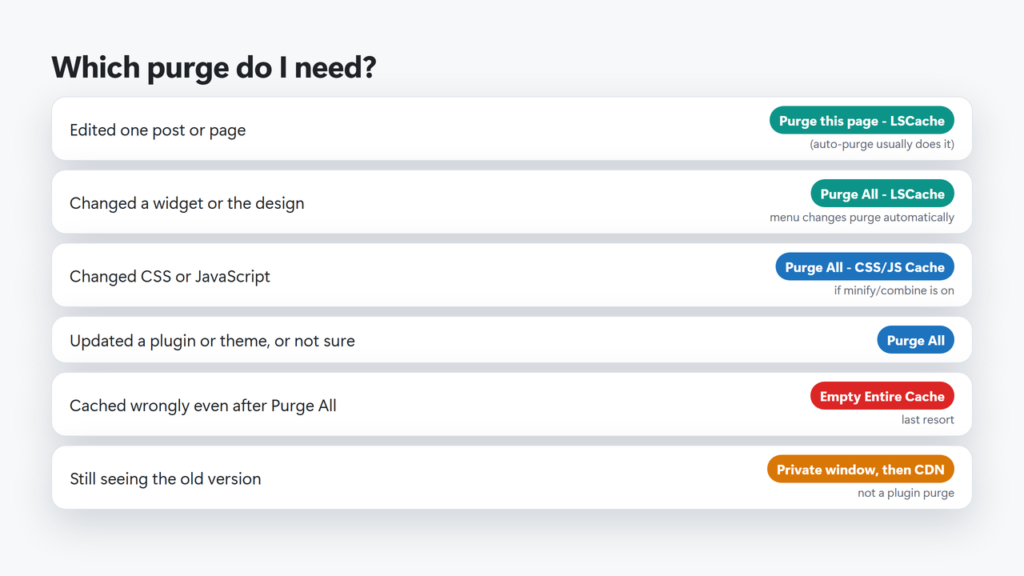
- Edited one post or page → Purge this page – LSCache (or nothing: auto-purge usually handles it).
- Changed a widget, a Customizer setting or the design → Purge All – LSCache (menu changes purge automatically).
- Changed CSS or JavaScript with CSS/JS minify or combine on → Purge All – CSS/JS Cache, then check the page. With those off, Purge All – LSCache is enough.
- Updated a plugin or theme, or not sure → Purge All.
- Pages are cached wrongly even after Purge All → Empty Entire Cache, as a last resort.
- Still old → clear your browser and your CDN.
Frequently Asked Questions
How do I clear LiteSpeed Cache in WordPress?
Hover over the LiteSpeed icon in the admin toolbar and click Purge All, or go to LiteSpeed Cache → Toolbox → Purge for more specific options.
What is the difference between Purge All and Purge All – LSCache?
Purge All – LSCache clears only cached pages. Purge All also clears CSS/JS files, localized resources, and the object cache and OPcache if you use them, but keeps Critical CSS, Unique CSS, LQIP, VPI and Gravatar files.
Is Empty Entire Cache safe?
It clears everything in the server’s cache for the site, including other web applications, and LiteSpeed warns it may cause heavy load. Use it only when Purge All has not fixed incorrectly cached pages.
Does purging LiteSpeed Cache clear Cloudflare?
Only if the Cloudflare API is configured in LiteSpeed Cache and Clear Cloudflare cache is switched on. Other CDNs need to be cleared in their own dashboards.
How do I purge one page in LiteSpeed Cache?
Open the page while logged in and choose Purge this page – LSCache from the toolbar menu, or use Toolbox → Purge → Purge By… with the page URL.
Can I purge LiteSpeed Cache from the command line?
Yes. With WP-CLI, run wp litespeed-purge all, or purge a single URL with wp litespeed-purge url followed by the address.