
To update the PHP version in WordPress, you change it in your hosting control panel, not inside WordPress itself. On Hostinger, open Websites → Dashboard for your site, go to PHP Configuration, choose the version and click Update. On cPanel hosts, open MultiPHP Manager, tick your domain, pick the version and click Apply. Before you switch, check your current version under Tools → Site Health → Info → Server, make sure your plugins and theme support the new version, and take a backup. WordPress recommends PHP 8.3 or newer.
Below: which version to choose, each step in detail, what to do if the site breaks, and why the version sometimes doesn’t seem to change.
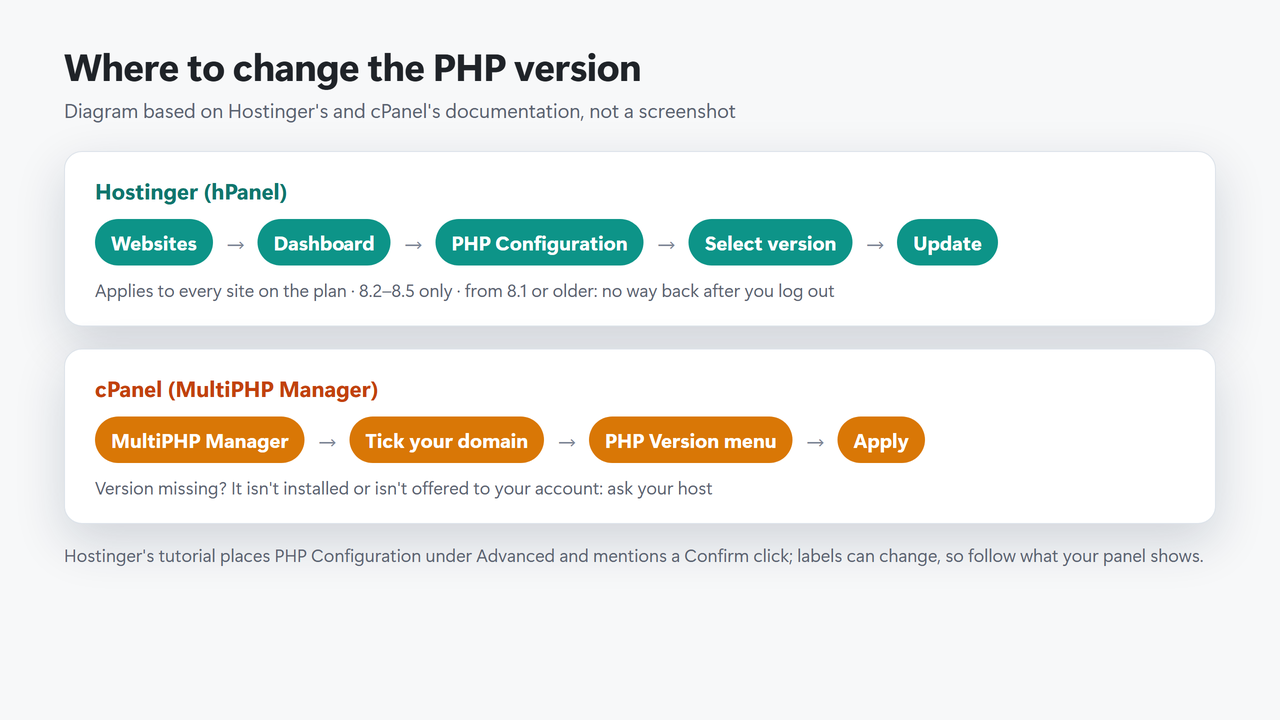
How I worked this out: this site, harshilbarot.com, runs WordPress 7.1.3 on Hostinger. On 28 October 2026 I read its PHP version in Site Health and listed the minimum PHP version that each active plugin and the theme declares. I did not switch PHP versions for this guide, and I could not capture the Hostinger control panel (it sits behind a login), so the hosting-panel steps come from Hostinger’s and cPanel’s own documentation and are shown as a labelled diagram, not screenshots. WordPress requirements and behaviour come from WordPress.org documentation and the WordPress core source code, and PHP support dates from php.net, all checked on 28 October 2026. This guide has no affiliate links.
Key takeaways
- WordPress recommends PHP 8.3 or newer. It still runs on 7.4, but WordPress.org warns those older versions are end of life.
- On 28 October 2026, PHP 8.4 and 8.5 were in active support, 8.3 and 8.2 received security fixes only (8.2 until 31 December 2026), and 8.1 and older were end of life.
- Check your plugins’ and theme’s “Requires PHP” values and back up before switching.
- On Hostinger, the PHP version applies to every website on the hosting plan (except AI Builder sites). Moving up from a version it no longer offers (8.1 or older) is one-way once you log out.
- If the version won’t change, look for an .htaccess handler that overrides it, and remember that php -v over SSH shows the plan’s version, not your site’s.
Table of Contents
- 1Which PHP Version Should WordPress Use?
- 2Step 1: Check Your Current PHP Version
- 3Step 2: Check That Your Plugins and Theme Support It
- 4Step 3: Back Up, and Test on Staging if You Can
- 5Step 4: Change the PHP Version in Your Hosting Panel
- Hostinger (hPanel)
- cPanel (MultiPHP Manager)
- Other hosts
- 6Step 5: Test Your Site After the Change
- 7If Your Site Breaks After a PHP Update
- 8PHP Version Not Changing? Check These
- 9Frequently Asked Questions
- What PHP version does WordPress recommend?
- Can I update PHP from the WordPress dashboard?
- Will updating PHP break my WordPress site?
- How do I change the PHP version on Hostinger?
- Why is my PHP version not changing?
- Is PHP 8.5 safe to use with WordPress?
Which PHP Version Should WordPress Use?
WordPress.org’s requirements page says: “To run WordPress, it’s recommended your host supports: PHP version 8.3 or greater.” It adds that WordPress “also works with PHP 7.4+”, but that those versions “have reached their official End Of Life and may expose your site to security vulnerabilities.” WordPress’s core handbook lists WordPress 7.0 and 7.1 as supporting PHP 7.4 through 8.5; 7.0 dropped PHP 7.2 and 7.3.
What matters for security is whether PHP itself still gets fixes. This is php.net’s schedule as of 28 October 2026:
| PHP version | Status on 28 Oct 2026 | Security fixes until |
|---|---|---|
| 8.5 | Active support | 31 Dec 2029 |
| 8.4 | Active support (until 31 Dec 2026) | 31 Dec 2028 |
| 8.3 | Security fixes only | 31 Dec 2027 |
| 8.2 | Security fixes only | 31 Dec 2026 |
| 8.1 | End of life | Ended 31 Dec 2025 |
| 7.4 | End of life | Ended 28 Nov 2022 |
My recommendation: run at least PHP 8.3, and use 8.4 or 8.5 if your plugins and theme support them, because those get bug fixes as well as security fixes. If you are on 8.2, plan the move now, since its security support ends on 31 December 2026. Hostinger says the same in its help centre: “PHP 8.2 stops receiving security fixes on December 31, 2026.”
Step 1: Check Your Current PHP Version
In WordPress, go to Tools → Site Health, open the Info tab, expand Server and find PHP version. The Status tab also runs a PHP check. On this site it passed:
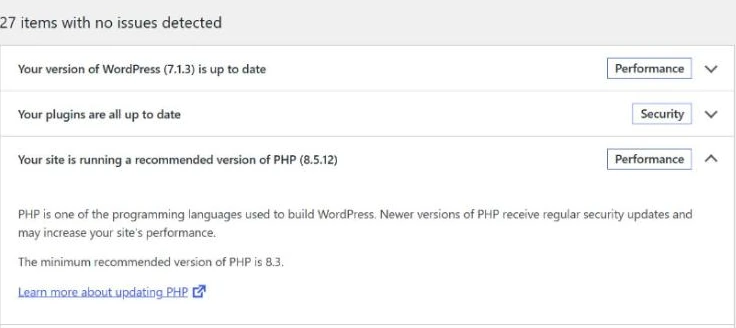
If your version is old, WordPress shows a warning instead, such as “Your site is running on an older version of PHP” or, for unsupported versions, “Your site is running on an outdated version of PHP”, and the dashboard may show a PHP Update Recommended or PHP Update Required box. On Hostinger you can also check from the control panel: Websites → Dashboard, then search for PHP Info in the sidebar.
One thing I noticed while researching this guide: this site’s PHP version read 8.5.11 during a security check on 25 October 2026 and 8.5.12 on 28 October, and I hadn’t changed anything. Hostinger’s help page says it “applies PHP patch releases automatically, so you only choose the PHP version, not a specific patch”. That fits what I saw, although I didn’t watch the update happen.
Step 2: Check That Your Plugins and Theme Support It
Plugins and themes can declare the oldest PHP version they work with in a Requires PHP header (in the plugin’s main file, or the theme’s style.css). Here is what this site’s active plugins and theme declared on 28 October 2026:
| Plugin or theme | Requires PHP |
|---|---|
| Hostinger Tools 3.0.80 | 8.1 |
| HB Core 1.6.10, Site Kit by Google 1.190.0, GeneratePress 3.6.1 (theme) | 7.4 |
| GenerateBlocks 2.5.0, GP Premium 2.5.6 | 7.2 |
| Wordfence Security 9.0.2 | 7.0 |
| LiteSpeed Cache 7.9.2, Rank Math SEO 1.0.280, Rank Math SEO PRO 3.0.124, HB Affiliate Links 1.0.3 | Not declared |
So the highest minimum here is 8.1, well below the 8.5 the site runs. But a minimum is not a promise that a plugin works on the newest PHP. Before a big jump, check each plugin’s changelog for notes on the version you’re moving to, and test on a staging copy.
If PHP is too old for a plugin, WordPress tells you. It refuses to activate it (“Current PHP version … does not meet minimum requirements”), and the Updates screen says a new version “does not work with your version of PHP”. WordPress also skips automatic updates in that case. So an old PHP version can quietly stop your plugins from updating, which is another reason to move up.
Step 3: Back Up, and Test on Staging if You Can
WordPress.org is honest about the risk: “Updating your PHP version should not be a problem, but we can’t guarantee that it’s not.” So make a backup that includes both your files and your database. On Hostinger: Files → Backups, then Generate new backup. Update WordPress, your theme and your plugins first too, as WordPress.org advises.
If your host offers staging, test there first. Hostinger’s tutorial notes that when a staging site runs on a subdomain, you can change the PHP version for that subdomain only and test it without touching the live site. Hostinger sets a subdomain’s version with the .htaccess handler shown further down, which “doesn’t include PHP extensions and options”, so a clean staging test is a good sign rather than a guarantee.
Turn on error logging now, before you switch. Hostinger says errors “will start being registered from the moment you enable error logging onward”, so if you wait until something breaks, the first errors are lost.
Step 4: Change the PHP Version in Your Hosting Panel
Hostinger (hPanel)
These steps are for Hostinger’s hosting plans; on a Hostinger VPS you update PHP on the server yourself.
- Go to Websites and click Dashboard next to your site.
- Open PHP Configuration (Hostinger’s tutorial lists it under Advanced).
- Select the PHP version and click Update; the tutorial also mentions a Confirm step.
- Wait a few minutes: Hostinger says the version “will be updated within a couple of minutes.”
Know these Hostinger rules before you click:
- It changes every site on the plan. “The selected version will apply to all the websites added to your hosting plan (except for websites created using Hostinger AI Builder).”
- Only PHP 8.2 to 8.5 can be selected; versions below 8.2 are no longer available, and new websites get 8.3 by default.
- Moving up from 8.1 or older is one-way. For existing websites on older PHP versions, Hostinger says you can upgrade, but downgrading “is not possible (except within the same login session if an issue occurs)”. Its help page doesn’t say whether you can later move back between 8.2 and 8.5, so test your site straight after the change, before you log out.
cPanel (MultiPHP Manager)
- Open MultiPHP Manager in cPanel.
- Select the checkbox for your domain.
- Choose the version from the PHP Version menu and click Apply.
If the version you want isn’t listed, cPanel’s docs say it is “either not installed on the server or is not available for your account”, so ask your host. Some hosts also hide MultiPHP Manager entirely. The inherit option means the domain uses the server’s default version.
Other hosts
Most control panels have a similar setting, often called PHP version, PHP Configuration or PHP Manager. I haven’t checked other hosts’ panels for this guide, so search your host’s help centre for “change PHP version” or ask support. Managed WordPress hosts may handle PHP versions for you; my best managed WordPress hosting guide covers some of them.
Step 5: Test Your Site After the Change
- Open your homepage and a few key pages in a private window (logged out).
- Log in, open the dashboard, edit a post and save it.
- Test anything that takes input: contact forms, search, checkout.
- On Hostinger, repeat these checks for every website on the plan, because the new version applies to all of them.
- Re-check Tools → Site Health to confirm the new version is showing.
- Look at the error log. On Hostinger it’s in the .logs folder, in a file named
error_log_followed by your domain; Hostinger says it records PHP warnings, deprecation notices and notices once error logging is on (see Step 3).
On a staging copy you can also turn on WordPress debugging. Open wp-config.php, find the line define( 'WP_DEBUG', false ); and replace it with the three lines below, keeping them above the line that says “That’s all, stop editing!” (WordPress’s debugging guide says they must go before it). Don’t add a second WP_DEBUG line: a PHP constant keeps its first value, so debugging would stay off (I checked this on PHP 8.4). If your file has no WP_DEBUG line, just add the three lines there. WordPress then writes errors, including deprecated-function notices, to /wp-content/debug.log:
define( 'WP_DEBUG', true );
define( 'WP_DEBUG_LOG', true );
define( 'WP_DEBUG_DISPLAY', false );
Turn debugging off again when you’re done. WordPress’s own guide describes WP_DEBUG as a setting for development copies of a site.
If Your Site Breaks After a PHP Update
The usual sign is the message “There has been a critical error on this website.” WordPress’s Recovery Mode (built in since version 5.2) can catch a fatal error during a normal page load and email your admin address a special login link, with the subject “Your Site is Experiencing a Technical Issue”. Through that link, the faulty plugin or theme is paused “just for your admin session”, so you can log in and deactivate or update it, then click Exit Recovery Mode.
- Switch back first. Hostinger’s advice is to “switch back to the previous PHP version first to restore the site while you investigate”. If you moved up from a version Hostinger no longer offers (8.1 or older), it only allows that switch back within the same login session, which is why you should test right away.
- No recovery email? WordPress.org notes it can land in spam or be blocked. You can deactivate plugins by renaming their folders in
wp-content/pluginsover FTP or the file manager. - Find the culprit in the error log, update or replace it, then try the newer PHP version again.
- Restore your backup if nothing else works. A backup doesn’t change the PHP version, so WordPress.org advises asking your host “to restore the previous version of PHP you had running” first, then restoring the backup.
PHP Version Not Changing? Check These
| What you see | Likely cause | Fix |
|---|---|---|
| Site still shows the old version | An .htaccess handler in that folder overrides the plan’s version | Remove or update the handler (see below) |
php -v over SSH shows a different version | On Hostinger, it shows the plan’s version, not the site’s | Check in Site Health or PHP Info instead |
| Version number didn’t change after a security fix | Hostinger built the php2shell security fix into the version you already run (all plans except VPS) | Check the Build Date in PHP Info: Hostinger says October 21, 2026 or later means the fix is in |
| Changed a minute ago, nothing yet | The change takes a couple of minutes | Wait, then re-check Site Health |
| Can’t change it at all | Site built with Hostinger AI Builder, or the version isn’t offered | AI Builder sites are excluded; on cPanel ask your host |
On Hostinger, a block like this at the top of an .htaccess file sets the PHP version for that folder or subdomain, overriding the plan’s version (this is Hostinger’s own example, which forces PHP 7.4; Hostinger recommends “only PHP version 8.2 or higher”):
<FilesMatch ".(php4|php5|php3|php2|php|phtml)$">
    SetHandler application/x-lsphp74
</FilesMatch>
If you find one that you didn’t add on purpose, remove it or change the number (Hostinger’s handlers run from x-lsphp73 to x-lsphp85). Hostinger warns that this method “doesn’t include PHP extensions and options” and doesn’t recommend it for changing versions, so prefer the PHP Configuration page. On cPanel servers, the version is also written to .htaccess: with inherit, Apache uses the version in the first .htaccess file it finds in the domain’s folders, and an invalid version there makes it fall back to the server default. cPanel recommends setting the version only through MultiPHP Manager.
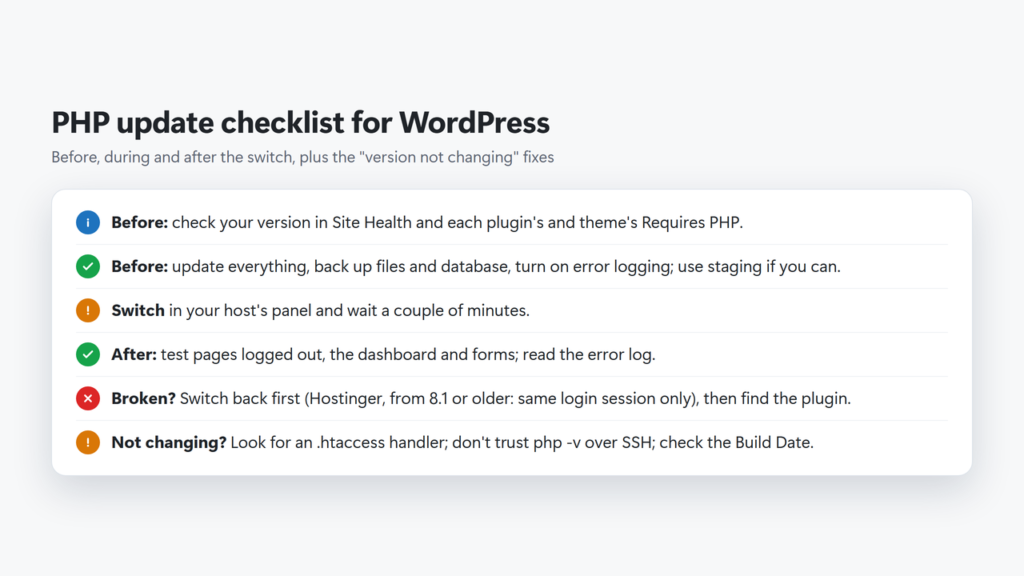
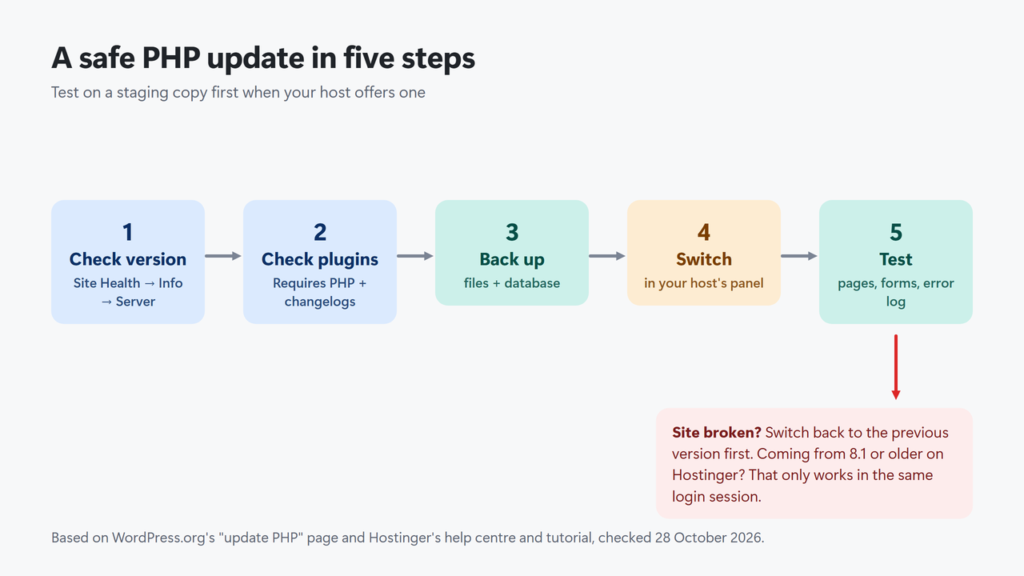
The checklist in text: before the change, check your current version in Site Health, check each plugin’s and the theme’s Requires PHP, update everything, back up files and database, and turn on error logging; test on staging if you can. Change the version in your hosting panel (Hostinger: PHP Configuration; cPanel: MultiPHP Manager) and wait a couple of minutes. After the change, test pages logged out, the dashboard and forms, and read the error log; if something breaks, switch back straight away (on Hostinger, a move back to 8.1 or older works only in the same login session). If the version won’t change, look for an .htaccess handler, don’t trust php -v over SSH, and check the Build Date for patch fixes.
Choosing a host? My Hostinger review covers Hostinger’s plans, and my best web hosting services list compares other hosts.
Frequently Asked Questions
What PHP version does WordPress recommend?
PHP 8.3 or greater, according to WordPress.org’s requirements page (checked 28 October 2026). WordPress still works with PHP 7.4 or newer, but versions before 8.2 no longer get security fixes from php.net.
Can I update PHP from the WordPress dashboard?
No. WordPress shows your PHP version in Tools → Site Health → Info → Server, but the version is set by your web host, so you change it in your hosting control panel or ask your host.
Will updating PHP break my WordPress site?
Usually not, but it can if a plugin or theme isn’t compatible. WordPress.org says it can’t guarantee there will be no problems, so back up first, check each plugin’s Requires PHP value and test on staging when you can.
How do I change the PHP version on Hostinger?
Go to Websites, click Dashboard next to your site, open PHP Configuration, choose the version and click Update. The change applies to every website on the plan and takes a couple of minutes.
Why is my PHP version not changing?
The most common causes are an .htaccess handler that overrides the version for that folder, checking with php -v over SSH (which shows the plan’s version on Hostinger), or not waiting the couple of minutes the change takes.
Is PHP 8.5 safe to use with WordPress?
WordPress’s core handbook lists PHP 8.5 as supported by WordPress 6.9 and later, and php.net gives it active support until 31 December 2027. This site runs WordPress 7.1.3 on PHP 8.5.12. Check that your own plugins support it first.