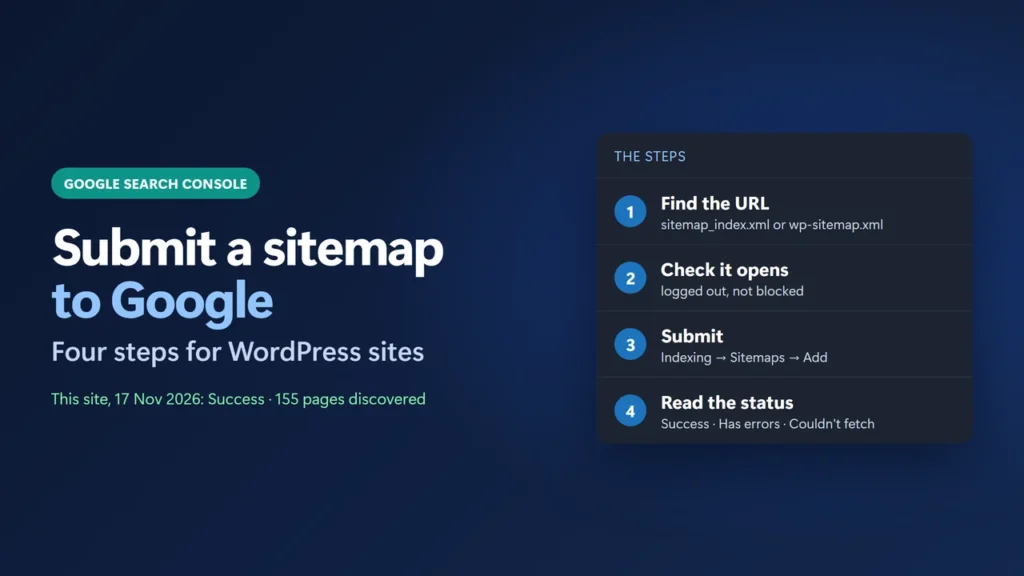
To submit a sitemap to Google Search Console, open your property, go to Indexing → Sitemaps, type your sitemap’s address in the Add a new sitemap box and click Submit. On WordPress the address is usually sitemap_index.xml if you use Yoast SEO or Rank Math, or wp-sitemap.xml if you use no SEO plugin. Google says it should fetch the sitemap immediately, and the report then shows a status: Success means it worked. You need owner permission on the property to do this.
This guide walks through each step, shows the real report for this site, and explains the parts most guides skip: which property to use, why “discovered” pages are not the same as indexed pages, and why deleting a sitemap from the report does not remove anything from Google.
Key takeaways
- Submit the sitemap index (one URL), not every child sitemap.
- In a URL-prefix property you type only the part after the domain, such as
sitemap_index.xml. - Google says submitting a sitemap is “merely a hint”. It helps discovery; it does not promise indexing.
- Also add a
Sitemap:line to robots.txt, so Bing and future Google crawls find it. - Google announced in June 2023 that its sitemap “ping” was being retired, and it no longer works. Resubmit only after big changes.
Table of Contents
- 1Before You Start
- 2Step 1: Find Your Sitemap URL
- 3Step 2: Check That Google Can Open It
- 4Step 3: Submit It in the Sitemaps Report
- 5Step 4: Read the Status
- Discovered pages is not the same as indexed pages
- 6Add the Sitemap to robots.txt Too
- 7Do You Need to Resubmit or Ping Google?
- 8Deleting a Sitemap Does Not Remove URLs
- 9Submit It to Bing as Well
- 10Troubleshooting Common Sitemap Errors
- Couldn’t fetch
- URL not allowed
- Has errors
- Discovered pages shows 0
- Where is the Sitemaps report in Google Search Console?
- What is my WordPress sitemap URL?
- How long does Google take to read a submitted sitemap?
- Should I submit each child sitemap separately?
- Does submitting a sitemap get my pages indexed?
- Do I need to resubmit my sitemap after every new post?
Before You Start
- A verified Search Console property. Google’s Sitemaps report help says: “You must have owner permissions on a property to submit a sitemap using the Sitemaps report.” If you are not an owner, ask one, or use the robots.txt method below.
- The right property. A URL-prefix property only covers URLs that start with that exact prefix, including
httpsandwww(Search Console Help, “Add a website property”). If your site lives athttps://www.example.com/, submit in that property, not inhttp://example.com/. A Domain property covers every subdomain and protocol. - A sitemap that loads. Open it in a private browser window. You should see XML or a styled list of links, not a 404 or a login page.
Step 1: Find Your Sitemap URL
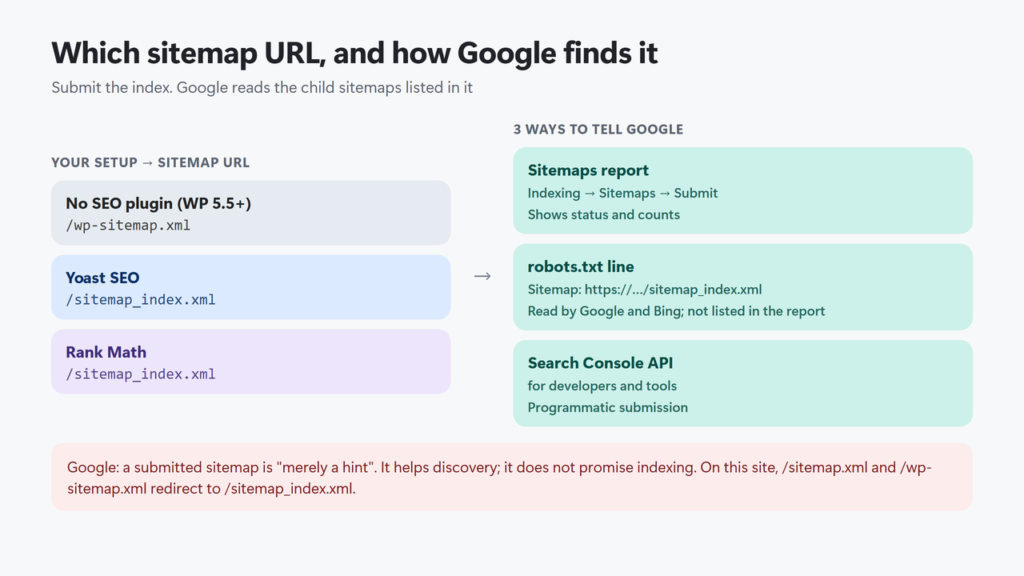
WordPress has built its own sitemap since version 5.5. SEO plugins such as Yoast SEO and Rank Math use their own sitemap instead. Open each address below on your site until one works:
| Your setup | Sitemap address |
|---|---|
| WordPress with no SEO plugin (5.5 or newer) | /wp-sitemap.xml |
| Yoast SEO | /sitemap_index.xml |
| Rank Math | /sitemap_index.xml |
| Another plugin or a custom site | Check the plugin’s settings, or the Sitemap: line in /robots.txt |
On this site, which runs Rank Math, both /sitemap.xml and /wp-sitemap.xml redirect (301) to /sitemap_index.xml. I checked this on 17 November 2026. That redirect is a good sign: it means only one sitemap is live on this site. Even so, submit the final address, sitemap_index.xml, not one that redirects.
A sitemap index is a list of sitemaps. Here it points to three child sitemaps: posts, pages and categories. Google says you can “submit that single index file”, and it then reads the children itself. Google’s limit is 50,000 URLs or 50 MB (uncompressed) per sitemap. WordPress’s own sitemap holds at most 2,000 entries per file and starts a new file after that, so even large sites stay under the limit.
Step 2: Check That Google Can Open It
Google’s own step before submitting is to “test that your sitemap is available to Google”. It must not sit behind a login. Three quick checks:
- Open the sitemap in a private window. A page full of links (or raw XML) is right.
- Open
yoursite.com/robots.txtand make sure noDisallowline blocks the sitemap. - In Search Console, paste the sitemap address into the URL Inspection box at the top and run Test live URL. Open Page availability and check that Crawl allowed? says Yes and Page fetch says Successful.
X-Robots-Tag: noindex header on its sitemaps by default, so the sitemap file itself does not show in search results. Be aware that Google’s Sitemaps help lists a noindex response header as one way to stop Google visiting a sitemap. On this site the header is there and Search Console still reads the sitemaps: status Success, with the child sitemaps last read on 16 and 17 November 2026. That is what I observed here, not a promise from Google. If your sitemap shows Couldn’t fetch, check this header too.Step 3: Submit It in the Sitemaps Report
- Open Google Search Console and pick your property from the menu at the top left.
- In the left menu, under Indexing, click Sitemaps.
- In Add a new sitemap, type the sitemap path. In a URL-prefix property the domain is already printed in front of the box, so type only
sitemap_index.xml(orwp-sitemap.xml). - Click Submit.
- Refresh the page. Your sitemap now has its own row under Submitted sitemaps.
Google’s help says “the sitemap should be fetched immediately”, but “it can take some time to crawl the URLs listed in a sitemap.” So a Success status can appear the same day, while the pages themselves are crawled later, on Google’s own schedule.
Step 4: Read the Status
| Status | What it means (Search Console Help) | What to do |
|---|---|---|
| Success | “The sitemap was loaded and processed successfully with no errors.” | Nothing. Check back after big site changes. |
| Has errors | “The sitemap could be fetched, but has one or more errors.” | Click the row to see which URLs or lines failed. |
| Couldn’t fetch | “The sitemap could not be fetched for some reason.” | Test the exact URL logged out; see Troubleshooting below. |
| Type: Unknown | The file “hasn’t been processed yet” or isn’t a known sitemap type. | Wait a little, then check the URL is really a sitemap. |
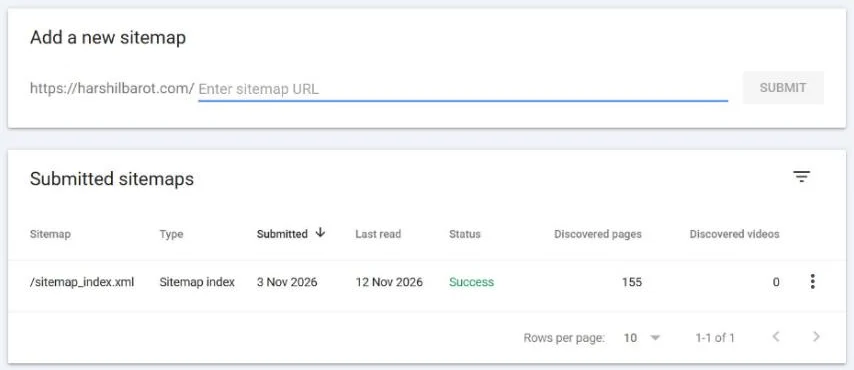
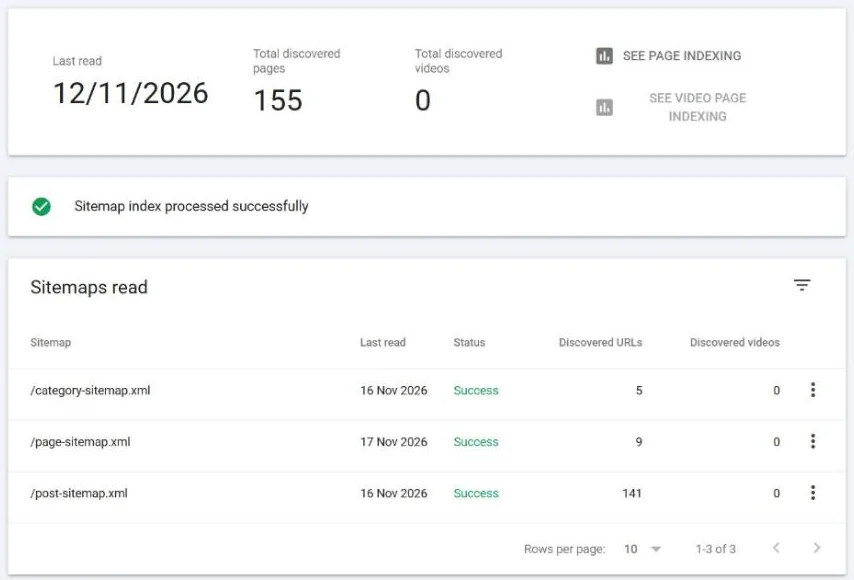
Click the sitemap row to see its details. For a sitemap index you get one line per child sitemap, each with its own status and count. Here is this site’s index on 17 November 2026:
Discovered pages is not the same as indexed pages
“Discovered pages” is, in Google’s words, “the number of page URLs that were parsed from the sitemap.” It only proves Google read the list. On this site Google discovered 155 pages in the sitemap, which matches the 155 URLs in the three files exactly. But the Page indexing report for the same property showed 96 indexed pages (data last updated 13 November 2026). The two reports are not updated on the same day, so the numbers rarely line up exactly, but the gap is clear. A sitemap gets your URLs in front of Google; whether each page is indexed is a separate decision (see Crawled – currently not indexed).
Add the Sitemap to robots.txt Too
Google lists robots.txt as another way to submit: add a Sitemap: line with the full URL, anywhere in the file, and Google picks it up “the next time we crawl your robots.txt file”. Bing reads the same line. Open yoursite.com/robots.txt to see whether yours already has one (this site’s does). It should look something like this:
User-agent: *
Disallow: /wp-admin/
Allow: /wp-admin/admin-ajax.php

Sitemap: https://example.com/sitemap_index.xml
One catch: the Sitemaps report “does not show any sitemaps discovered through a robots.txt reference”. If you want to see a status and counts, submit it in the report as well.
Do You Need to Resubmit or Ping Google?
Usually not. Google says it “will periodically recrawl the sitemap” on its own schedule. Its help suggests resubmitting only “if you make big changes to a sitemap”, such as moving to a new SEO plugin or a new sitemap address.
Old guides tell you to “ping” Google with your sitemap URL. Google announced on 26 June 2023 that it was deprecating the ping endpoint and that it would stop working within six months; pings now return a 404 error. Today the main ways to tell Google about a sitemap are the Sitemaps report, robots.txt and the Search Console API (RSS and Atom feeds can also use WebSub).
lastmod date honest. Google says it uses lastmod only if it is “consistently and verifiably” accurate, and it ignores priority and changefreq completely.Deleting a Sitemap Does Not Remove URLs
To delete a submitted sitemap from the report, click its row, click the three-dot menu, then Remove sitemap. That only tidies the report. Search Console Help is clear: “Google won’t forget the sitemap or any URLs listed in it.” To keep a page out of Google, use a noindex tag, remove the page, or (to stop crawling) block it in robots.txt.
Submit It to Bing as Well
Bing has its own tool, Bing Webmaster Tools. Bing’s webmaster blog says you can submit sitemaps there or list them in robots.txt, and that a site already verified in Search Console can be imported instead of verified again. Bing removed anonymous sitemap pings in May 2022.
Bing also supports IndexNow, a protocol that tells search engines about new or changed URLs straight away. IndexNow’s own site lists Microsoft Bing, Naver, Seznam.cz, Yandex and Yep as participants; Google is not on that list. If you use Rank Math, its Rank Math Instant Indexing module can send IndexNow submissions for you while the module is on (Rank Math turns it on by default in a fresh install).
Troubleshooting Common Sitemap Errors
Couldn’t fetch
Google’s help lists five causes: the sitemap is blocked by robots.txt, the site has a manual action, the URL is wrong (404), some other general error, or low crawl demand for the sitemap. Open the exact URL from the report in a private window first. If it shows a 404, re-save Settings → Permalinks in WordPress; my Rank Math sitemap not working guide covers every fix, including caching layers. If it opens fine, wait: Google says it keeps trying a failed sitemap “for a few days”, then stops. Once you have fixed a real problem, submit the sitemap again in the report.
URL not allowed
This means the sitemap lists URLs “at a higher level or different domain than the sitemap file”. One cause to check on WordPress is a mismatch between the property and the site address: for example the sitemap lists https://www. URLs but you submitted it in the non-www property. Check Settings → General in WordPress and submit in the matching property.
Has errors
Click the row: Search Console lists each error it found in the file. If a cache plugin is serving an old copy of the sitemap, purge LiteSpeed Cache and exclude sitemap URLs from the page cache. If old URLs redirect in a chain, see my guide to fixing redirect loops.
Discovered pages shows 0
Give it a day. If it stays at 0 on a Success sitemap index, open each child sitemap and check it lists URLs. If one is empty or missing, check which post types and taxonomies are switched on in your plugin’s sitemap settings. In Rank Math those settings are under Rank Math SEO → Sitemap Settings (see my Rank Math setup guide).
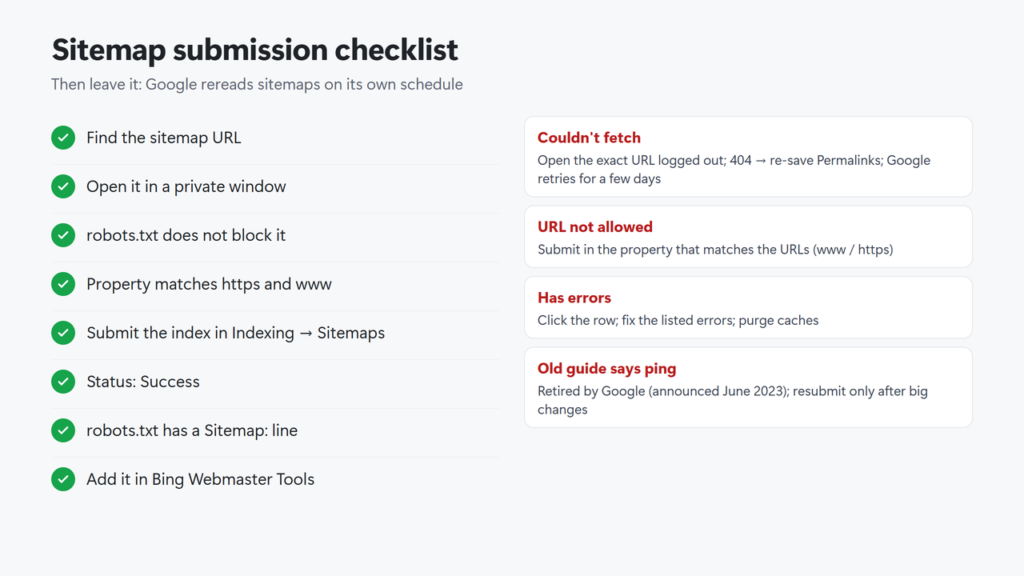
Checklist in text: find the sitemap URL; open it logged out; check robots.txt doesn’t block it; pick the property that matches https and www; submit the index in Indexing → Sitemaps; confirm Success; check robots.txt has a Sitemap line; add it in Bing Webmaster Tools; resubmit only after big changes.
Where is the Sitemaps report in Google Search Console?
In the left menu under Indexing, click Sitemaps. If you don’t see it, check that you opened the right property. To submit a sitemap you need owner permission on that property.
What is my WordPress sitemap URL?
With Yoast SEO or Rank Math it is yoursite.com/sitemap_index.xml. With no SEO plugin, WordPress 5.5 and newer use yoursite.com/wp-sitemap.xml. The Sitemap line in yoursite.com/robots.txt also shows it.
How long does Google take to read a submitted sitemap?
Google says the sitemap should be fetched immediately, but that it can take some time to crawl the URLs listed in it. Check the Last read date and status in the Sitemaps report.
Should I submit each child sitemap separately?
You don’t need to. Submit the sitemap index. Google reads the child sitemaps listed in it and shows each one in the index’s detail view.
Does submitting a sitemap get my pages indexed?
No. Google says submitting a sitemap is merely a hint. It helps Google find your URLs, but each page still has to be worth indexing. Compare Discovered pages in the Sitemaps report with the Page indexing report.
Do I need to resubmit my sitemap after every new post?
No. Google recrawls sitemaps on its own schedule. Resubmit after big changes, such as switching SEO plugins or changing the sitemap address.