To set up Rank Math, install and activate the free plugin, then run its Setup Wizard: skip or connect a Rank Math account, pick Easy or Advanced mode, import data from your old SEO plugin, describe your site, connect Google Search Console, check the sitemap step and choose the three optimization options. After the wizard, check six things: title templates, which archives are noindex, the Knowledge Graph entry, the default schema type, the sitemap, and that your old SEO plugin is switched off.
This Rank Math setup guide goes through each step and says what to pick. It also compares the plugin’s fresh-install defaults with the settings this site really uses, so you can see which defaults are worth changing and which are fine as they are.
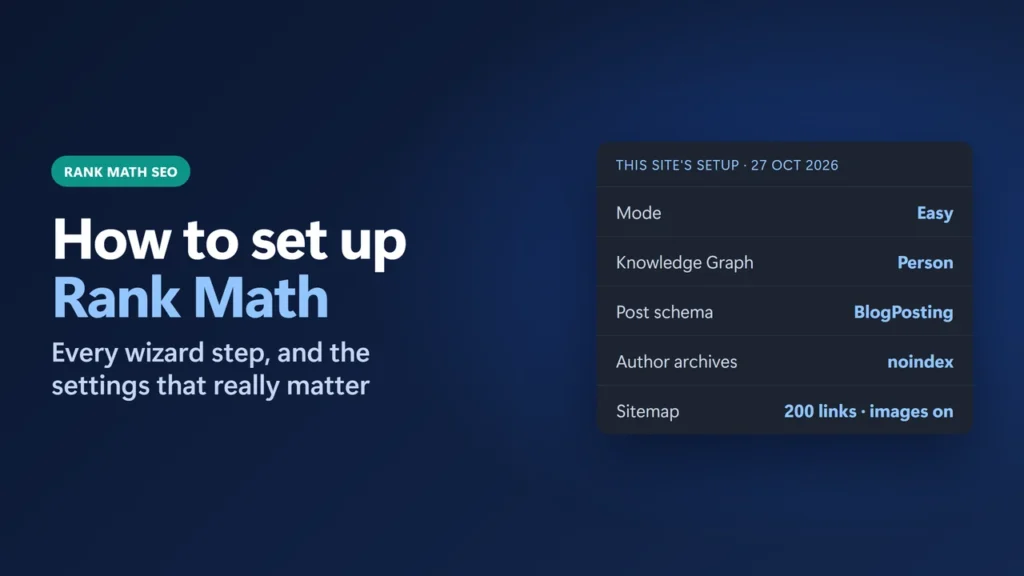
How I worked this out: this site runs Rank Math SEO 1.0.280 with Rank Math PRO 3.0.124 on WordPress 7.1.3, in Easy Mode. On 27 October 2026 I read its settings and the Modules screen in wp-admin without saving anything, and checked the live page titles and robots tags with logged-out requests. I did not re-run the Setup Wizard on this live site, because saving a wizard step changes live settings. The wizard steps and fresh-install defaults come from Rank Math’s knowledge base and the plugin’s own source code for version 1.0.280, checked on 27 October 2026. The PRO features mentioned here are labelled as PRO.
Key takeaways
- Rank Math’s setup guide lists eight wizard steps in Easy mode. Advanced mode adds Role Manager, 404 + Redirections and Schema Markup.
- Connecting a Rank Math account is optional for the plugin, but you need a free account to connect Google Search Console inside Rank Math.
- Import from Yoast, All in One SEO or SEOPress in the wizard, then deactivate the old plugin. Rank Math says keeping Yoast active can stop its settings from saving.
- Easy Mode hides settings. On this site it did not switch off a module that was already on. Switch to Advanced Mode when you need redirects, robots.txt editing, per-post canonicals or Links Per Sitemap.
- Most defaults are sensible. The ones to review are the title template, noindex rules for archives, and the Knowledge Graph type.
Table of Contents
- 1Before You Start
- 2Step 1: Install and Activate Rank Math
- 3Step 2: Run the Setup Wizard
- Connect your account (optional)
- Choose Easy, Advanced or Custom mode
- Import
- Your Site
- Analytics
- Sitemap
- Optimization
- Ready, and the Advanced-only steps
- 4Easy Mode or Advanced Mode?
- 5Fresh-Install Defaults vs One Real Site
- 6Which Modules to Turn On
- 7Step 3: Check That the Setup Works
- 8Common Setup Problems
- 9Frequently Asked Questions
- Do I need a Rank Math account to use the plugin?
- Should I choose Easy or Advanced mode?
- How do I run the Rank Math setup wizard again?
- Can I use Rank Math and Yoast together?
- Where is the Rank Math sitemap?
- Which Rank Math settings matter most after setup?
Before You Start
- Back up the site. Rank Math’s migration guide recommends a backup before you import from another SEO plugin, and a settings reset cannot be undone without one.
- Check the requirements. At the time of writing (27 October 2026), the free plugin is version 1.0.280 (released 6 October 2026) and needs WordPress 6.7 or newer and PHP 7.4 or newer, according to its WordPress.org page.
- Keep your old SEO plugin installed until the import is done. The wizard’s compatibility check may offer to deactivate it; Rank Math says that is safe because its data is imported in the next step. Do not delete it before the import.
- Have these ready: your site name, a logo for Google, a default social share image, and access to the Google account that owns your Search Console property.
Step 1: Install and Activate Rank Math
In WordPress go to Plugins → Add New Plugin, search for Rank Math SEO, click Install Now and then Activate. Rank Math’s knowledge base also describes uploading the plugin through wp-admin, FTP or SSH, which you only need if your host blocks plugin installs. Install Rank Math PRO only if you bought it; the free plugin works without it.
If the wizard does not open after activation, open it yourself: Rank Math SEO → Dashboard → Setup Wizard tab. The same tab lets you run it again later.
Step 2: Run the Setup Wizard
The wizard’s steps, in order, from Rank Math’s setup guide and the plugin source:
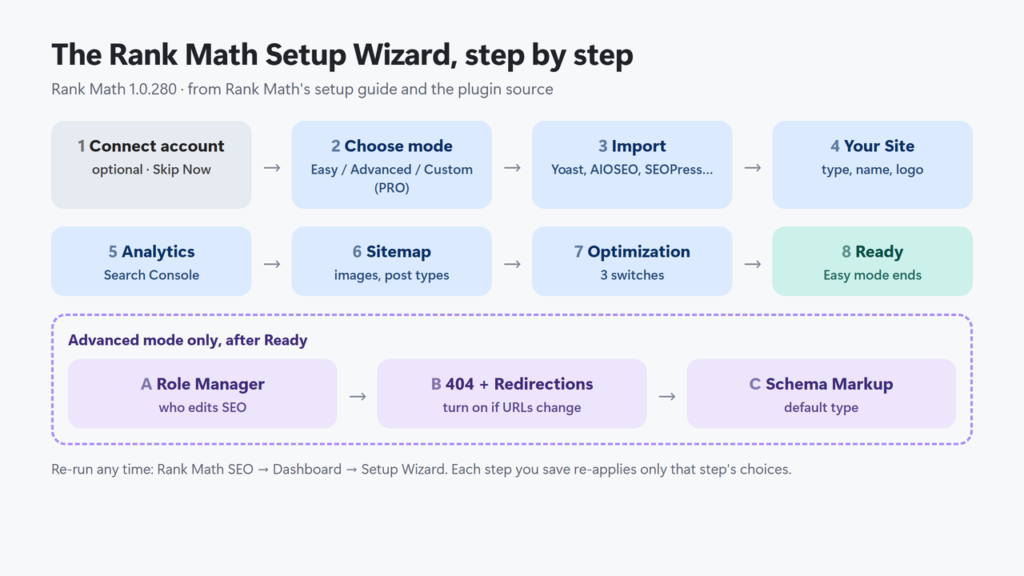
Connect your account (optional)
The first screen asks you to connect a free Rank Math account. You can click Skip Now. The plugin’s FAQ says the account is needed to use Rank Math’s API, such as keyword suggestions and the SEO analysis tool. You will also be asked to create one before you connect Google services, so if you plan to use the Analytics step, connect now.
Choose Easy, Advanced or Custom mode
Easy mode shows the main settings and hides the rest. Advanced mode shows everything and adds three extra wizard steps at the end. Custom mode is for PRO users only and lets you import saved settings. Rank Math says you can switch modes at any time, so this is not a lasting choice. This screen also checks for plugins that conflict with Rank Math.
Import
This step lists the data it found from other SEO plugins: Yoast SEO, All in One SEO, SEOPress, Redirection, Schema Pro and All In One Schema. Click Start Import and wait for it to finish. If you skip it, you can import later from Rank Math SEO → Status & Tools → Import & Export (that tab needs Advanced Mode).
Your Site
Pick what your website is, then fill in the website name, logo, and default social share image. The site type matters more than it looks. In the plugin’s code, the personal types (Personal Blog, Personal Portfolio, Other Personal Website) set the Knowledge Graph to a Person. The business types (Community Blog/News Site, Small Business Site, Webshop, Other Business Website) set it to an Organization and also switch on the Local SEO module. A one-person blog like this site uses Person, named Harshil Barot.
Analytics
Connect Google Search Console here, or later under Rank Math SEO → General Settings → Analytics with the Connect Google Services button. In the free version, Rank Math shows Search Console data such as impressions and average position, updated every 3 days (daily in PRO). It does not fetch Google Analytics data in the free version.
Sitemap
Leave sitemaps on, with images included. The fresh-install defaults are 200 links per sitemap and all post types except attachments and web stories, with categories as the only taxonomy. Your sitemap index will be at /sitemap_index.xml.
Optimization
Three switches: Noindex Empty Category and Tag Archives, Nofollow External Links and Open External Links in New Tab/Window. Keep the first on unless you have a reason; empty archive pages have nothing for a searcher. The other two are about how you link out, not about ranking. Rank Math’s defaults are nofollow off and new tab on.
Ready, and the Advanced-only steps
In Easy mode the wizard ends here. In Advanced mode it continues to Role Manager (which user roles can change SEO settings; the plugin code turns this module on at install when a site has more than one administrator, editor, author or contributor), 404 + Redirections (turn on Redirections if you ever change URLs) and Schema Markup (the default schema type for posts and pages).
Easy Mode or Advanced Mode?
The switch is in the top-right corner of Rank Math SEO → Dashboard, above the Modules, Help, Setup Wizard and MCP Setup tabs. On this site it reads Easy Mode | Advanced Mode:
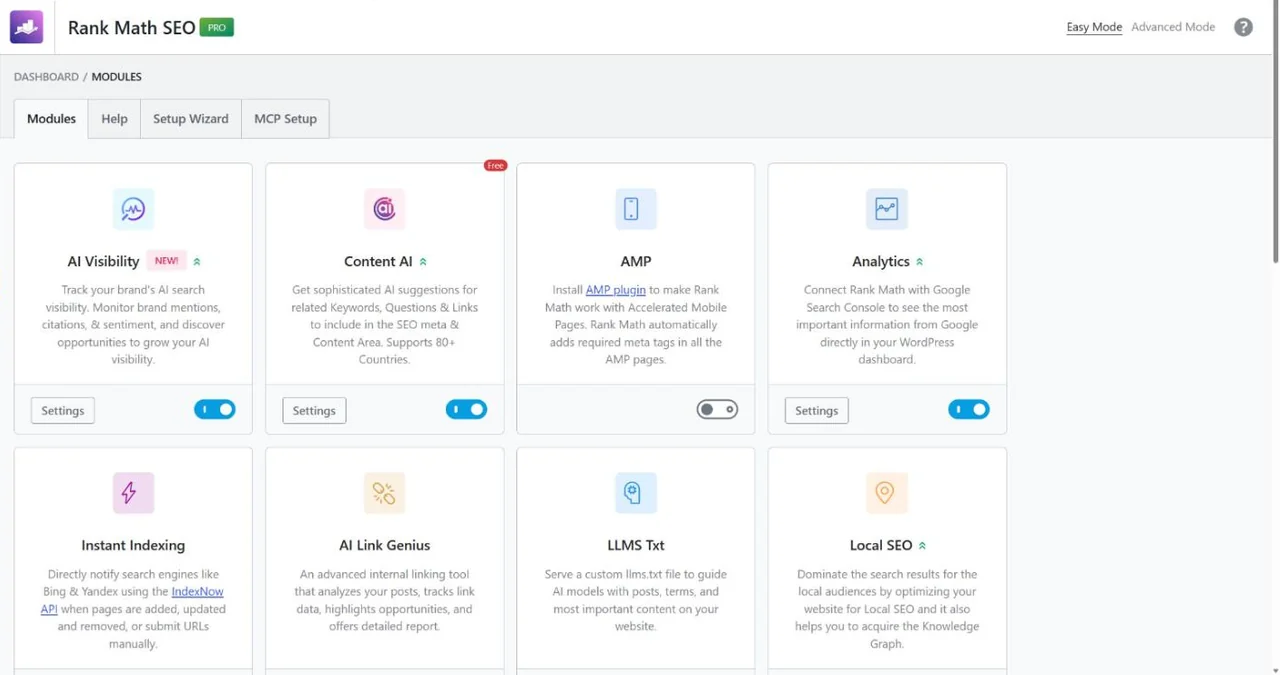
Rank Math says Easy Mode hides “the more complex settings” for simplicity. Its Advanced Mode guide lists what appears when you switch: modules such as 404 Monitor, Redirections, Image SEO and Role Manager; the robots.txt editor; extra link and breadcrumb options; Database Tools, Import & Export and Version Control in Status & Tools; and the Advanced tab in the post editor, where you set a page’s robots meta and canonical URL.
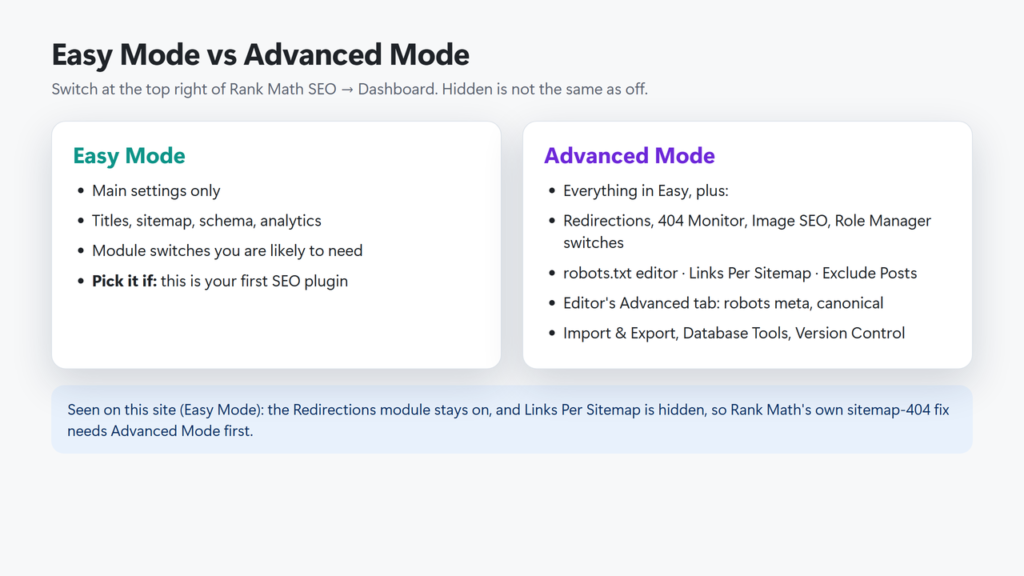
Two things I saw on this site are worth knowing:
- Hidden is not the same as off. This site is in Easy Mode, yet its Redirections module is switched on and its menu item still shows. Easy Mode hides switches; it did not turn this module off.
- Some fixes need Advanced Mode. On this site, the Sitemap Settings General tab in Easy Mode does not show Links Per Sitemap (still saved at 200); the plugin code marks it as an advanced option. Rank Math’s help page for a sitemap 404 starts with changing that number, so you have to switch modes first. The Rank Math sitemap troubleshooting guide walks through that fix.
My advice: start in Easy mode if this is your first SEO plugin. Switch to Advanced when you need one of the hidden tools above. Rank Math does not say whether switching back hides or clears any values, so note what you change.
Fresh-Install Defaults vs One Real Site
The wizard leaves many settings at their defaults. This table compares the defaults in Rank Math 1.0.280’s code with the settings this site runs (read on 27 October 2026). It shows which defaults a working site kept and which it changed.
| Setting | Fresh-install default | This site |
|---|---|---|
| Title separator | – | – (en dash) |
| Single post title | %title% %sep% %sitename% | %title% (the post I checked also had its own SEO title) |
| Homepage title | %sitename% %page% %sep% %sitedesc% | Same template; the static front page has its own title |
| Noindex empty category and tag archives | On | Off (the site uses no tags) |
| Nofollow external links | Off | On |
| Open external links in new tab | On | On |
| Redirect attachments | On: to the parent post; orphans to the home page | On: same, orphans to the home page |
| Knowledge Graph type | Person (Organization if WooCommerce or EDD is active) | Person: Harshil Barot |
| Default schema for posts | Article, type BlogPosting | Article, type BlogPosting |
| Author archives | Noindex | Noindex |
| Date archives | Noindex | Disabled |
| Links per sitemap / images in sitemap | 200 / on | 200 / on |
What to take from it:
- Title template. The default adds your site name to every post title. Google’s title-link guidance says a site name separated by a hyphen, colon or pipe is fine, and warns against repeated boilerplate. Either choice works; long titles plus the site name are more likely to be cut off. You can always write a custom SEO title per post.
- Archives. A one-author site’s author archive lists the same posts as its blog page, which is why noindex on author archives makes sense here. Check yours in a logged-out browser: this site’s
/author/harshilbarot/returns<meta name="robots" content="follow, noindex">. - Nofollow on all external links is a site policy, not a ranking fix. Rank Math leaves it off by default.
Which Modules to Turn On
Modules live under Rank Math SEO → Dashboard → Modules. Turning one off hides its settings and menu. On a fresh install, the plugin code switches on Link Counter, Analytics, SEO Analyzer, Sitemap, Schema, Content AI, Instant Indexing and AI Visibility (plus integration modules when the matching plugin is installed). 404 Monitor, Redirections, Local SEO and Image SEO start off.
| Module | Turn on when | This site |
|---|---|---|
| Sitemap | Always, unless another plugin makes your sitemap | On |
| Schema (Structured Data) | Always for a blog or business site | On |
| Redirections | You change or delete URLs | On |
| Analytics | You want Search Console data in WordPress | On |
| Instant Indexing | You want IndexNow pings to Bing and others on publish | On |
| Local SEO | You serve customers at a place or in an area | Off |
| 404 Monitor | You will actually check its log of 404 errors | Off |
| Image SEO | You want automatic alt text for images that have none | Off |
This site has its own guides for two modules: the Rank Math Instant Indexing guide, and the llms.txt guide for the LLMS Txt module (on here). Local businesses should also read the local SEO checklist.
Step 3: Check That the Setup Works
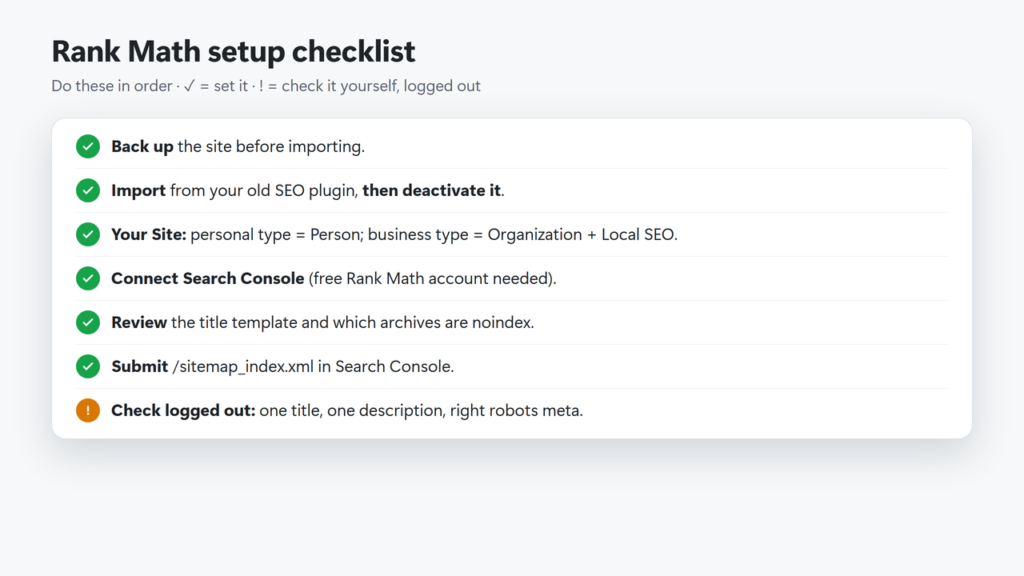
Do these checks in a private window or while logged out, because a page cache may still hold the old version for visitors. If you use LiteSpeed Cache, see how to purge LiteSpeed Cache.
- Title and description. Open a post, view the page source and find
<title>and<meta name="description". They should match what you set in Rank Math. - Robots meta. On a normal post it should include
index. On archives you chose to noindex it should saynoindex. - Sitemap. Visit
/sitemap_index.xml. You should see child sitemaps such as post-sitemap.xml. On this site it lists three: posts, pages and categories. - Search Console. Submit
sitemap_index.xmlin the Sitemaps report. In Rank Math, the Analytics module must be on for its Search Console data to show. - Old plugin. Deactivate it after the import and check the page source again: there should be one title tag and one meta description, not two.
Common Setup Problems
| Problem | Likely cause | What to do |
|---|---|---|
| Settings don’t save | Another SEO plugin active, an old Rank Math version, or a firewall blocking the save request | Deactivate the other SEO plugin, update Rank Math, then check your security plugin or host firewall |
| A setting from a tutorial is missing | Easy Mode hides it, or its module is switched off | Switch to Advanced Mode in the Dashboard’s top-right corner, or turn the module on |
| Sitemap shows a 404 | Rewrite rules or Rank Math’s sitemap cache need a flush | In Advanced Mode, change Links Per Sitemap and save, then re-save Settings → Permalinks |
| Two titles or descriptions in the source | Old SEO plugin, or a theme with its own SEO options | Deactivate the old plugin; check the theme’s SEO options |
| Settings page looks blank | The page’s script has not finished loading (cause not checked) | Wait and reload. On this site the Sitemap Settings page was still blank about 3 seconds after opening and had loaded a few seconds later |
| Search Console won’t connect | Analytics module off, no Rank Math account connected, or the wrong Google account | Turn on the Analytics module, connect a free Rank Math account, then use Connect Google Services with the Google account that owns the property. Rank Math’s verification guide uses a URL-prefix property |
| Wizard didn’t appear | It was closed or already completed | Rank Math SEO → Dashboard → Setup Wizard tab |
Rank Math’s settings-not-saved guide warns that keeping Yoast active alongside it can stop Rank Math’s settings from saving and can cost you rankings. Import first, then deactivate.
Still choosing a plugin? See the Rank Math review (free vs PRO) or the SEOPress review for how they compare.
Frequently Asked Questions
Do I need a Rank Math account to use the plugin?
No. You can click Skip Now in the wizard and use the plugin. A free account is needed for Rank Math’s API features, such as keyword suggestions, and before you can connect Google Search Console inside Rank Math.
Should I choose Easy or Advanced mode?
Choose Easy if Rank Math is your first SEO plugin. Switch to Advanced when you need redirects, the robots.txt editor, per-post canonical and robots settings, Links Per Sitemap, or Import & Export. Rank Math says you can switch at any time.
How do I run the Rank Math setup wizard again?
Go to Rank Math SEO → Dashboard and open the Setup Wizard tab. Each step you save writes its choices into your live settings, so note your current settings first; settings the wizard does not show are left alone.
Can I use Rank Math and Yoast together?
No. Import your Yoast data in the wizard’s Import step, then deactivate Yoast. Rank Math warns that keeping Yoast active can stop its settings from saving.
Where is the Rank Math sitemap?
At /sitemap_index.xml on your domain, when the Sitemap module is on. Submit that URL in Google Search Console’s Sitemaps report.
Which Rank Math settings matter most after setup?
The title templates, which archives are noindex, the Knowledge Graph type (Person or Organization), the default schema type for posts, and the sitemap. Most other defaults can stay as they are.