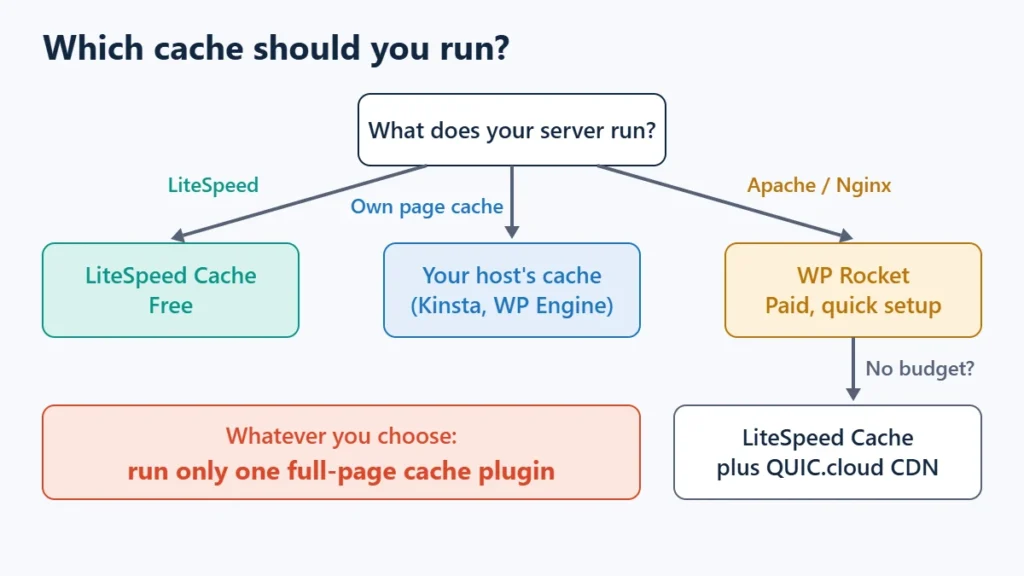
If your server runs LiteSpeed, use LiteSpeed Cache. If it runs Apache or Nginx, use WP Rocket. That one fact decides most of this comparison, because LiteSpeed Cache’s page caching only works on a LiteSpeed server or through the QUIC.cloud CDN. On managed hosts that run their own page cache, such as Kinsta or WP Engine, neither plugin should be your page cache. Whichever you choose, run only one.
The rest of this guide shows how to confirm what your server runs (the usual header check can mislead you), what each plugin does differently, what WP Rocket really costs after the first year, and how to switch without leaving two caches fighting each other.
Table of Contents
- 1WP Rocket vs LiteSpeed Cache at a Glance
- 2First, Find Out What Your Server Runs
- 3Which One Should You Use on Your Host?
- 4How Each Plugin Caches a Page
- 5Optimisation Features: Similar Names, Different Costs
- 6What WP Rocket Costs Over Three Years
- 7Which Is Faster?
- 8How to Switch Without Breaking Your Site
- 9Other Options Worth a Look
- 10Frequently Asked Questions
- Can I use WP Rocket and LiteSpeed Cache together?
- Does WP Rocket work on a LiteSpeed server?
- Is LiteSpeed Cache free?
- Does LiteSpeed Cache work on Apache or Nginx?
- Which is better for Hostinger?
- Is WP Rocket worth paying for if I already have LiteSpeed?
- 11The Bottom Line
WP Rocket vs LiteSpeed Cache at a Glance
| LiteSpeed Cache | WP Rocket | |
|---|---|---|
| Best fit | Sites on a LiteSpeed server | Sites on Apache or Nginx that want a quick setup |
| Plugin price | Free | $5 a month for 1 site, billed yearly (regular price) |
| Page cache needs | LiteSpeed server or QUIC.cloud CDN | Works on Apache, Nginx, IIS, LiteSpeed and OpenLiteSpeed |
| Logged-in users | Private cache and ESI options | User Cache add-on: one cache set per user |
| Object cache | Built-in Redis or Memcached settings | Not its job; can run alongside Redis |
| Unused CSS removal | UCSS, a QUIC.cloud service with a monthly quota | Remove Unused CSS, processed by WP Rocket’s cloud |
| Setup effort | Many settings; presets help | Fewer settings; sensible defaults on activation |
| Support | Community forum and documentation | Included with the licence |
First, Find Out What Your Server Runs
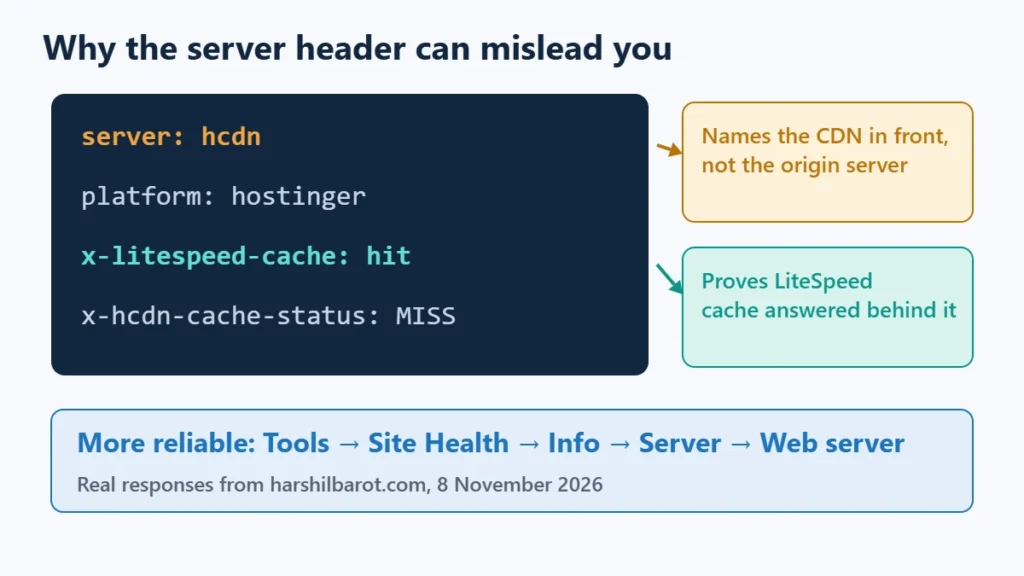
Many guides tell you to look at the server response header. That works only when nothing sits in front of your site. A CDN replaces that header with its own name, so a LiteSpeed site can appear to be running something else entirely. This website is an example. On 8 November 2026 a request returned:
server: hcdn
platform: hostinger
x-litespeed-cache: hit
x-hcdn-cache-status: MISS
The server line names Hostinger’s CDN, while x-litespeed-cache: hit shows that LiteSpeed’s page cache answered behind it. Read the header alone and you would get the wrong answer.
Use these checks, most reliable first:
- WordPress Site Health. Go to Tools → Site Health → Info → Server and read the Web server line. This reports what the origin server tells PHP, so a CDN does not hide it.
- Response headers. Run the command below and look for
server: LiteSpeedor anyx-litespeed-cacheline. The second only appears once LiteSpeed caching is active. - Your host’s documentation or support. Ask directly if the first two are inconclusive.
curl -sI https://example.com/ | grep -iE "^server|x-litespeed"On Windows, use curl.exe -sI https://example.com/ | findstr /i "server x-litespeed". If you see miss rather than hit, that is normal on a first request. The guide to what x-litespeed-cache: miss means covers the cases where it never turns into a hit.
Which One Should You Use on Your Host?
| Your situation | Use | Why |
|---|---|---|
| LiteSpeed or OpenLiteSpeed server | LiteSpeed Cache | Free, and it controls the server’s own cache directly. |
| Apache or Nginx, want simple setup | WP Rocket | LiteSpeed Cache provides no page cache here without QUIC.cloud. |
| Apache or Nginx, no budget | LiteSpeed Cache with QUIC.cloud CDN | LiteSpeed says the CDN gives access to its caching on any origin server, but your traffic then runs through QUIC.cloud. |
| Host with its own page cache (Kinsta, WP Engine and similar) | Host’s cache; WP Rocket optional for file optimisation | WP Rocket’s documentation says it disables its page caching on these hosts. |
| LiteSpeed server, want WP Rocket’s interface | Usually LiteSpeed Cache | WP Rocket does work here, but you would pay for a page cache the server already provides. |
On that last row, WP Rocket is officially compatible with LiteSpeed and OpenLiteSpeed, and it purges the server’s LiteSpeed cache whenever its own cache is purged. So it is a workable choice, not a mistake. It just needs a reason, such as preferring its simpler screens or its included support.
How Each Plugin Caches a Page
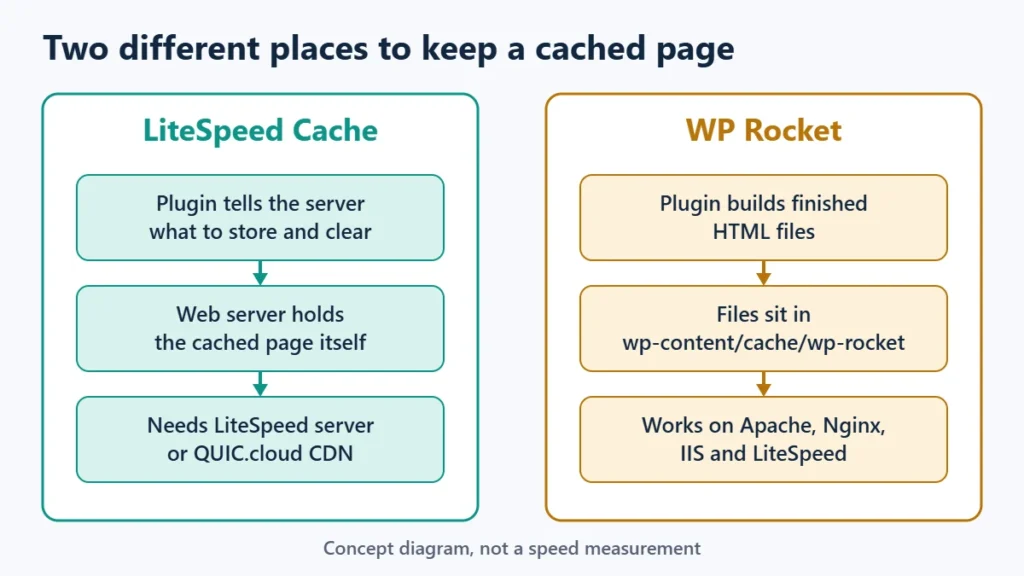
LiteSpeed Cache is a controller for a cache that lives in the web server. The plugin tells the server what to store and when to clear it. That is why the plugin alone does nothing on Apache: there is no LiteSpeed cache engine for it to talk to.
WP Rocket builds finished HTML files in wp-content/cache/wp-rocket and adds its rules to .htaccess on Apache and LiteSpeed servers. Because the cache is a set of files inside your site, it does not depend on a particular server brand. The trade-off is that it cannot use a server-level cache engine the way LiteSpeed Cache can.
The difference matters most for sites where people log in. LiteSpeed Cache documents private caching and Edge Side Includes, which let the shared parts of a page stay cached while a personal fragment is handled separately. WP Rocket’s User Cache add-on takes a simpler approach: a separate set of cache files for each logged-in user. On a membership site with thousands of users, that means many more files to build, so test it against your disk space.
Optimisation Features: Similar Names, Different Costs
Both plugins minify files, defer or delay JavaScript, lazy-load images and clean the database. The practical differences are in the heavier features:
- Removing unused CSS. Both send the work off-site. WP Rocket’s feature runs on its own cloud and needs each uncached page to load within 45 seconds, and your firewall must allow its user agents. LiteSpeed’s UCSS is a QUIC.cloud service that draws on a monthly quota.
- Image optimisation. LiteSpeed Cache can compress images through QUIC.cloud. WP Rocket lazy-loads images and prioritises the largest one above the fold, but it is not an image compressor.
- Object cache. LiteSpeed Cache has Redis and Memcached settings built in. WP Rocket’s documentation treats object caching as a separate layer that can run alongside it. If you use LiteSpeed’s and the test fails, see how to fix the object cache connection test.
QUIC.cloud’s free monthly quota depends on your server tier, and unused quota does not roll over:
| QUIC.cloud tier | Images | Page optimisation | Image placeholders |
|---|---|---|---|
| Basic | 1,000 | 200 requests | 100 requests |
| LiteSpeed Server | 5,000 | 1,000 requests | 500 requests |
| LiteSpeed Enterprise | 10,000 | 2,000 requests | 1,000 requests |
For a small blog those limits are often enough. A large catalogue that regenerates UCSS on every update can use them quickly, and that is when “free” starts to need a budget. For the settings worth changing, see the LiteSpeed Cache settings guide, which explains why this site leaves UCSS off.
What WP Rocket Costs Over Three Years
The monthly figure hides how the billing works. On 8 November 2026 WP Rocket was running a Black Friday sale, advertised until 28 November 2026. Here is the cost for one site:
| How you buy | Paid up front | Total over 3 years |
|---|---|---|
| LiteSpeed Cache plugin | $0 | $0, plus any QUIC.cloud usage above quota |
| WP Rocket, 3-year sale term ($1.95 a month) | $70.20 | $70.20 |
| WP Rocket, 1-year sale term ($3 a month), then regular renewals | $36 | $156, if the regular price stays at $60 a year |
| WP Rocket at regular price ($5 a month) | $60 | $180 |
WP Rocket says the discount applies to the first purchase and that licences then renew at the regular price. Pay attention to its refund terms as well: there is a 14-day money-back guarantee, but the guarantee does not cover the first payment after a free trial. If you want the option of a refund, buy directly rather than starting with the trial.
Which Is Faster?
There is no general answer, and be wary of any article that gives one. WPBeginner’s test on one site scored WP Rocket slightly higher on Core Web Vitals and LiteSpeed Cache better on total page load time. That is a useful illustration of why a single result does not transfer: scores shift with the theme, the host, the test location, and which optional settings were on.
What you can measure is your own site. Check the cached and uncached response times, as described in how to reduce TTFB in WordPress, then compare field data rather than a single lab score. As one reference point, this site’s LiteSpeed guide recorded a median of 73 ms for cached pages and 519 ms for uncached ones. Those figures describe this site’s setup only, and there is no WP Rocket equivalent to compare them against.
How to Switch Without Breaking Your Site
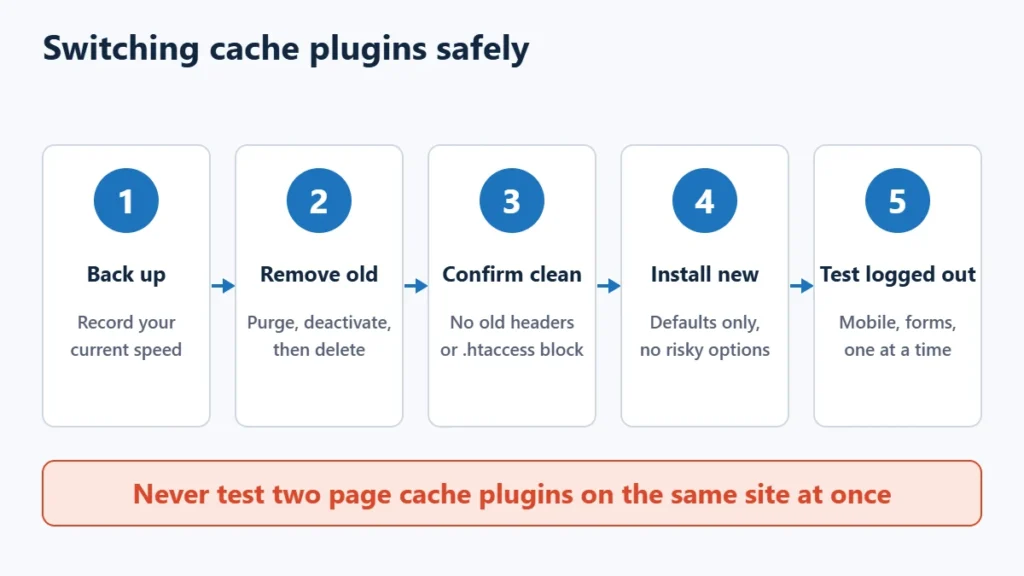
The rule comes from both vendors. LiteSpeed tells you to deactivate all other full-page cache plugins before activating its own, and WP Rocket lists the LiteSpeed Cache plugin among those it is not compatible with. So never test them side by side on one site.
- Back up the site, and record your current response time so you have a before figure.
- Purge and deactivate the old plugin, then delete it so its rules are removed. If it was LiteSpeed Cache, the guide to purging LiteSpeed Cache explains each button.
- Confirm nothing is still caching. Reload a page in a private window and check that the old plugin’s headers and rules are gone. On Apache and LiteSpeed servers, look in
.htaccessfor a leftover block. - Install the new plugin with its defaults only. Leave the risky options, such as unused CSS removal and delayed JavaScript, for later.
- Test logged out, on mobile, and on your checkout or forms. Then turn on one optional feature at a time.
Other Options Worth a Look
If you are on Apache or Nginx and want to compare another paid option, read the FlyingPress review. The best WordPress speed plugins comparison covers the wider field, and the WP Rocket review looks at that plugin on its own. If your host is the bottleneck, no plugin will fully fix it. The Hostinger review covers one LiteSpeed-based option, while Kinsta and WP Engine are examples of managed hosts with their own caching.
Frequently Asked Questions
Can I use WP Rocket and LiteSpeed Cache together?
No. LiteSpeed says to run only one full-page cache plugin, and WP Rocket lists the LiteSpeed Cache plugin as incompatible. Pick one.
Does WP Rocket work on a LiteSpeed server?
Yes. WP Rocket lists LiteSpeed and OpenLiteSpeed as supported, and it purges the server’s LiteSpeed cache when its own is purged. The LiteSpeed Cache plugin is not required for that.
Is LiteSpeed Cache free?
The plugin is free. Some optional features, including image optimisation and UCSS, run on QUIC.cloud, which gives each domain a free monthly quota and charges for usage beyond it.
Does LiteSpeed Cache work on Apache or Nginx?
Only partly. LiteSpeed’s documentation says the optimisation features work on any server, but caching does not work without a LiteSpeed server or QUIC.cloud CDN.
Which is better for Hostinger?
LiteSpeed Cache is the natural choice, because Hostinger’s platform runs LiteSpeed and the plugin is free. This site uses that combination.
Is WP Rocket worth paying for if I already have LiteSpeed?
Usually not for the page cache alone. Its value there is a simpler interface and paid support. If you are comfortable working through LiteSpeed Cache’s presets, the free plugin covers the same core jobs.
The Bottom Line
Check the Web server line in Site Health before reading another benchmark. On LiteSpeed, start with the free plugin and only pay for WP Rocket if you have a specific reason. On Apache or Nginx, WP Rocket is the straightforward choice. On a host with its own page cache, leave page caching to the host. Then measure your own site, because that is the only result that applies to you.