A 500 Internal Server Error means the server hit a problem it couldn’t handle and didn’t say what it was. On a WordPress site, the usual causes are a broken .htaccess rule, a plugin or theme crashing PHP, a PHP version or memory limit problem, or wrong file permissions. Don’t guess. Read the server’s error log first, because it normally names the exact file or rule. Then fix that one thing.
This guide shows where to find the real error, how to read what it tells you, and the fixes in the order that solves most cases fastest.
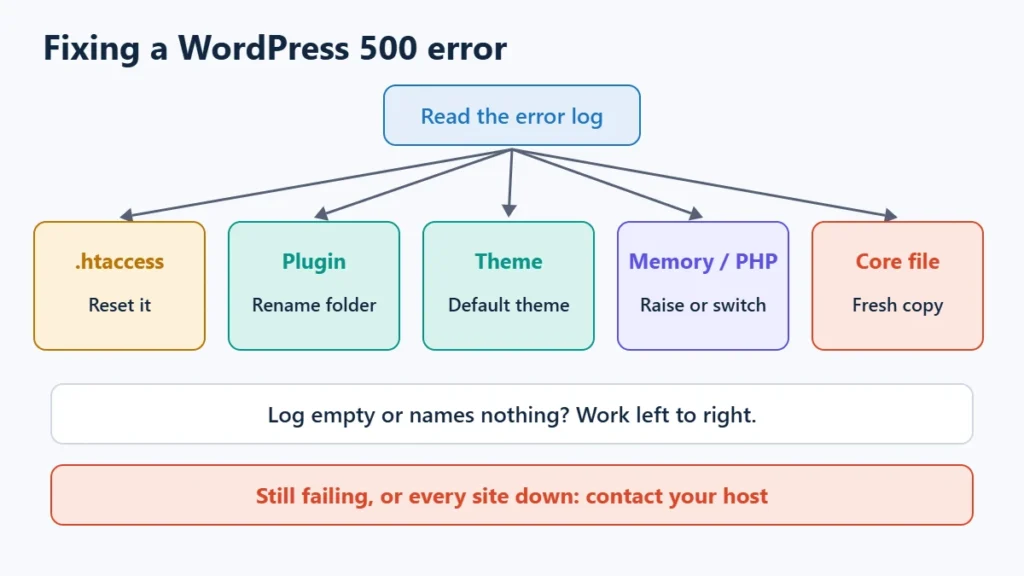
Table of Contents
- 1500 vs the WordPress Critical Error Message
- 2Is It Really a 500? Related Errors
- 3Step 1: Find the Real Error in the Logs
- What the log line tells you
- 4Step 2: Reset the .htaccess File
- 5Step 3: Disable Plugins
- 6Step 4: Switch to a Default Theme
- 7Step 5: Check PHP Version, Memory and Time Limits
- 8Step 6: Check File Permissions
- 9Step 7: Replace the WordPress Core Files
- 10After the Site Is Back
- 11When to Contact Your Host
- 12Frequently Asked Questions
- Is a 500 error my fault or my host’s?
- Can I fix a 500 error without wp-admin?
- Will I lose my content?
- Does a 500 error hurt SEO?
- Why does only wp-admin show a 500?
500 vs the WordPress Critical Error Message
Look at what the error page actually says, because it tells you where the failure happened:
- “There has been a critical error on this website.” PHP crashed, but WordPress caught the error and showed its own message, which is also sent with a 500 status. Follow the critical error guide, which covers the recovery email.
- A plain “500 Internal Server Error” page from the server, often with the server’s name at the bottom. WordPress never got the chance to show anything. Either the web server rejected the request before PHP ran, which is typical of a bad
.htaccessrule, or the PHP process failed in a way WordPress couldn’t catch. - A blank white page. Usually a PHP fatal error with WordPress’s error handler turned off or failing. The steps below still apply.
Is It Really a 500? Related Errors
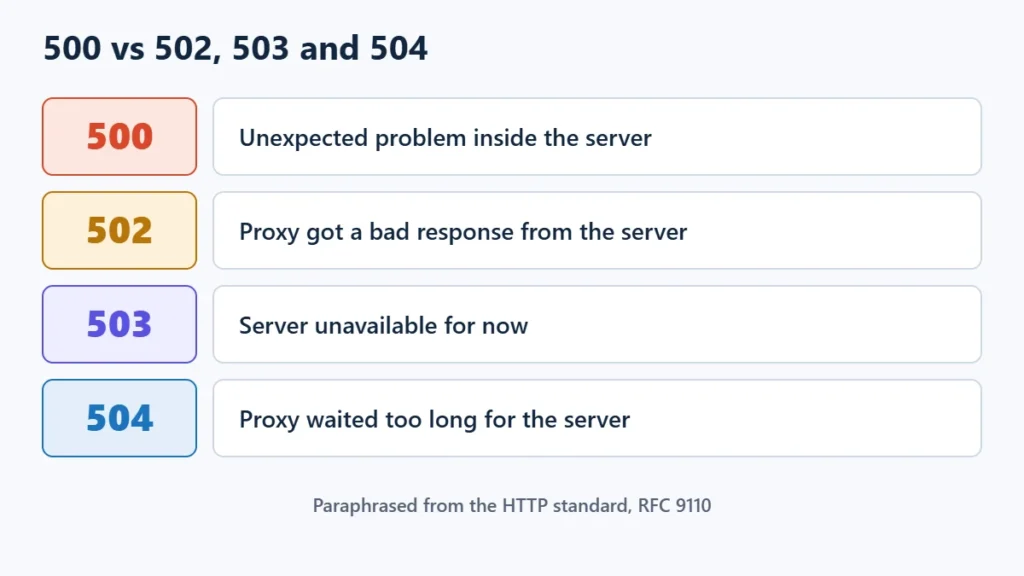
The HTTP standard (RFC 9110) defines the 5xx codes. They look alike in a browser but point to different places:
| Code | Meaning in the standard | Usual WordPress cause |
|---|---|---|
| 500 Internal Server Error | The server hit an unexpected condition and couldn’t complete the request | .htaccess, PHP fatal error, memory, permissions |
| 502 Bad Gateway | A gateway or proxy got an invalid response from the server behind it | PHP process crashed or restarted, CDN can’t reach the server |
| 503 Service Unavailable | The server can’t handle the request right now, for example because it is overloaded or in maintenance | Resource limits reached, maintenance mode, host throttling |
| 504 Gateway Timeout | A gateway or proxy didn’t get a response in time | Slow PHP or database queries, long imports |
If your page shows a 502, 503 or 504, the fixes overlap but the starting point differs. This guide covers the 500.
Step 1: Find the Real Error in the Logs
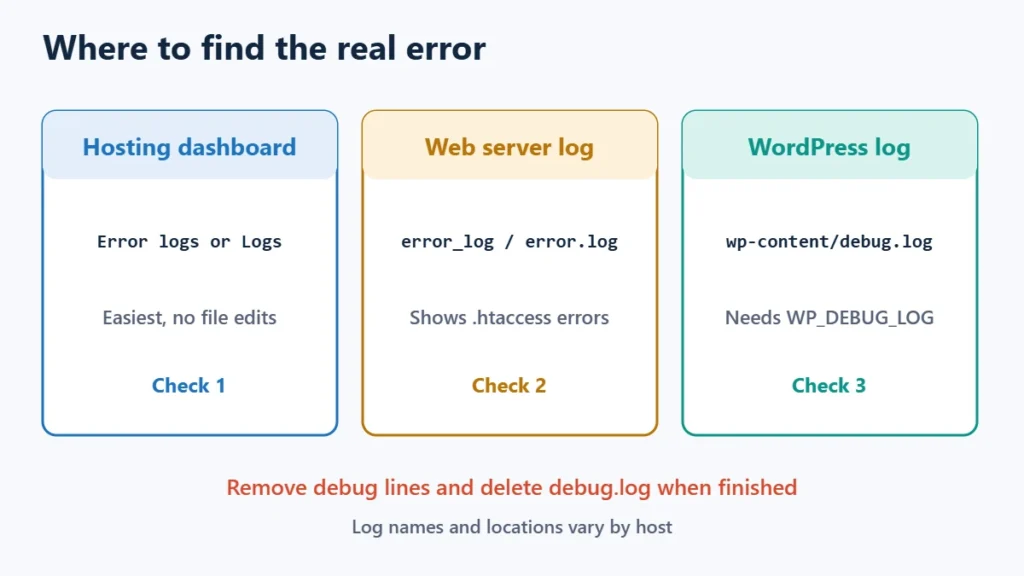
A 500 hides the reason from visitors, but the server records it. Check these in order:
- Your host’s error log. Most hosting dashboards have an “Error logs” or “Logs” section. Look at the newest entries timed when you loaded the page.
- The web server’s error log, if you manage your own server. On Apache it is often
error_logorerror.login the server’s log folder; your host or setup documents the exact path. - WordPress’s debug log. If the server log shows a PHP error but not enough detail, turn on WordPress’s log, as shown below.
To turn on the debug log, edit wp-config.php over SFTP or File Manager and add these lines above /* That's all, stop editing! */:
define( 'WP_DEBUG', true );
define( 'WP_DEBUG_LOG', true );
define( 'WP_DEBUG_DISPLAY', false );
Reload the failing page, then open wp-content/debug.log. WP_DEBUG_LOG also accepts a file path if you’d rather keep the log outside the public folder. Write true without quotes, because the handbook notes that 'false' in quotes is a string and counts as true. WordPress’s handbook says debug tools are meant for local and staging sites, not live ones, so remove the lines and delete debug.log once you have your answer.
What the log line tells you
| Log says something like… | Cause | Go to |
|---|---|---|
.htaccess: … not allowed here or Invalid command | A rule in .htaccess the server won’t accept | Step 2 |
RewriteCond: bad flag delimiters or another syntax message | A typo in .htaccess | Step 2 |
PHP Fatal error … /wp-content/plugins/name/ | A plugin crashed | Step 3 |
PHP Fatal error … /wp-content/themes/name/ | The theme crashed | Step 4 |
Allowed memory size … exhausted | PHP ran out of memory | Step 5 |
Maximum execution time … exceeded | A request ran too long | Step 5 |
Permission denied | The server can’t read a file | Step 6 |
Step 2: Reset the .htaccess File
WordPress’s handbook names a corrupted .htaccess file as the most likely cause of a 500 on Apache and LiteSpeed servers. Apache’s documentation explains why the symptom is a 500: when .htaccess contains a directive with a syntax error, or one the server doesn’t allow there, Apache returns a server error rather than ignoring it. One broken line takes down the whole site.
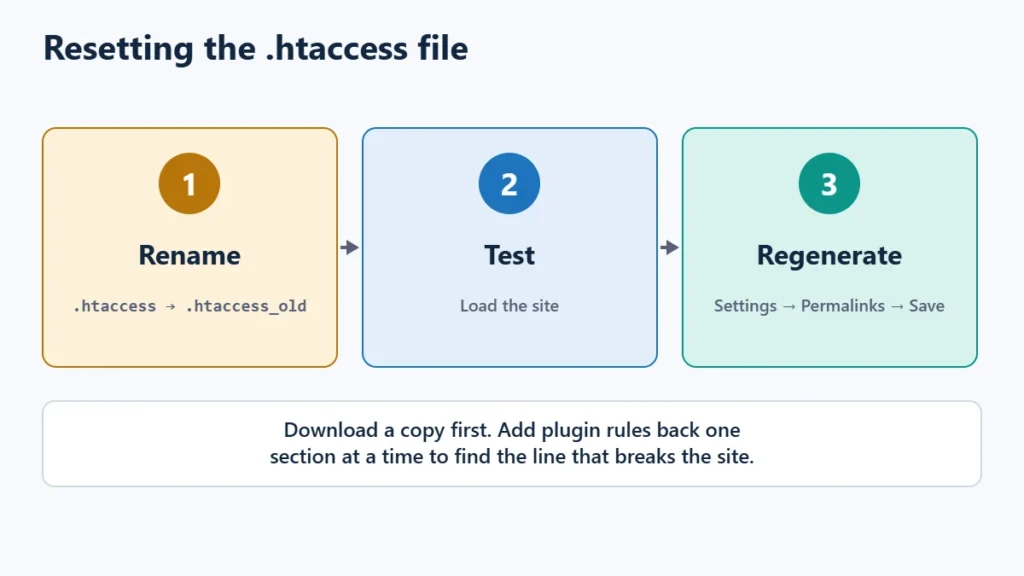
- Connect over SFTP or File Manager and open the folder that holds
wp-config.php. Turn on “show hidden files” if you can’t see.htaccess. - Download a copy of
.htaccess, then rename it on the server to.htaccess_old. - Load the site. If it works, the file was the cause.
- Log in and open Settings → Permalinks, then click Save Changes without changing anything. WordPress writes a fresh file with its own rules.
If WordPress can’t write the file, create .htaccess yourself with the default single-site rules from the WordPress handbook:
# BEGIN WordPress

RewriteEngine On
RewriteRule .* - [E=HTTP_AUTHORIZATION:%{HTTP:Authorization}]
RewriteBase /
RewriteRule ^index\.php$ - [L]
RewriteCond %{REQUEST_FILENAME} !-f
RewriteCond %{REQUEST_FILENAME} !-d
RewriteRule . /index.php [L]

# END WordPress
Then compare your old copy against it. Rules added by caching, security or redirect plugins sit outside the # BEGIN WordPress block. Add them back one section at a time, reloading after each, to find the line that breaks the site. Multisite networks use different rules, so check the handbook’s multisite version before resetting one.
A common trap is a php_value or php_flag line, often pasted in to raise the upload size or memory limit. These lines only work where the server understands them, such as Apache running PHP as a module. Elsewhere Apache treats them as unknown commands and returns a 500. Put PHP settings in your host’s PHP settings screen, php.ini or .user.ini instead.
Nginx doesn’t read .htaccess at all. If your host runs Nginx, skip this step.
Step 3: Disable Plugins
If the log names a plugin folder, or the error started after a plugin was added or updated:
- Open
wp-content/plugins/over SFTP or File Manager. - Rename the suspect plugin’s folder, for example
plugin-nametoplugin-name-off. WordPress can’t load it any more. - If you don’t know which plugin, rename the whole
pluginsfolder toplugins_old. If the site loads, rename it back and disable plugins one at a time until the error returns.
Renaming keeps the plugin’s settings in the database. Once an update fixes it, rename the folder back and reactivate it. If the 500 only appears in /wp-admin/, a plugin that runs in the dashboard is the most likely cause, so start there.
Step 4: Switch to a Default Theme
If the log points to your theme, rename the active theme’s folder in wp-content/themes/. WordPress then falls back to a default theme, provided one of the bundled Twenty-series themes is still installed. A child theme’s functions.php is a common place for a broken code snippet. The log gives the line number.
Step 5: Check PHP Version, Memory and Time Limits
If the error started after your host changed the PHP version, older plugins or themes may use code newer PHP no longer supports. Switch back to the previous version in your hosting panel to get the site up, then update the extensions. See how to update PHP safely for the order to do it in.
If the log says memory was exhausted, ask WordPress for more in wp-config.php:
define( 'WP_MEMORY_LIMIT', '256M' );This can’t go above the limit your hosting plan sets for PHP, so if nothing changes, ask your host or check its PHP settings. For “maximum execution time exceeded”, the handbook suggests raising max_execution_time in php.ini, for example to 60 seconds. Treat both as short-term fixes. A plugin that needs far more memory or time than the rest of the site usually needs replacing.
Step 6: Check File Permissions
If the log says “Permission denied”, the server can’t read or run a file. This often follows a migration, a manual upload or a security plugin changing settings. On typical Linux hosting, folders are set to 755 and files to 644, but some hosts use different values. Check your host’s guidance before changing anything in bulk, and never set files to 777.
Step 7: Replace the WordPress Core Files
If the log points to files in wp-admin or wp-includes, a failed update may have left them damaged. WordPress’s handbook suggests uploading fresh copies of those two folders from a new download of WordPress. Use the same version your site runs, and don’t overwrite wp-content or wp-config.php, which hold your themes, plugins, uploads and settings. Take a backup first.
After the Site Is Back
- Remove the debug lines from
wp-config.phpand deletedebug.log. - Delete
.htaccess_oldonce you have copied back any rules you need. - Update or replace the plugin or theme that failed rather than leaving it renamed.
- Purge your caches so visitors don’t keep getting a cached error page. On LiteSpeed servers, see how to purge LiteSpeed Cache.
- Test big updates on staging if your host offers it, especially PHP and major plugin updates.
When to Contact Your Host
Ask your host if the logs are empty, if every site on the account shows a 500, or if nothing changed on your side before it started. Those point to a server-level fault, a resource limit or an outage. Send them the time of the error and any log lines you found. If the site instead says it can’t connect to the database, that is a different problem: see error establishing a database connection.
Frequently Asked Questions
Is a 500 error my fault or my host’s?
Usually something on the site, such as a plugin, theme, PHP setting or .htaccess rule. The error log tells you which. If the logs are empty and you changed nothing, it may be on the host’s side.
Can I fix a 500 error without wp-admin?
Yes. Everything in this guide can be done over SFTP or your host’s File Manager: rename .htaccess, rename plugin and theme folders, and edit wp-config.php.
Will I lose my content?
Not from these steps. Posts live in the database, and renaming files or folders doesn’t delete them. Back up before replacing core files.
Does a 500 error hurt SEO?
A short outage is unlikely to matter much, but search engines that keep getting 500 responses may crawl less and eventually drop the affected pages. Fix it quickly and check the Page indexing report in Google Search Console afterwards.
Why does only wp-admin show a 500?
The dashboard loads code the front end doesn’t, so an admin-only plugin or a memory-heavy admin screen is the usual cause. Disable plugins as in Step 3 and check the log for the admin request.