“Error establishing a database connection” means WordPress could not log in to its MySQL or MariaDB database. Usually the details in wp-config.php no longer match the database, or the database server is down or overloaded. Start by opening /wp-admin/, because WordPress shows a more detailed message there, including the database host it tried. Then compare the four database settings in wp-config.php with the ones in your hosting dashboard.
Your content is almost always still there. The error means WordPress cannot reach the database, not that the database is gone, so avoid reinstalling or restoring anything until you know the cause.
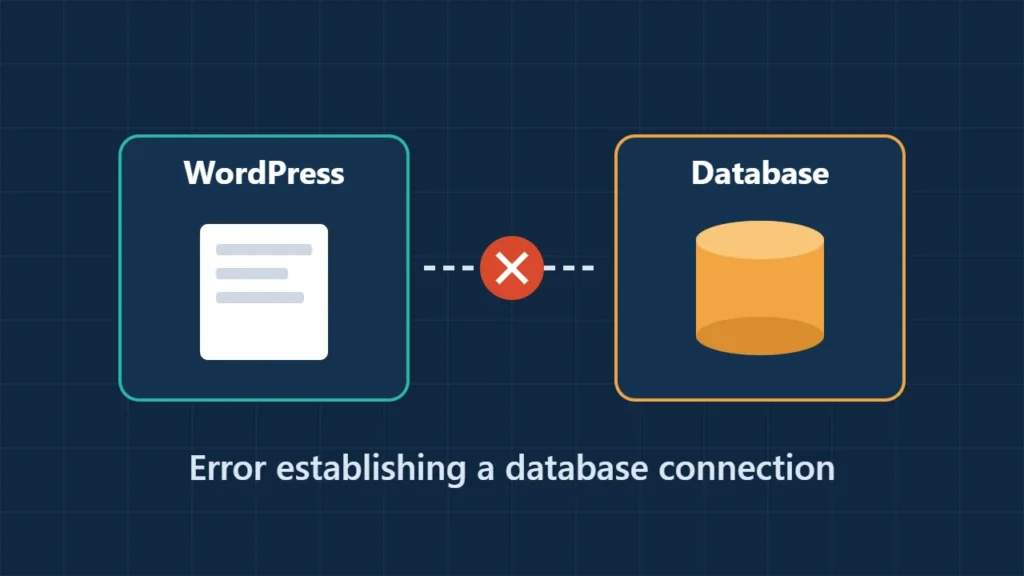
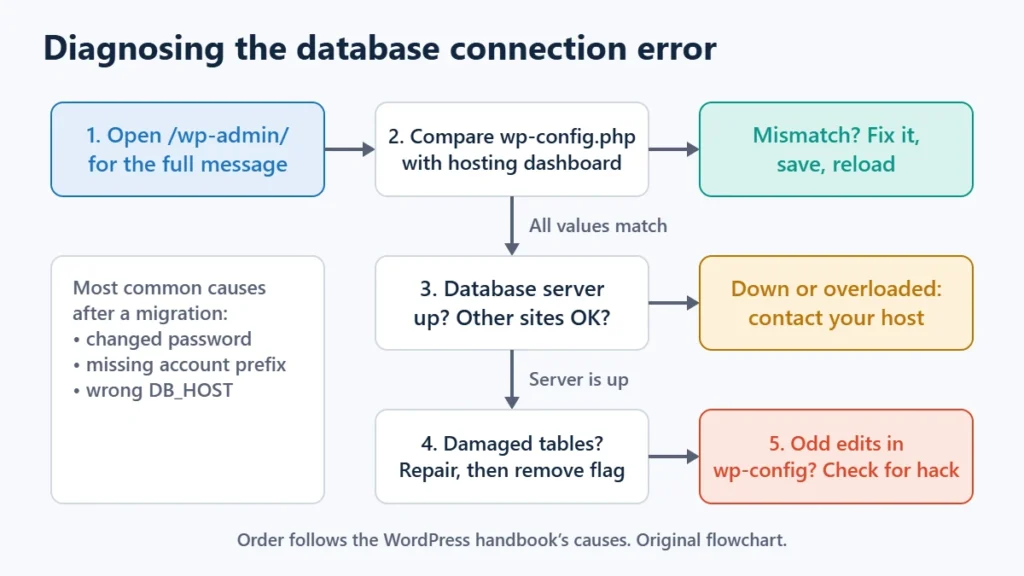
Table of Contents
- 1Step 1: Open wp-admin to See the Detailed Message
- 2Step 2: Check the Four Database Settings
- 3Step 3: Check Whether the Database Server Is Up
- 4Step 4: Repair Corrupted Tables
- 5Step 5: Rule Out a Hacked Site
- 6Show Visitors a Better Error Page
- 7If It Keeps Happening: Outgrowing Your Host
- 8Frequently Asked Questions
- Is my content lost?
- Why does the error only appear sometimes?
- What is the database host on Hostinger?
- Why does it work on my computer but not on the server?
- Can a plugin cause this error?
Step 1: Open wp-admin to See the Detailed Message
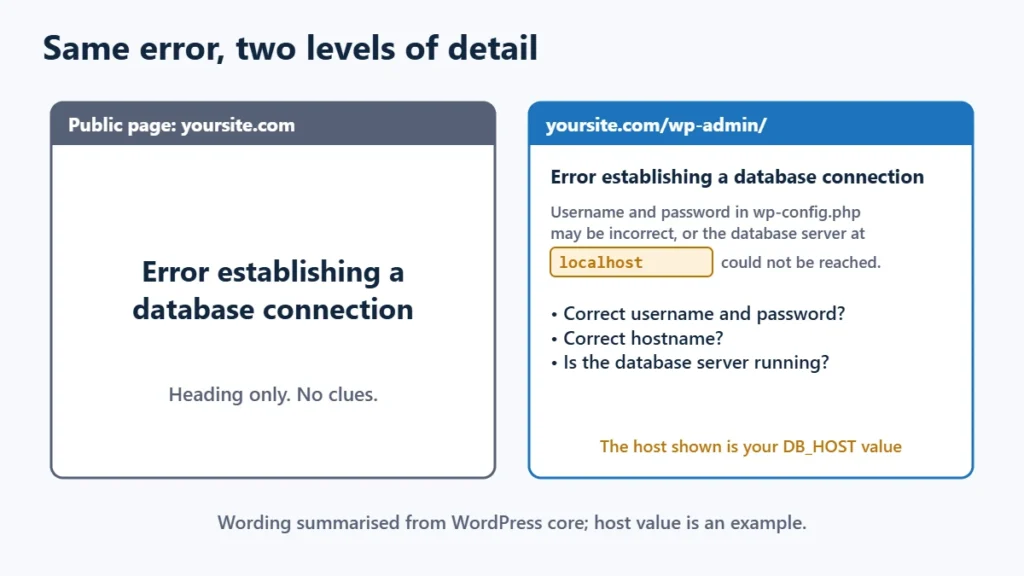
The WordPress core code shows two versions of this error. Public pages get only the heading. In /wp-admin/ or during installation, WordPress shows the full explanation. That version says your username and password may be wrong, or the database server at a named host could not be reached, and asks:
- Are you sure you have the correct username and password?
- Are you sure you have typed the correct hostname?
- Are you sure the database server is running?
The host it names is the value of DB_HOST in your wp-config.php. If that looks wrong, you have probably found the problem already.
| What you see | Most likely cause | Go to |
|---|---|---|
| Error on every page, started after a migration, password change or host change | Credentials in wp-config.php do not match | Step 2 |
| Error comes and goes, often at busy times | Database server overloaded or hitting a connection limit | Step 3 |
| Whole site down along with other sites on the account | Database server down | Step 3 |
| The admin works but a message mentions damaged tables | Corrupted tables | Step 4 |
Unexpected changes in wp-config.php you didn’t make | Possible compromise | Step 5 |
Step 2: Check the Four Database Settings
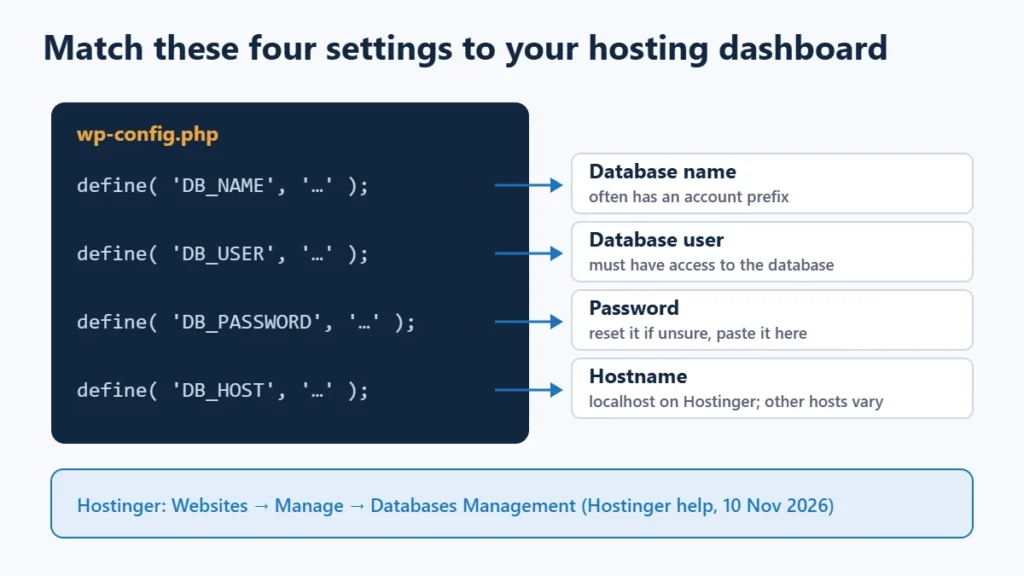
The WordPress handbook says this error is usually caused by a mistake in wp-config.php. Open the file over SFTP or your host’s File Manager and find these lines:
define( 'DB_NAME', 'database_name' );
define( 'DB_USER', 'database_user' );
define( 'DB_PASSWORD', 'password' );
define( 'DB_HOST', 'localhost' );
Compare each value with your hosting dashboard, character by character. On Hostinger, Hostinger’s help centre says to open Websites, choose Manage for the site, then Databases Management. The database name and user are listed there, and the hostname for all its databases is localhost. Other hosts keep this in a similar databases or MySQL section.
Things that commonly go wrong:
- The password was changed in the dashboard but not in
wp-config.php, or the other way round. You can’t view a MySQL password, so if in doubt, set a new one in the dashboard (on Hostinger, through the menu next to the database). Then paste the same value intoDB_PASSWORD. - A prefix is missing. Many hosts add an account prefix such as
u123456789_to both the database name and user. Copy the full names from the dashboard. - The user isn’t attached to the database. On hosts that manage users and databases separately, check that the user has access to that database.
- The host value is wrong for this server. Most shared hosts use
localhost, but some use a separate hostname or IP address. WordPress also accepts a port or socket after a colon, for examplelocalhost:3307or a socket path. Use exactly what your host documents. - Quotes or invisible characters. Each value must sit inside straight single quotes. Copying from a document can add curly quotes or a trailing space.
Save the file and reload the site. This step fixes most cases after a migration. If you have just moved hosts, the WordPress migration guide covers the other settings that change with the server.
Step 3: Check Whether the Database Server Is Up
If your settings are right, the problem is probably at the host. The WordPress handbook names two cases: the database has reached its quota and been shut down, or the server is down. Signs that point this way:
- Other sites on the same hosting account show the same error.
- phpMyAdmin in your dashboard will not open or will not show the database.
- The error appears and disappears, especially during traffic spikes. This often means the server is refusing new connections.
Check your host’s status page and contact support with the time the error started. For repeated busy-time failures, page caching reduces how often WordPress needs the database. The LiteSpeed Cache settings guide and reducing TTFB explain the options. If the plan simply cannot keep up, the section on outgrowing your host below covers that.
Step 4: Repair Corrupted Tables
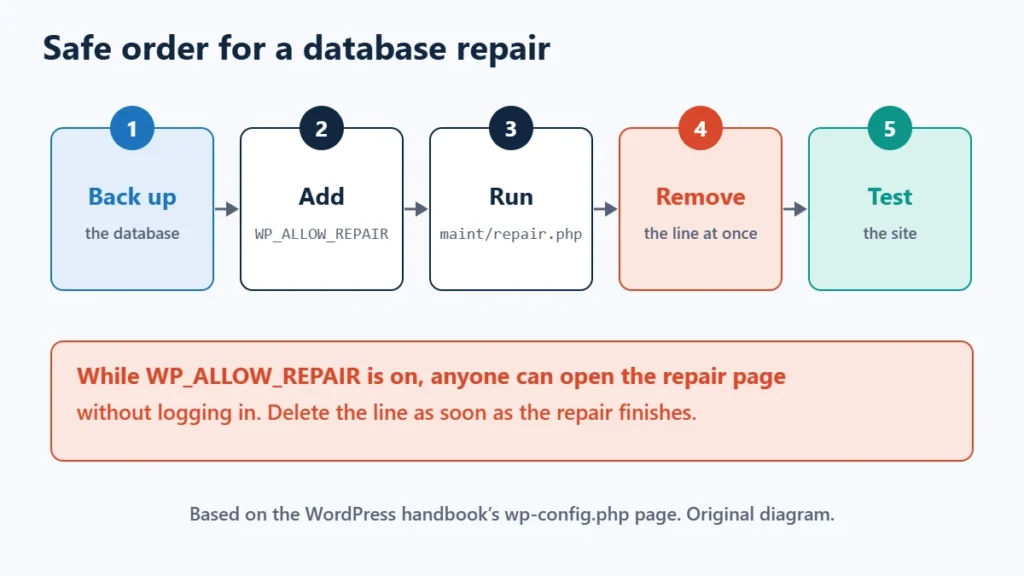
If the connection works but tables are damaged, WordPress has a built-in repair tool. Add this line to wp-config.php:
define( 'WP_ALLOW_REPAIR', true );Then open yoursite.com/wp-admin/maint/repair.php and choose Repair Database. The WordPress handbook says it should only be enabled when needed and turned off once the issue is solved.
WP_ALLOW_REPAIR is on, anyone can open the repair page without logging in, because WordPress assumes you may not be able to. Delete the line as soon as the repair finishes. Take a database backup from phpMyAdmin first if you can still open it.You can also repair individual tables in phpMyAdmin: select the tables, then choose Repair table. The handbook suggests this, or asking your host to run a check and repair, for damaged table errors.
Step 5: Rule Out a Hacked Site
The handbook lists a compromised site as the third possible cause. Check this after your settings and the host. Warning signs include unfamiliar code at the top of wp-config.php, new admin users you didn’t create, or unknown files in the WordPress root. If you see any of these, restore a clean backup, change every password (hosting, database, WordPress and SFTP), and ask your host to scan the account.
Show Visitors a Better Error Page
WordPress core checks for a file named wp-content/db-error.php. If it exists, WordPress shows it instead of the plain heading, with an HTTP 500 status. A short page with your logo and “We’ll be back shortly” looks better than a bare error during an outage. Keep it to plain HTML, because the database isn’t available when it loads.
If It Keeps Happening: Outgrowing Your Host
A one-off error after a change is a configuration problem. Errors that return at busy times, with correct settings, usually mean the plan’s database resources are too small for your traffic. Before upgrading, compare what different hosting types give you in shared vs VPS vs cloud hosting, and check renewal prices rather than first-term offers.
If you are weighing Hostinger, the Hostinger review covers its plans, and you can see the current Hostinger plans here. Affiliate link: I may earn a commission at no extra cost to you. Moving hosts does not fix a wrong password or a hacked site, so finish the steps above first.
Frequently Asked Questions
Is my content lost?
Almost certainly not. This error means WordPress cannot connect, not that the data has been deleted. Avoid reinstalling WordPress or importing an old backup until you have checked the settings and the server.
Why does the error only appear sometimes?
Intermittent errors usually point to the database server running out of connections or resources at busy times. Caching helps. If it continues, ask your host what limit the plan has hit.
What is the database host on Hostinger?
Hostinger’s help centre says the hostname for all its databases is localhost. You can find the database name and user under Websites → Manage → Databases Management.
Why does it work on my computer but not on the server?
A local setup such as XAMPP uses its own database name, user and password, often root with no password. When you upload the site, wp-config.php needs the live server’s values instead.
Can a plugin cause this error?
Rarely on its own, because WordPress connects to the database before loading plugins. A plugin that floods the database with queries can contribute to overload, though. A different message, “There has been a critical error on this website”, is the one plugins usually cause, and it has a different fix: find the faulty plugin or theme in the debug log and disable it.

Affiliate disclosure: some links on this page are affiliate links, so I may earn a commission if you buy, at no extra cost to you.