
To change nameservers on Hostinger, open your domain in the Hostinger dashboard, go to DNS / Nameservers, click Change Nameservers, enter the new values and save. If your domain is registered somewhere else and you want it to point to Hostinger, you do the opposite: copy the nameservers Hostinger shows you and enter them at your registrar. Either way, allow up to 24 hours for the change to spread, though Hostinger says it usually takes a few hours.
This guide covers both directions, the alternative of using A records, and the email settings that catch most people out.
Table of Contents
- 1Nameservers or A Records?
- 2How to Change Nameservers for a Domain Registered at Hostinger
- 3How to Point a Domain From Another Registrar to Hostinger
- 4How Long Nameserver Changes Take
- 5Don’t Break Your Email
- 6Frequently Asked Questions
- What are Hostinger’s nameservers?
- Why is my site still showing the old host?
- Will changing nameservers cause downtime?
- Can I change nameservers back?
Nameservers or A Records?
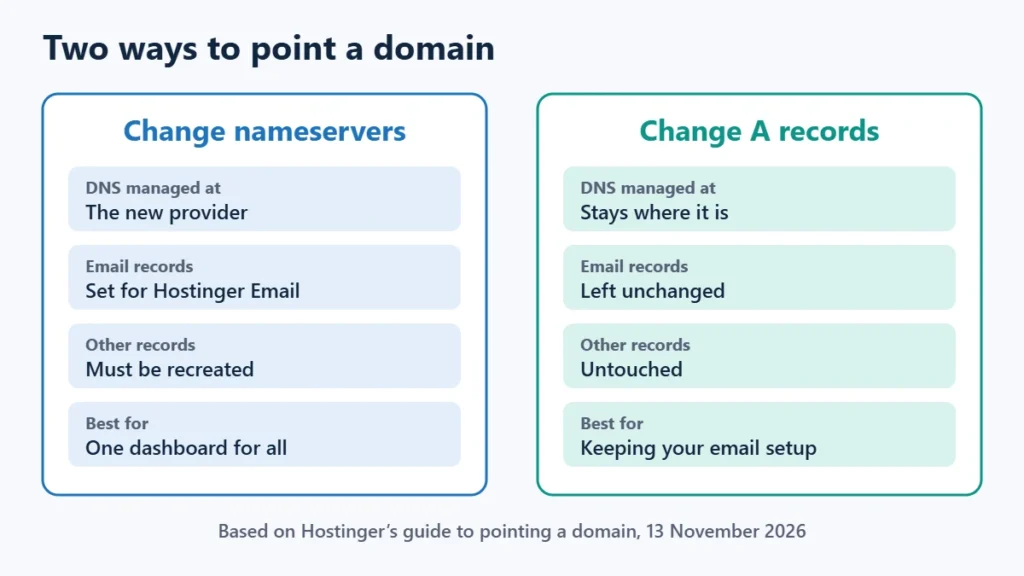
Nameservers decide which company answers DNS questions for your domain. Changing them moves the whole DNS zone, so every record (website, email, verification) is then managed at the new provider. Hostinger also offers a lighter option: keep your current nameservers and only change the A records so the website points to Hostinger’s server IP.
| Change nameservers | Change A records only | |
|---|---|---|
| Where DNS is managed | Moves to the new provider | Stays where it is |
| Email records | Set for Hostinger Email when pointing to Hostinger | Left unchanged |
| Best for | Running everything from one dashboard | Keeping an existing email or DNS setup |
If you are not sure which you need, the domain vs hosting guide explains how the registrar, DNS and hosting fit together.
How to Change Nameservers for a Domain Registered at Hostinger
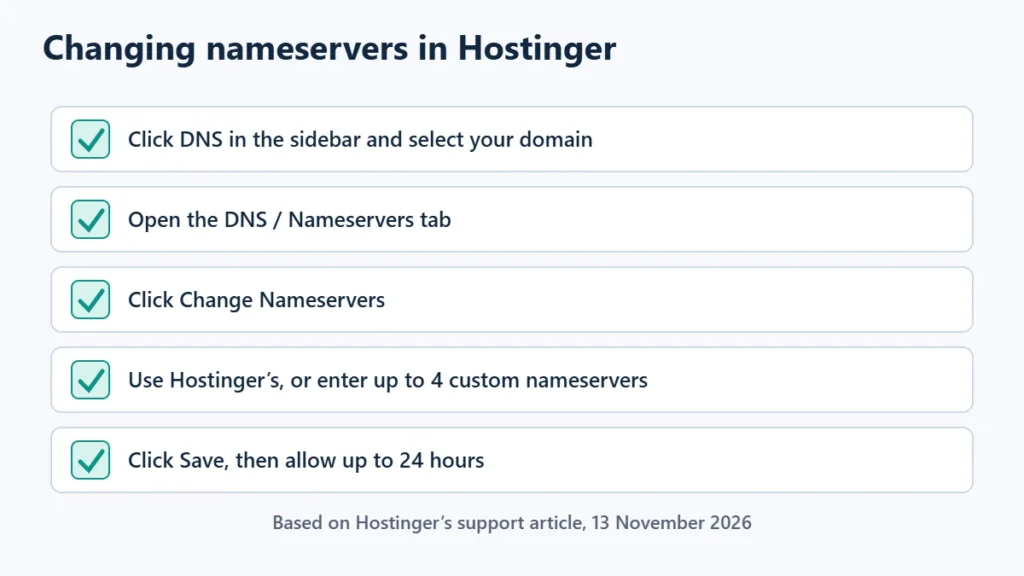
- Open the dashboard and click DNS in the left sidebar, then select your domain. You can also click Manage next to the domain in your domain list.
- Open the DNS / Nameservers tab.
- Click Change Nameservers.
- Choose an option. Pick “Use Hostinger nameservers” to keep DNS at Hostinger, or “Change nameservers” to enter another provider’s values. Hostinger accepts up to four custom nameservers.
- Click Save.
Copy the new values exactly from the provider you are moving to, such as Cloudflare. A single typo leaves the domain unreachable until it is fixed. If you are switching to Cloudflare for its CDN, Hostinger CDN vs Cloudflare covers which to use.
How to Point a Domain From Another Registrar to Hostinger
- Add the domain to your hosting plan in Hostinger.
- Get your nameservers. In the Websites section, find your site and click Connect under “Connect your domain”. The wizard shows the nameserver values.
- Enter them at your registrar, replacing the existing nameservers, and save.
- Wait for propagation, then check the site loads from Hostinger.
Hostinger says the values can vary by domain, so always use the exact ones shown in your own dashboard rather than values copied from an older guide. If you are moving an existing WordPress site, do the migration first and change DNS last, as described in the WordPress migration guide. That way visitors never land on an empty site.
How Long Nameserver Changes Take
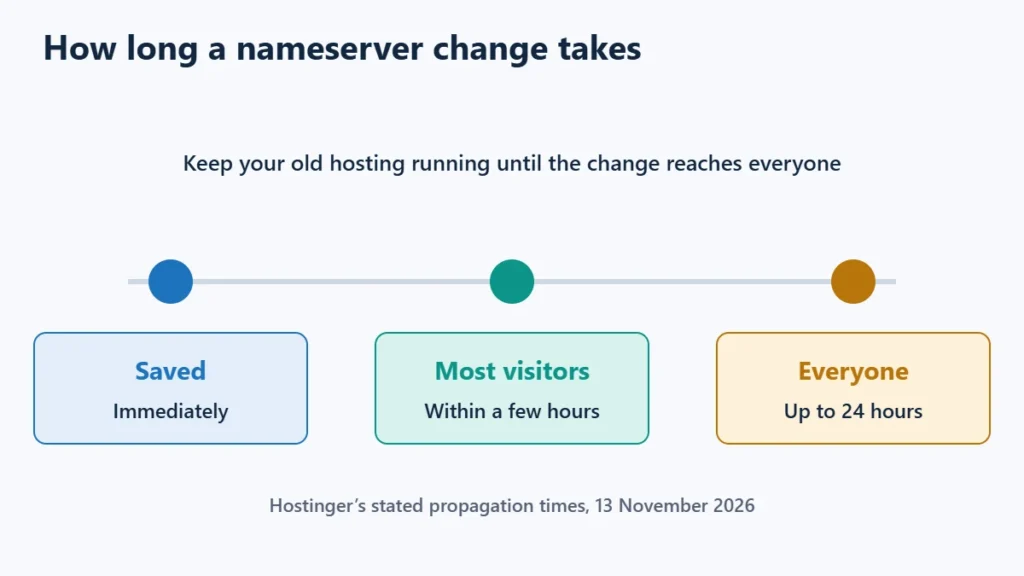
Hostinger asks you to allow up to 24 hours for propagation and says changes usually take effect within a few hours. During that window some visitors reach the old server and some the new one, because DNS resolvers around the world refresh at different times. Custom nameservers also go through a validation step that can take up to 24 hours.
Keep the old hosting running until propagation finishes. Once the site loads from Hostinger, turn on SSL; the free vs paid SSL guide explains why the free certificate is enough for most sites.
Don’t Break Your Email
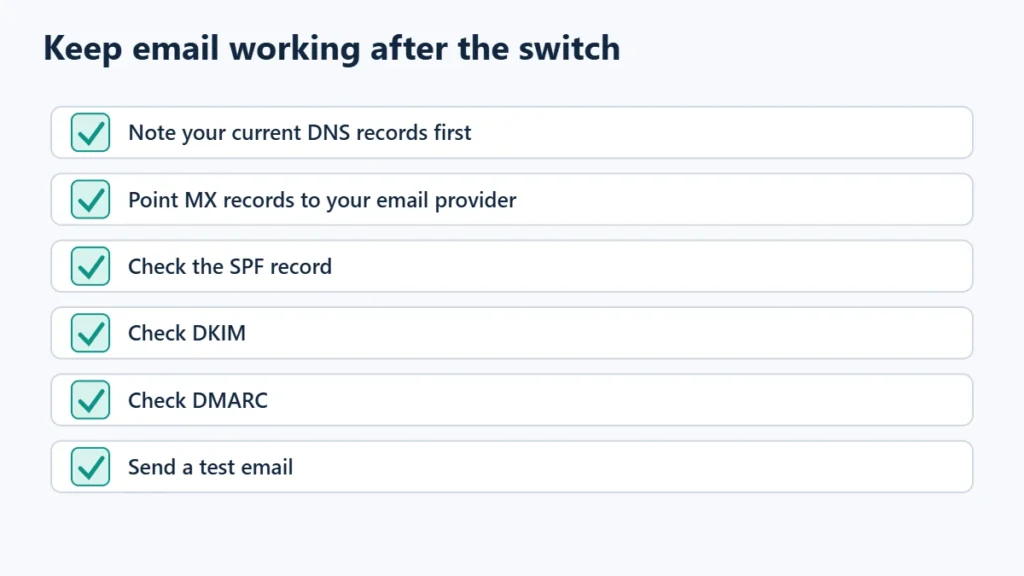
This is where most nameserver changes go wrong. Hostinger says pointing a domain to its nameservers sets the email records for Hostinger Email. If your email runs elsewhere, such as Google Workspace or Microsoft 365, update the MX records to that provider after propagation, and review the SPF, DKIM and DMARC records too. Before you switch, note your current DNS records so you can recreate any you still need.
If you only want the website on Hostinger and your email must not move, the A-record method avoids the problem entirely. You can see Hostinger’s plans, and hPanel vs cPanel shows what the dashboard is like. Affiliate link: I may earn a commission at no extra cost to you.
Frequently Asked Questions
What are Hostinger’s nameservers?
Use the values shown in your own Hostinger dashboard. Hostinger says they can vary by domain, so values copied from another site may be wrong for yours.
Why is my site still showing the old host?
Propagation can take up to 24 hours. Check that the nameservers were saved correctly at your registrar, then try another network or clear your device’s DNS cache.
Will changing nameservers cause downtime?
Not if both the old and new hosting serve the site during propagation. Downtime usually comes from cancelling the old hosting too early or from missing DNS records.
Can I change nameservers back?
Yes. Enter the previous values again and wait for propagation. Note your existing nameservers and DNS records before you change anything.

Affiliate disclosure: some links on this page are affiliate links, so I may earn a commission if you buy, at no extra cost to you.