
ERR_TOO_MANY_REDIRECTS means your browser was sent from one URL to another so many times that it gave up. On a WordPress site, it is almost always two layers that disagree. One sends visitors to HTTPS and another sends them back to HTTP, or one prefers www and the other doesn’t. The usual layers are Cloudflare, your host’s server rules and WordPress’s own Site Address. Find out which two are fighting, then keep only one of the redirects.
Most guides give you a list of ten things to try in turn. This one starts by tracing the redirect chain. The chain tells you which fix applies, so you can skip the rest.
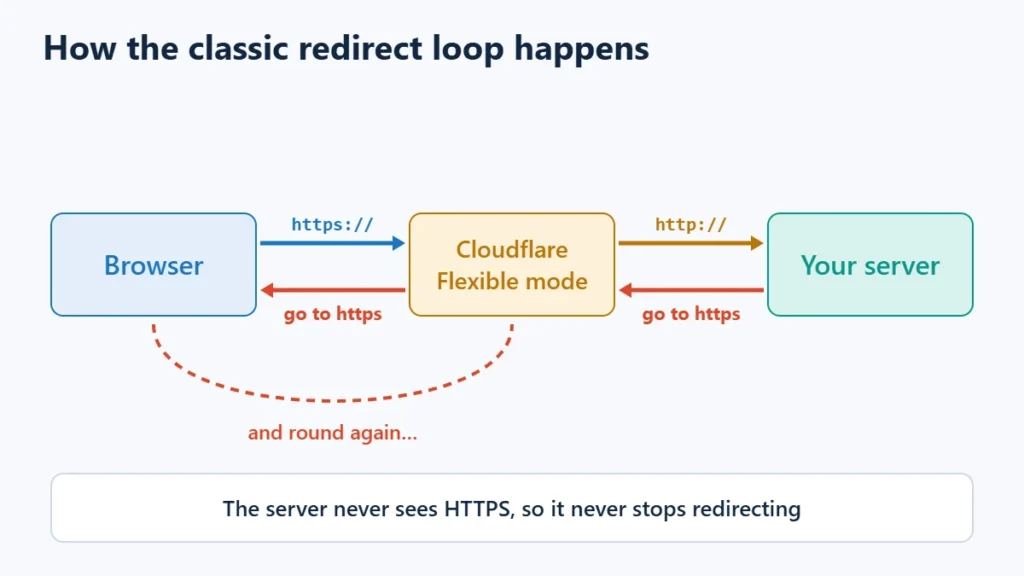
Table of Contents
- 1Quick Check: Is It Only Your Browser?
- 2Step 1: Trace the Redirect Chain
- 3Step 2: Check Cloudflare’s SSL/TLS Mode
- 4Step 3: Make WordPress’s Two URLs Match the Real Address
- 5Step 4: Only wp-admin Loops? Check for a Proxy
- 6Step 5: Find Duplicate Redirects in Plugins and Server Rules
- 7After a Migration or a Switch to HTTPS
- 8Common Causes at a Glance
- 9When to Contact Your Host
- 10Frequently Asked Questions
- Will clearing my cookies fix ERR_TOO_MANY_REDIRECTS?
- Which Cloudflare SSL mode should a WordPress site use?
- Why does only wp-admin have too many redirects?
- Can a trailing slash cause a redirect loop?
- Will I lose content fixing this?
Quick Check: Is It Only Your Browser?
Open the site in a private window or on your phone’s mobile data. If it loads there, the loop is probably caused by an old cookie or a cached redirect in your browser. Clear the cookies and cached files for that one site and try again. Browsers remember permanent (301) redirects, so a loop you fixed on the server can keep showing until the cache is cleared.
If the private window shows the same error, the problem is on the site. Carry on below.
Step 1: Trace the Redirect Chain
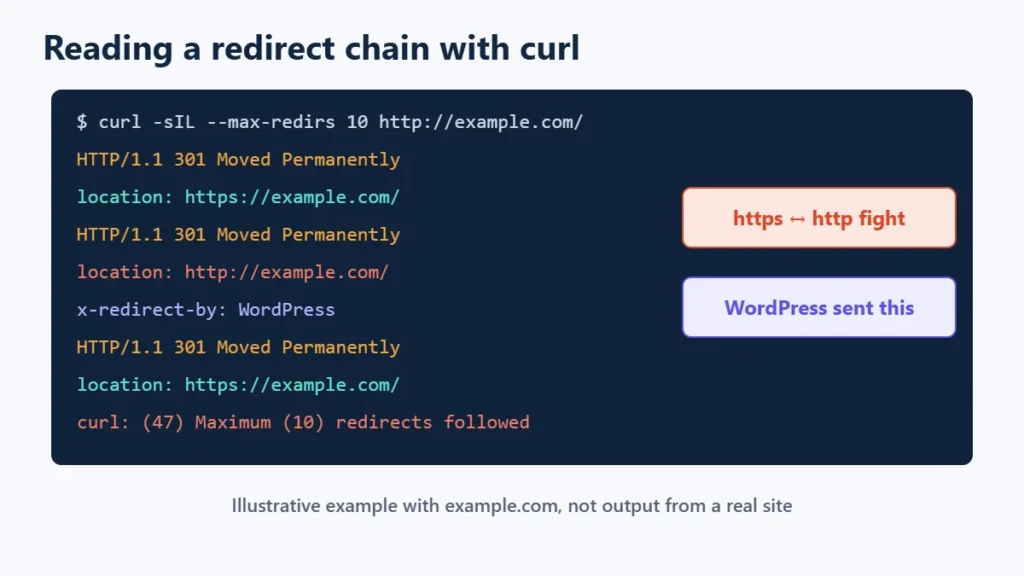
You can see every hop with curl, which is built into Windows 10 and 11, macOS and most Linux systems. Run this in a terminal, using your own domain:
curl -sIL --max-redirs 10 http://example.com/It prints the response headers for each hop and stops after ten. Read the location: line of each response. That is where the server told the browser to go next. Then look for the pattern:
| What the location lines do | What it means | Go to |
|---|---|---|
Switch between https:// and http:// | A protocol fight. One layer forces HTTPS, another forces HTTP or can’t see that the visitor used HTTPS. | Steps 2, 3 and 4 |
Switch between www.example.com and example.com | A host name fight. WordPress’s Site Address and a server or Cloudflare rule disagree about www. | Steps 3 and 5 |
| Point to the same URL every time | A redirect to itself, usually from a plugin, a cached redirect or a login cookie problem. | Step 5 |
Only loop on /wp-admin/ or wp-login.php | An admin HTTPS setting behind a proxy or load balancer. | Step 4 |
Two more headers help. A redirect sent by WordPress’s own redirect function carries x-redirect-by: WordPress. Some plugins put their own name in that header instead, which points straight at the culprit. A redirect with no such header usually came from the web server, your host’s settings or Cloudflare. If your site uses Cloudflare’s proxy, every response says server: cloudflare, so that header alone doesn’t tell you which layer sent the redirect.
Step 2: Check Cloudflare’s SSL/TLS Mode
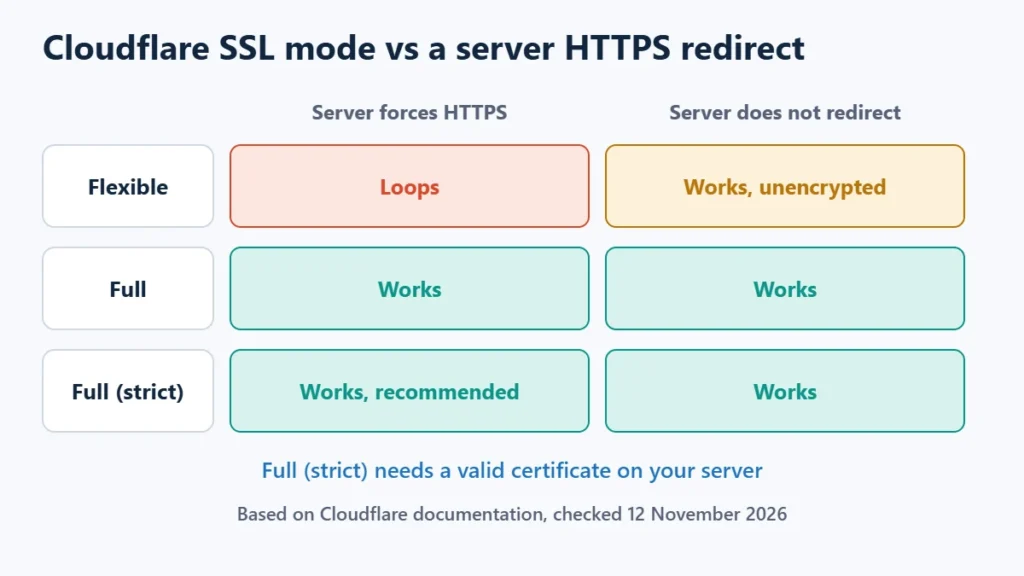
If your domain uses Cloudflare, check this first. Cloudflare’s own troubleshooting page names a misconfigured encryption mode as a common cause of this error. The setting is under SSL/TLS in the Cloudflare dashboard.
| Cloudflare mode | How Cloudflare talks to your server | Loops when your server… | Fix |
|---|---|---|---|
| Flexible | Plain HTTP, even when the visitor used HTTPS | Redirects HTTP to HTTPS (WordPress set to https, a “Force HTTPS” toggle or an .htaccess rule) | Install an SSL certificate on the server and switch to Full (strict), or remove the server’s HTTPS redirect |
| Full or Full (strict) | HTTPS when the visitor used HTTPS | Redirects HTTPS back to HTTP | Remove the server’s HTTP redirect and set WordPress URLs to https |
| Always Use HTTPS (on) | Cloudflare redirects every http request to https | Redirects HTTPS back to HTTP | Remove the server’s HTTP redirect, or turn Always Use HTTPS off |
| HSTS (on) | Browsers refuse plain HTTP | Redirects HTTPS back to HTTP, or the mode is Off | Use HTTPS everywhere, or turn HSTS off with care |
Flexible mode with a WordPress site that already uses HTTPS is the classic loop. Cloudflare connects to the server over HTTP, the server answers “go to HTTPS”, Cloudflare passes that to the browser, and the next request reaches the server over HTTP again. Cloudflare says it strongly recommends Full or Full (strict) where possible. Full (strict) also checks the server’s certificate. Many hosts include a free certificate, and Cloudflare offers its own Origin CA certificates for this.
Also check Rules in the Cloudflare dashboard. A redirect rule or Page Rule that sends www to the bare domain will loop if WordPress’s Site Address uses www. If you are weighing Cloudflare against your host’s own CDN, see Hostinger CDN vs Cloudflare.
Step 3: Make WordPress’s Two URLs Match the Real Address
WordPress stores two addresses: the WordPress Address (siteurl) and the Site Address (home). Both must use the same protocol and host name that your server and Cloudflare send visitors to. If the server forces https://www.example.com but WordPress says http://example.com, each side keeps redirecting to its own version.
If you can still reach the dashboard, fix them under Settings → General. If you can’t, add these lines to wp-config.php above /* That's all, stop editing! */:
define( 'WP_HOME', 'https://example.com' );
define( 'WP_SITEURL', 'https://example.com' );
WordPress’s handbook says both values should include https:// and must not end with a slash. They override the stored settings without changing the database, and the fields on the General settings screen can no longer be edited while they are set. Once the site works, you can correct the database values and remove the lines. The handbook lists other ways to change the stored values: editing the siteurl and home rows in the wp_options table, or with WP-CLI:
wp option update home 'https://example.com'
wp option update siteurl 'https://example.com'
If WordPress is installed in a subfolder, WP_SITEURL includes that folder, for example https://example.com/wordpress, while WP_HOME may not. Take a database backup before editing wp_options directly.
Step 4: Only wp-admin Loops? Check for a Proxy
Some hosts and setups put a reverse proxy or load balancer in front of WordPress. The proxy handles HTTPS, then passes the request to WordPress over plain HTTP. WordPress thinks the visitor is on HTTP. If FORCE_SSL_ADMIN is on, it redirects to HTTPS on every request. WordPress’s HTTPS handbook page warns that this setup sends requests into an infinite redirect loop.
The fix is to tell WordPress that the original request was HTTPS when the proxy says so in the X-Forwarded-Proto header. Add this to wp-config.php above the “stop editing” line:
define( 'FORCE_SSL_ADMIN', true );
if ( isset( $_SERVER['HTTP_X_FORWARDED_PROTO'] )
    && strpos( $_SERVER['HTTP_X_FORWARDED_PROTO'], 'https' ) !== false ) {
    $_SERVER['HTTPS'] = 'on';
}
This is the handbook’s snippet with an isset() check added, so it doesn’t raise a warning when the header is missing. It uses strpos because some setups send a list such as http,https. Only use it if your host or proxy actually sets the header; ask your host if you aren’t sure. On Nginx proxies, the header is usually passed with proxy_set_header X-Forwarded-Proto $scheme;.
Step 5: Find Duplicate Redirects in Plugins and Server Rules
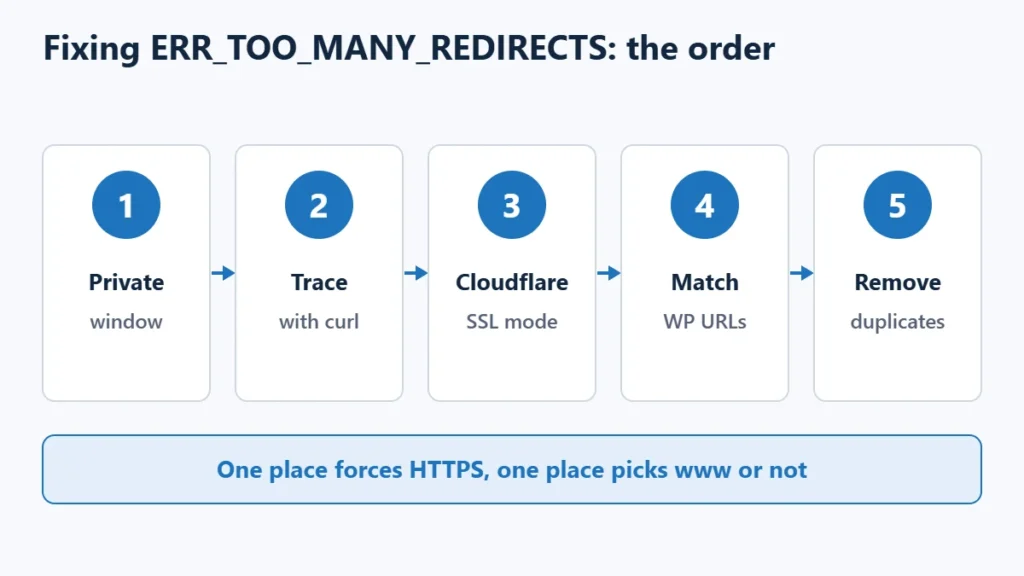
A site needs one place that forces HTTPS and one place that picks www or not. Loops often appear when several places do it at once and one of them is wrong. Check each of these and keep only one:
- Your host’s dashboard. Many panels have a “Force HTTPS” or “HTTPS redirect” switch.
- .htaccess or Nginx rules. Look for
RewriteRulelines that mentionhttpsorwwwoutside the# BEGIN WordPressblock. Download a copy of the file before you edit it. - SSL and redirect plugins. HTTPS helper plugins, redirect managers and SEO plugins with redirect modules can all send redirects. A rule that sends a page to itself, or two rules that point at each other, will loop.
- Caching. A page cache or CDN can keep serving an old redirect after you fix the cause. Purge it after every change. On LiteSpeed servers, see how to purge LiteSpeed Cache.
If you can’t reach the dashboard to deactivate a plugin, rename its folder in wp-content/plugins/ over SFTP or File Manager. WordPress can no longer load it. The critical error guide explains the folder rename method step by step. If the trace showed an x-redirect-by header with a plugin’s name, start with that plugin.
If only logged-in users loop, for example straight after logging in, the cause is usually a login cookie issued for one host name (say www) while WordPress redirects to the other. Making the two URLs in Step 3 match the address in the browser, then clearing cookies, normally fixes it.
After a Migration or a Switch to HTTPS
Moving to a new host or domain is a common trigger. The new server may force HTTPS before its certificate is active, or the copied database may still hold the old address. Work through Steps 1 to 3 on the new server before changing DNS if you can. WordPress’s migration guide also suggests WP-CLI’s search-replace for old URLs inside content, skipping the guid column:
wp search-replace 'http://example.com' 'https://example.com' --skip-columns=guidRun it with --dry-run first to see what it would change, and take a backup. For a full move, see the WordPress migration guide.
Common Causes at a Glance
| Started after… | Likely cause | Fix |
|---|---|---|
| Turning on Cloudflare | Flexible SSL mode plus an HTTPS redirect on the server | Full (strict) with a server certificate |
| Installing an SSL certificate | WordPress URLs still on http while the host forces https | Set both URLs to https (Step 3) |
| Changing the Site Address | www and non-www rules disagree | Pick one and match every layer to it |
| Moving behind a proxy or load balancer | WordPress can’t see that the visitor used HTTPS | Forwarded-proto snippet (Step 4) |
| Adding a redirect or SSL plugin | Two rules pointing at each other | Deactivate it, then fix or remove the rule |
| A migration | Old URLs in the database or certificate not yet active | Steps 1 to 3, then search-replace |
When to Contact Your Host
If the trace shows redirects with no x-redirect-by header, Cloudflare isn’t involved, and you can’t find a rule in .htaccess or your dashboard, the redirect is probably set at server level. Cloudflare’s own guide gives the same advice: ask your host whether the origin server is sending redirects. Send them the curl output so they can see the chain.
Frequently Asked Questions
Will clearing my cookies fix ERR_TOO_MANY_REDIRECTS?
Only if the loop is in your browser, such as a stale cookie or cached redirect. If a private window shows the same error, the cause is on the site and clearing cookies won’t fix it for visitors.
Which Cloudflare SSL mode should a WordPress site use?
Full (strict), with a valid certificate on your server. Cloudflare strongly recommends Full or Full (strict) where possible. Flexible sends traffic to your server unencrypted and loops as soon as the server redirects to HTTPS.
Why does only wp-admin have too many redirects?
Usually because FORCE_SSL_ADMIN is on while WordPress sits behind a proxy that passes requests over HTTP. WordPress keeps redirecting to HTTPS because it never sees HTTPS. The forwarded-proto snippet in Step 4 fixes it.
Can a trailing slash cause a redirect loop?
It can when combined with a server or plugin rule that adds or removes slashes differently. WordPress’s handbook says the WordPress Address and Site Address should not end with a slash, so start there.
Will I lose content fixing this?
No. Redirect settings don’t touch your posts. Back up the database before editing wp_options or running search-replace, and download .htaccess before changing it.