“There has been a critical error on this website” means a PHP fatal error stopped WordPress from loading the page. The cause is almost always a plugin, a theme, custom code or a PHP version change. To fix it, find the file named in the error (from the recovery email or the debug log), then disable that plugin or theme. If you cannot reach your dashboard, rename its folder over SFTP or your host’s File Manager.
The fastest route depends on one thing: whether WordPress sent you a recovery email. Many guides tell you to “check your inbox” without explaining when WordPress actually sends one. That is why so many site owners wait for an email that never arrives.
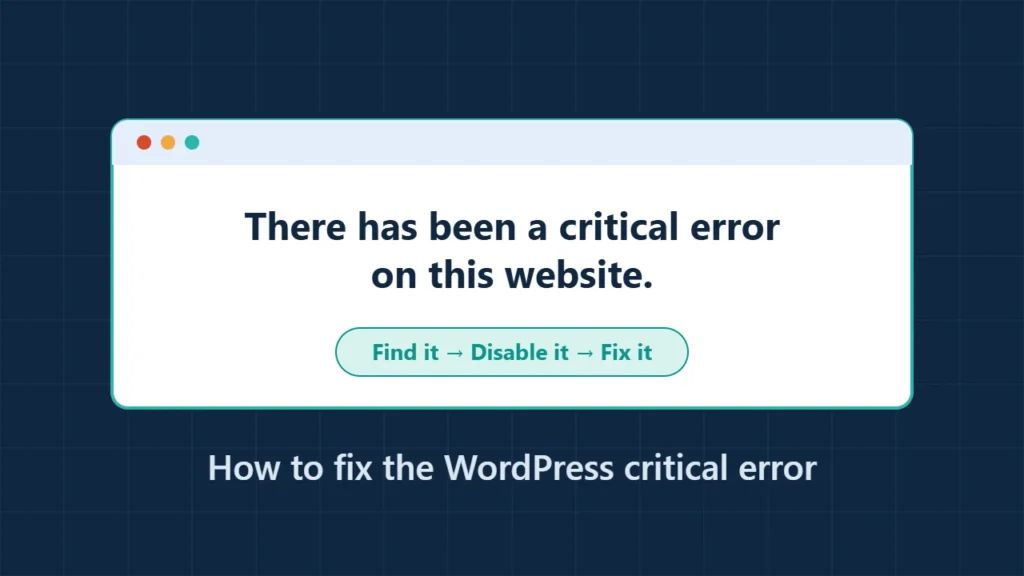
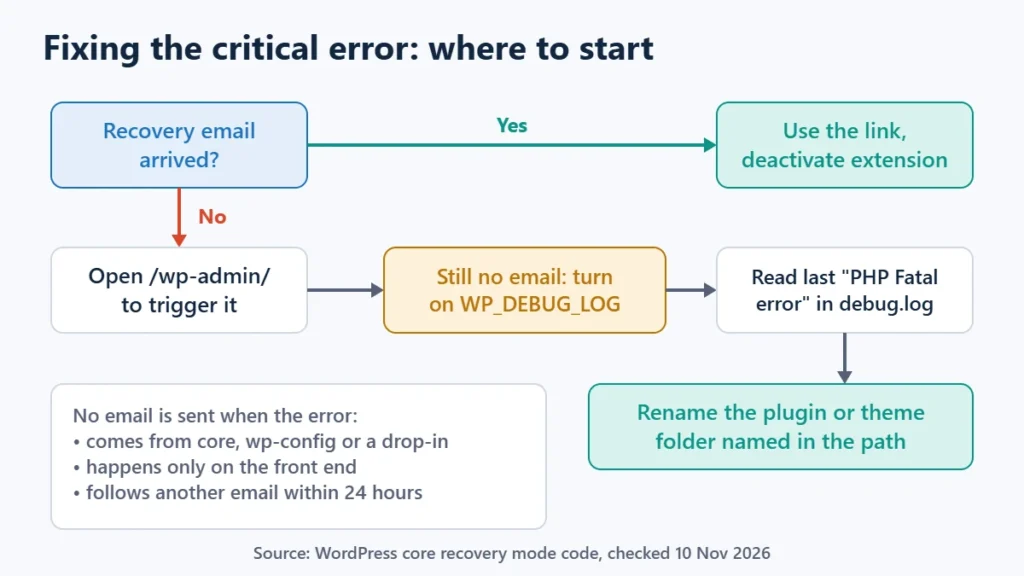
Table of Contents
- 1What the Message Means
- 2When WordPress Sends the Recovery Email (and When It Doesn’t)
- 3Fix 1: Use the Recovery Link
- 4Fix 2: Turn On the Debug Log
- 5Fix 3: Disable the Plugin or Theme Without wp-admin
- 6Common Causes and What to Check
- If the log says “Allowed memory size exhausted”
- 7After the Site Is Back
- 8When to Contact Your Host
- 9Frequently Asked Questions
- Why didn’t I get the critical error email?
- Can I fix the critical error without wp-admin access?
- Will I lose content or settings?
- Is this the same as the white screen of death?
- Should I just reinstall WordPress?
What the Message Means
Since WordPress 5.2, a fatal error no longer shows visitors a blank white screen or raw PHP output. WordPress catches the error and shows a short message instead. The wording tells you something about where you are:
| Message you see | Where it appears | What it tells you |
|---|---|---|
| There has been a critical error on this website. | Public pages | A fatal error happened. Nothing more is shown to visitors. |
| …Please check your site admin email inbox for instructions. | wp-admin or the login page, single site | WordPress has tried to email a recovery link. |
| …Please reach out to your site administrator… | wp-admin or the login page, multisite | Users are told to contact the site administrator. |
| …putting it in recovery mode. Please check the Themes and Plugins screens… | After you open a recovery link | The faulty extension has been paused for you only. |
When WordPress Sends the Recovery Email (and When It Doesn’t)
Reading WordPress’s recovery mode code shows three conditions. All of them must be true before an email is sent:
- The error must come from a plugin or theme. Errors in WordPress core files,
wp-config.php, must-use plugins or drop-ins such asobject-cache.phpdo not trigger a recovery email, because WordPress cannot pause them. - The error must happen on a protected page. That means
/wp-admin/,wp-login.phpor certain admin Ajax actions. An error that only happens on the front end is shown to visitors, but no email is sent. - No other recovery email can have gone out in the last day. The default limit is one email per 24 hours, and the link stays valid for at least that long.
So if you have no email, open yoursite.com/wp-admin/ in your browser first. If the error also breaks the admin area and comes from a plugin or theme, this is often what sends the email. Then check spam and the folder for your site’s administration email address (Settings → General). That address is often an old or unattended mailbox.
define( 'RECOVERY_MODE_EMAIL', 'you@example.com' ); to wp-config.php. WordPress core checks for this exact constant name, RECOVERY_MODE_EMAIL, and falls back to the administration email if it is missing or invalid. Some guides call it WP_RECOVERY_MODE_EMAIL. That name is not what core reads, so it does nothing.Fix 1: Use the Recovery Link
The email names the plugin or theme and the file and line where the error happened. Its link places a cookie in your browser and logs you into recovery mode:
- Click the link and log in.
- Read the notice at the top of the dashboard. It lists the paused plugin or theme and the error.
- Go to Plugins (or Appearance → Themes) and deactivate it, update it, or replace it.
- Click Exit Recovery Mode in the admin bar, then load the site in a private window to confirm it works for visitors.
Recovery mode pauses the extension for your browser only. Visitors still see the error until you deactivate or fix it, so don’t stop at logging in.
Fix 2: Turn On the Debug Log
If there is no email, let WordPress write the error to a file. Edit wp-config.php over SFTP or File Manager and add these lines above /* That's all, stop editing! */:
define( 'WP_DEBUG', true );
define( 'WP_DEBUG_LOG', true );
define( 'WP_DEBUG_DISPLAY', false );
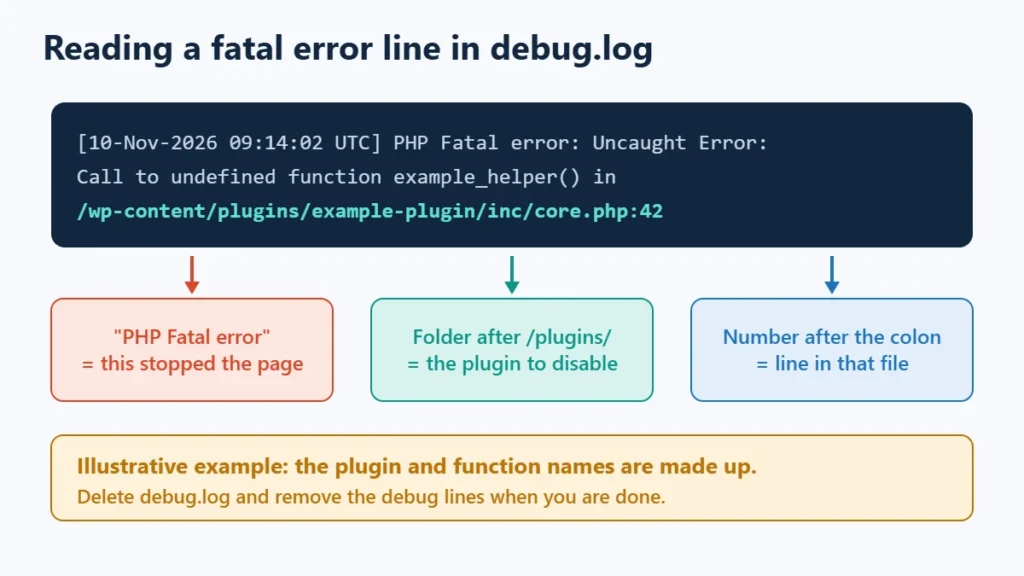
Reload the broken page, then open wp-content/debug.log. Look for the last line starting with PHP Fatal error. The path in that line points to the culprit, for example /wp-content/plugins/plugin-name/.
Setting WP_DEBUG_DISPLAY to false keeps the errors out of the page your visitors see. WordPress’s handbook recommends debug tools for testing and staging sites, not live ones. It also warns that a log in a publicly reachable location is a security risk. Remove these lines and delete debug.log as soon as you have your answer. Your host may also keep a PHP error log in its dashboard, which works without editing any files.
Fix 3: Disable the Plugin or Theme Without wp-admin
Once you know which folder is responsible, or if you want to rule plugins out quickly:
- Open
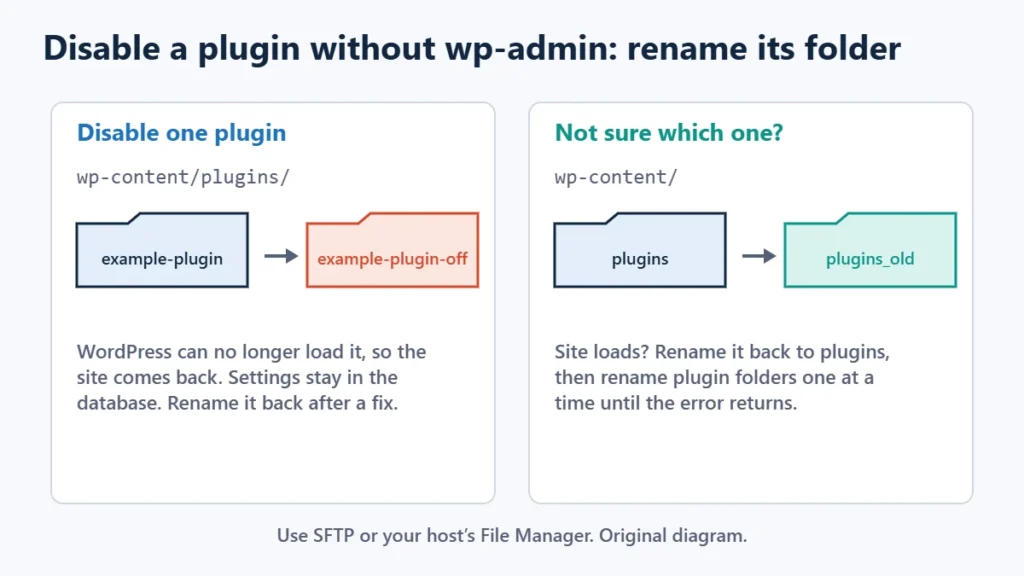
wp-content/plugins/in SFTP or File Manager. - Rename the faulty plugin’s folder, for example
plugin-nametoplugin-name-off. WordPress can no longer load it, and removes it from the active list the next time you open the Plugins screen. - If you don’t know which plugin it is, rename the whole
pluginsfolder toplugins_old. If the site loads, rename it back, then rename plugin folders one at a time until the error returns. - For a theme, rename its folder in
wp-content/themes/. WordPress then falls back to its default theme, as long as one of the bundled Twenty-series themes is still installed.
Renaming is safer than deleting because the plugin’s settings stay in the database. When an update has fixed the problem, rename the folder back and reactivate it.
Common Causes and What to Check
| Started after… | Likely cause | What to do |
|---|---|---|
| A plugin or theme update | New code that conflicts or needs a newer PHP version | Disable it, then restore the previous version from a backup or wait for a fix. |
| A PHP version change | Old code using functions removed in newer PHP | Switch PHP back temporarily, then update the extension. See how to update PHP safely. |
| Adding a code snippet | A syntax error in functions.php or a snippet | Undo the edit over SFTP. The debug log gives the line number. |
| Enabling object caching | A broken object-cache.php drop-in, which never sends a recovery email | Rename wp-content/object-cache.php. See the object cache connection guide. |
| Traffic or a heavy page | “Allowed memory size … exhausted” | Raise the limit (below) and find what uses the memory. |
| A move to a new host | Different PHP version or missing extension | Match the old PHP version first. See the migration guide checklist. |
If the log says “Allowed memory size exhausted”
WordPress’s handbook says it tries to raise PHP memory to 40MB for a single site and 64MB for multisite. You can ask for more in wp-config.php:
define( 'WP_MEMORY_LIMIT', '256M' );This cannot exceed the limit your hosting plan sets for PHP. If nothing changes, the plan’s limit is the ceiling, so ask your host or check its PHP settings. Treat a higher limit as a stopgap. If one plugin uses huge amounts of memory, replacing it is the real fix.
After the Site Is Back
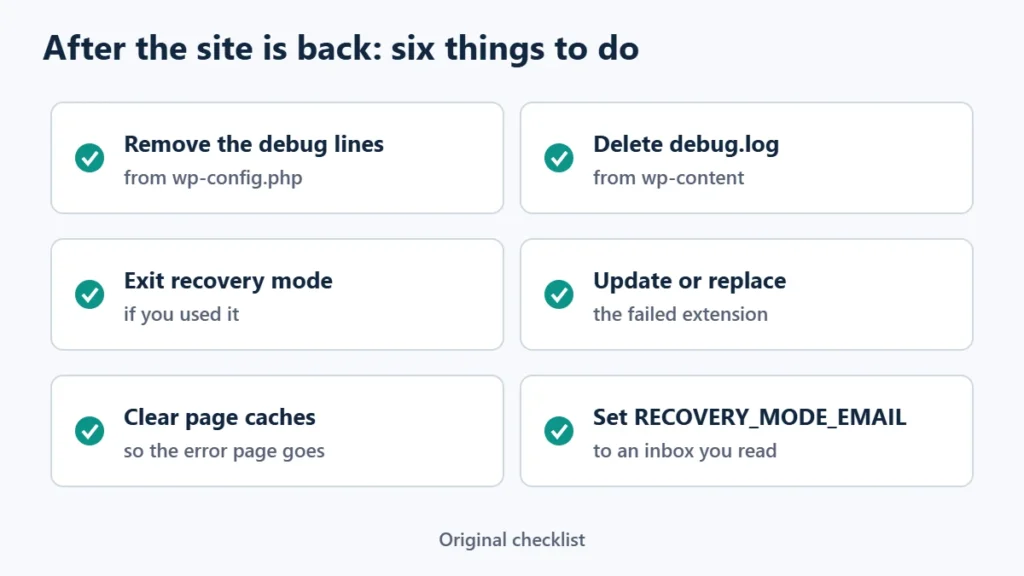
- Remove the debug lines from
wp-config.phpand deletewp-content/debug.log. - Exit recovery mode if you used it, so the paused list is cleared.
- Update or replace the extension that failed instead of leaving it renamed and forgotten.
- Clear your caches. A page cache can keep serving the error page after the fix. On LiteSpeed servers, purge LiteSpeed Cache.
- Set
RECOVERY_MODE_EMAILto an inbox you check, so the next failure reaches you. - Test updates first on a staging copy if your host offers one, especially major plugin or PHP updates.
When to Contact Your Host
Ask your host for help if the debug log stays empty, the error points to WordPress core files, or the site broke without any change on your side. Those cases can mean a server-level problem, a failed automatic update or a compromised site. Have your backup ready before anyone starts replacing files.
Frequently Asked Questions
Why didn’t I get the critical error email?
WordPress only sends it when a plugin or theme causes the error on an admin or login page, and at most once a day by default. Errors from core, wp-config.php or drop-ins never trigger it. Visit /wp-admin/, check spam, or use the debug log instead.
Can I fix the critical error without wp-admin access?
Yes. Use SFTP or your host’s File Manager to enable the debug log and rename the plugin or theme folder that causes the error.
Will I lose content or settings?
Not from the steps here. Your posts are in the database, and renaming a plugin folder only deactivates the plugin. Take a backup before replacing core files or restoring an older copy.
Is this the same as the white screen of death?
It has the same cause, a fatal PHP error. Since WordPress 5.2, the error handler shows this message instead of a blank page. A blank screen today usually means that handler was disabled with WP_DISABLE_FATAL_ERROR_HANDLER or failed itself.
Should I just reinstall WordPress?
Rarely. Most critical errors come from plugins and themes, which a core reinstall doesn’t touch. Find the file named in the error first.