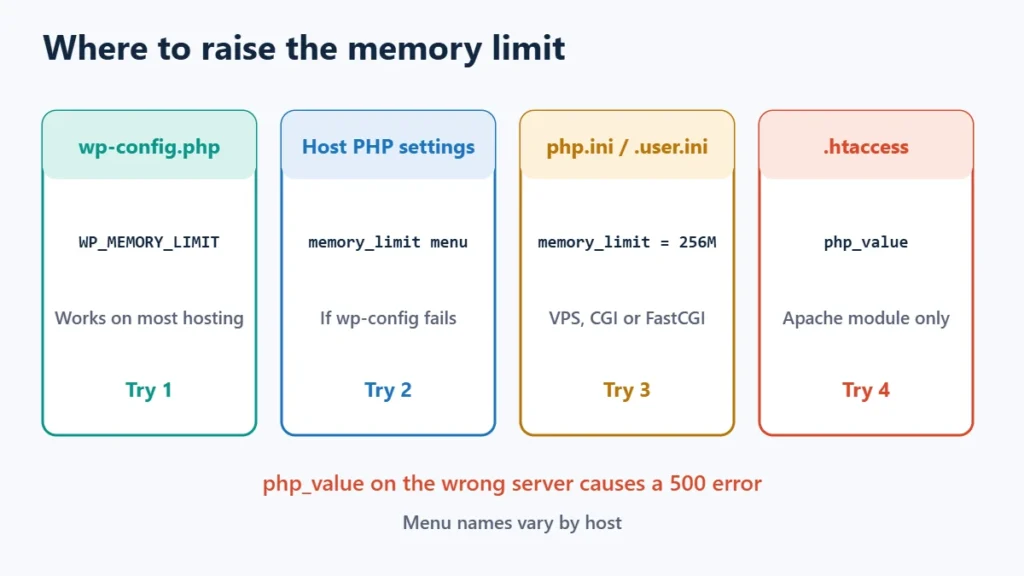
To increase the WordPress memory limit, add define( 'WP_MEMORY_LIMIT', '256M' ); to wp-config.php, above the line that says /* That's all, stop editing! */. That fixes most “Allowed memory size of … bytes exhausted” errors. If nothing changes, your host has locked PHP’s memory setting, and you need to raise it in the hosting panel, in php.ini or .user.ini, or by asking the host.
This guide explains how to read the error, how to check your current limit, how WordPress actually sets memory, and which method works on which kind of hosting.
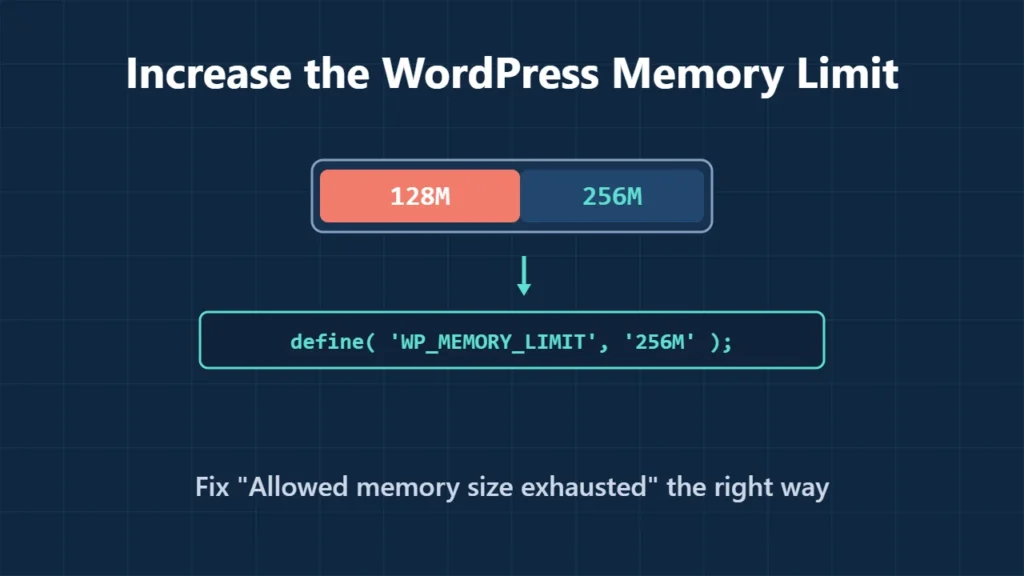
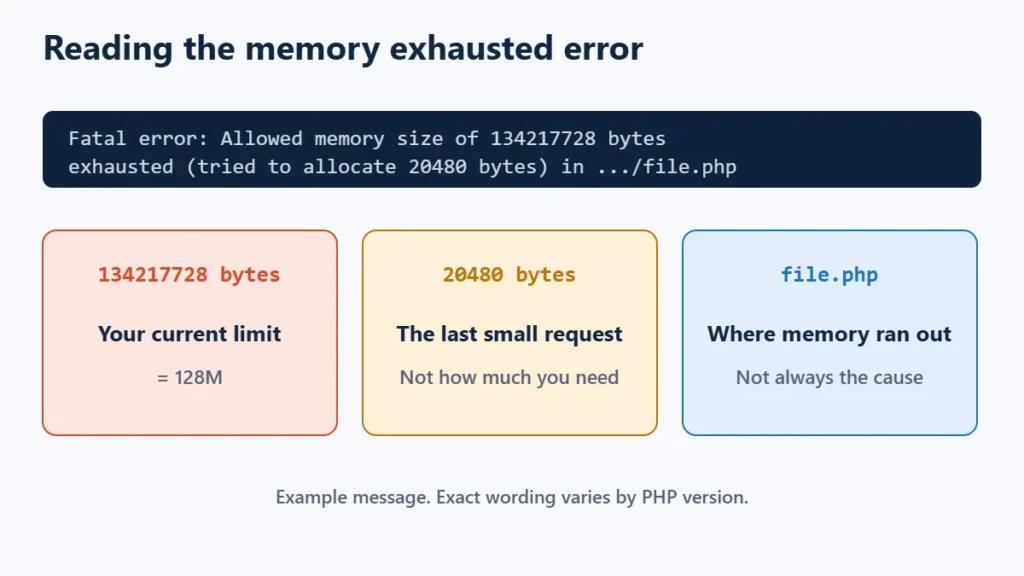
Table of Contents
- 1How to Read the “Allowed Memory Size Exhausted” Error
- 2Check Your Current Memory Limit
- 3How WordPress Sets Its Memory Limit
- 4Method 1: Edit wp-config.php
- 5Method 2: Your Host’s PHP Settings
- 6Method 3: php.ini or .user.ini
- 7Method 4: .htaccess (Only on Some Servers)
- 8Why Your Change Didn’t Work
- 9How Much Memory Should WordPress Have?
- 10If the Error Keeps Coming Back
- 11Frequently Asked Questions
- What is WordPress’s default memory limit?
- What is the difference between WP_MEMORY_LIMIT and WP_MAX_MEMORY_LIMIT?
- Is 40M of memory too low?
- Can I increase the memory limit with a plugin?
- Will increasing the memory limit break my site?
How to Read the “Allowed Memory Size Exhausted” Error
The full message usually looks like this:
Fatal error: Allowed memory size of 134217728 bytes exhausted (tried to allocate 20480 bytes) in /wp-content/plugins/example/file.php on line 120- The first number is your current limit, in bytes. Use the table below to turn it into megabytes.
- “Tried to allocate” is only the last small piece of memory PHP asked for when it ran out. It is not how much more you need.
- The file path shows where memory ran out, which is not always the code that used most of it. If the same plugin appears every time, it is worth a closer look.
| Bytes in the error | Limit |
|---|---|
| 33554432 | 32M |
| 41943040 | 40M (WordPress’s default target for a single site) |
| 67108864 | 64M (WordPress’s default target for multisite) |
| 134217728 | 128M (PHP’s built-in default) |
| 268435456 | 256M |
| 536870912 | 512M |
On recent WordPress versions, this fatal error often shows up as “There has been a critical error on this website.” instead. The critical error guide explains how to see the real message behind it.
Check Your Current Memory Limit
If you can still reach the dashboard, open Tools → Site Health → Info:
- Under Server, “PHP memory limit” is the limit for normal page loads. If WordPress raised it for the dashboard, you’ll also see “PHP memory limit (only for admin screens)”.
- Under WordPress Constants,
WP_MEMORY_LIMITandWP_MAX_MEMORY_LIMITshow what WordPress is asking for.
If those values don’t match what you set, something is overriding you. The sections below explain why.
How WordPress Sets Its Memory Limit
PHP has a memory_limit setting. Its built-in default is 128M, but hosts often change it. WordPress then adjusts it at startup using two constants. Here is what the WordPress 7.1 code does:
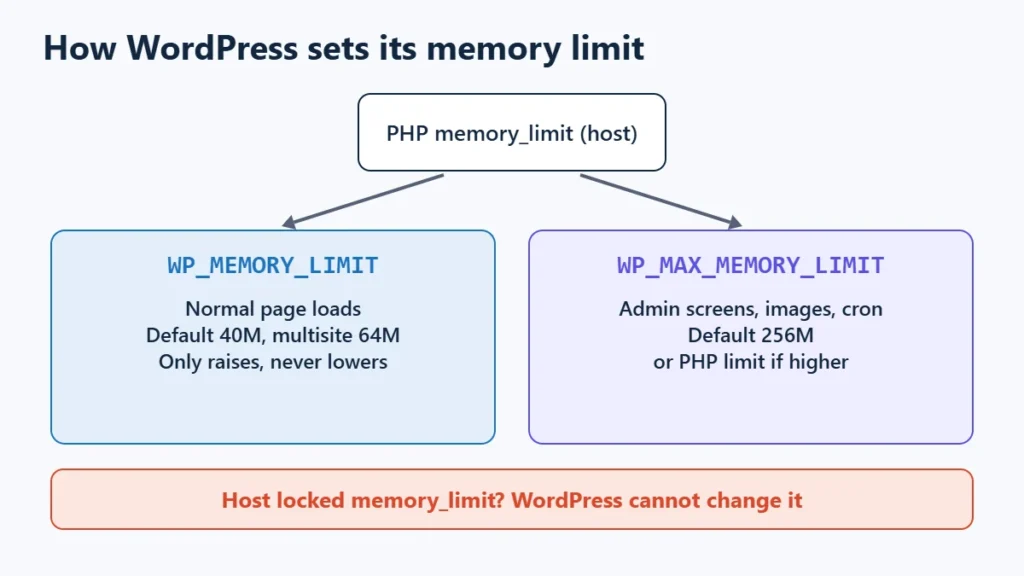
WP_MEMORY_LIMITapplies to normal page loads. If you don’t set it, WordPress uses 40M on a single site and 64M on multisite.- It only ever raises the limit. If PHP already allows more than
WP_MEMORY_LIMIT, WordPress leaves PHP alone. A site on 128M stays on 128M with the default 40M setting. The handbook says the same: you don’t need to set 64M if PHP already has 64M. WP_MAX_MEMORY_LIMITapplies to admin screens for users who can manage options, to image processing and to scheduled tasks (WP-Cron). It defaults to 256M, or to PHP’s own limit if that is already higher.- If the host has locked
memory_limit, WordPress can’t change it at all, whatever you put inwp-config.php. If you haven’t set the constants yourself, both simply report the host’s value.
That explains a common puzzle: a memory error on the front end while the dashboard works, or the other way round. They can run with different limits.
Method 1: Edit wp-config.php
This is the method the WordPress handbook gives, and it works on most hosting.
- Connect with SFTP or your host’s File Manager and open
wp-config.phpin your WordPress root folder. Download a copy first. - Find the line
/* That's all, stop editing! Happy publishing. */. - Add your line above it. WordPress reads these constants while it loads, so a line placed further down comes too late.
define( 'WP_MEMORY_LIMIT', '256M' );If the error only happens in the dashboard, during image uploads or in scheduled tasks, raise the admin limit too. Keep it equal to or higher than WP_MEMORY_LIMIT:
define( 'WP_MAX_MEMORY_LIMIT', '512M' );Save the file, reload the page that failed, then check Site Health again. Use straight quotes and keep the semicolon. A typo in wp-config.php can take the whole site down, which is why the backup copy matters.
Method 2: Your Host’s PHP Settings
If wp-config.php made no difference, the limit is set at server level. Most hosting panels have a PHP settings screen where you can pick memory_limit from a list. The menu is often called PHP Configuration, PHP Options or MultiPHP INI Editor. Our hPanel vs cPanel comparison shows where each panel keeps its settings. If you can’t find the option, or the highest value is too low, that is your plan’s ceiling.
Method 3: php.ini or .user.ini
On hosting where you control PHP’s configuration, set the limit directly:
memory_limit = 256Mphp.iniis PHP’s main configuration file, usually on a VPS or your own server. Restart PHP afterwards..user.iniis a per-folder file that PHP reads when it runs through CGI or FastCGI, which includes PHP-FPM setups common on shared hosting. Put it in your WordPress root. The PHP manual notes these files are cached, by default for 300 seconds, so wait five minutes before deciding it didn’t work.
Method 4: .htaccess (Only on Some Servers)
Many guides suggest adding this to .htaccess:
php_value memory_limit 256MThis only works where Apache runs PHP as a module. On servers that run PHP another way, Apache doesn’t recognise the line and the whole site returns a 500 Internal Server Error. If that happens, remove the line straight away. Our 500 error guide covers this trap. Nginx ignores .htaccess completely, so the line does nothing there.
Why Your Change Didn’t Work
| What you see | Likely reason | What to do |
|---|---|---|
| Site Health still shows the old value after editing wp-config.php | Line placed below “stop editing”, a typo, or the host has locked the setting | Move the line up and check spelling, then use Method 2 |
| The limit rose, but the error still says the old number | The error is from the admin, image or cron side, which uses WP_MAX_MEMORY_LIMIT | Raise WP_MAX_MEMORY_LIMIT |
| .user.ini change seems ignored | Cache delay, or PHP runs as an Apache module | Wait five minutes, or use the host’s PHP settings |
| 500 error right after editing .htaccess | php_value not supported on this server | Remove the line |
| Error comes back at the new, higher limit | Something is using memory without limit | Find the cause, below |
How Much Memory Should WordPress Have?
No official figure fits every site. The handbook’s own examples are modest (64M and 96M), and WordPress already gives admin screens 256M by default. For a typical site, 256M for normal pages is a common, reasonable ceiling. Heavy page builders, large WooCommerce stores and big imports may need more.
- More memory doesn’t make the site faster. The limit is a ceiling, not an allowance. Pages use the same memory either way. Raising it only stops pages that need more from failing.
- Don’t set
-1. PHP treats that as no limit, so one runaway request can use all the server’s memory. - Raising the limit can hide the real problem. The handbook warns about this. If a site needs ever more memory, find out why.
If the Error Keeps Coming Back
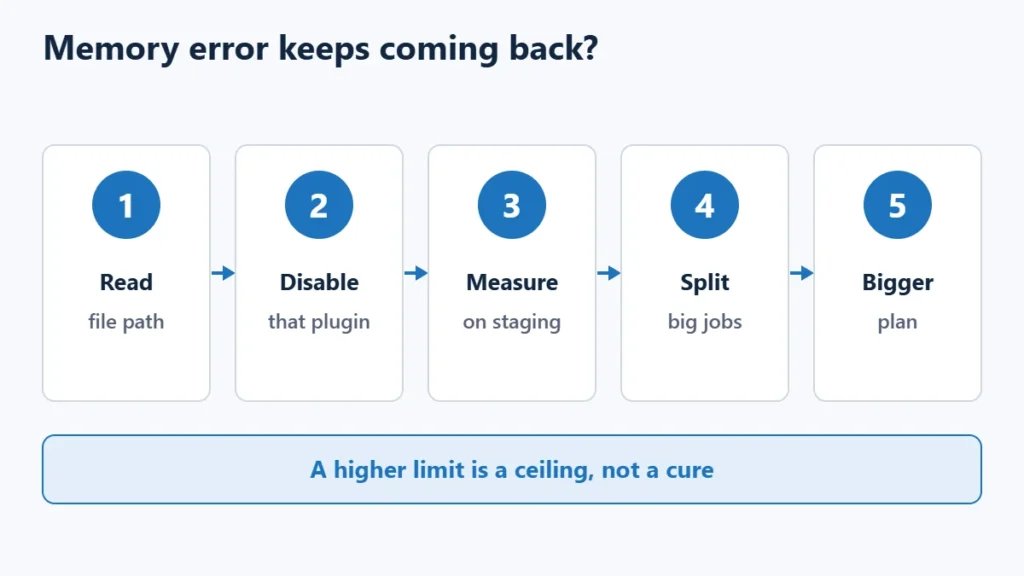
If the error returns at 256M or 512M, the limit isn’t the problem. Something is using too much:
- Check the file path in each error. The same plugin or theme every time is a strong hint.
- Disable plugins one by one, or rename a suspect plugin’s folder in
wp-content/plugins/if you can’t reach the dashboard. - Measure with a developer plugin such as Query Monitor, which shows each page’s peak memory use. Use it on staging if you can.
- Look at what the failing page does. Huge imports, exports, image batches and reports load a lot of data at once. Smaller batches often fix it.
- Update PHP and your plugins. See how to update PHP safely.
If your host’s ceiling is too low for what the site genuinely needs, a bigger plan or a different type of hosting is the long-term fix. Our guide to shared vs VPS vs cloud hosting explains the trade-offs.
Frequently Asked Questions
What is WordPress’s default memory limit?
WordPress asks for at least 40M on a single site and 64M on multisite, and 256M for admin screens. It never lowers a higher limit your host has set, so your real limit is often 128M or more.
What is the difference between WP_MEMORY_LIMIT and WP_MAX_MEMORY_LIMIT?
WP_MEMORY_LIMIT covers normal page loads. WP_MAX_MEMORY_LIMIT covers admin screens for administrators, image processing and WP-Cron tasks.
Is 40M of memory too low?
For most modern sites, yes, but it is rarely the real limit. 40M is only a minimum WordPress asks for. Check Site Health to see what PHP is actually using.
Can I increase the memory limit with a plugin?
Some plugins offer it, but they change the same settings described above and are bound by the same host ceiling. Editing wp-config.php is simpler and doesn’t add another plugin.
Will increasing the memory limit break my site?
Not by itself. A typo in wp-config.php or an unsupported php_value line in .htaccess can, so keep a copy of any file you edit.