
DNS propagation usually takes a few minutes to a few hours, but it can take up to about two days. The real limit is the TTL (time to live) of the old record. Resolvers around the world keep a cached copy for that many seconds before they ask again. Nameserver changes are the slowest: for this .com domain, the .com servers handed out the nameserver records with a TTL of 172,800 seconds, which is 2 days. Other domain endings set their own values. A changed A or MX record only waits for its own, usually much shorter, TTL.
I measured the numbers below on this site’s live DNS on 18 November 2026. I did not change any record for this article, so these are the timers that would apply if I did.
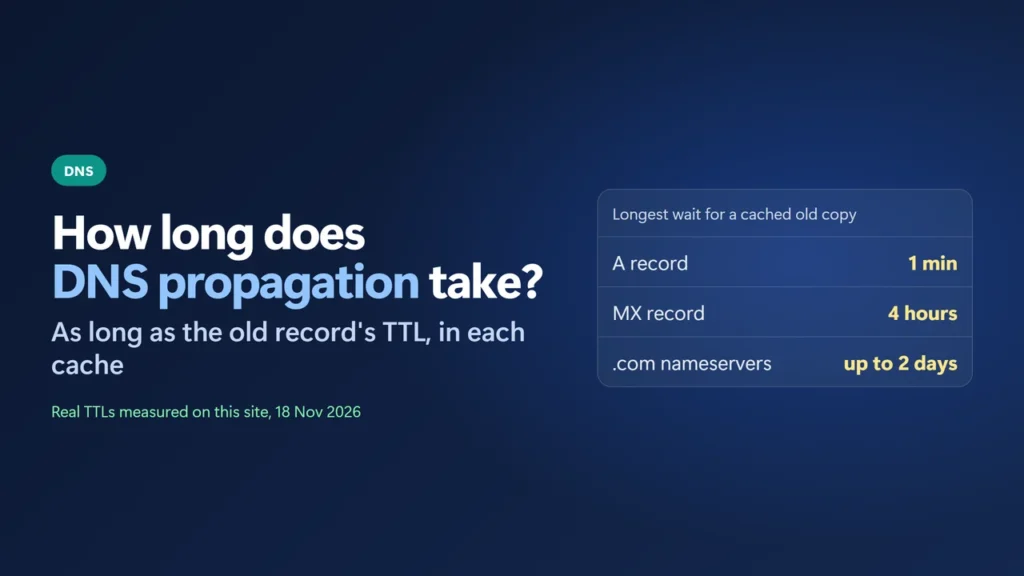
Key takeaways
- Nothing is pushed out. Each resolver keeps its cached answer until the TTL runs out, then asks again.
- A record change waits for the old record’s TTL: 60 seconds for this site’s A record, 4 hours for its MX records.
- Nameserver changes on a .com domain can take up to about 2 days, because the .com servers give out the delegation with a 2-day TTL.
- Hostinger asks you to “allow up to 24 hours” and says changes “typically” take effect “within a few hours”.
- Lower the TTL before a planned change, keep the old hosting running for a few days, and check the authoritative server first.
Table of Contents
- 1What DNS propagation really means
- 2How long each kind of change takes
- 3Why nameserver changes take the longest
- 4Why different places show different answers
- 5How to check whether your change has gone through
- 6How to make DNS changes take effect faster
- 7Keep the old hosting running for a few days
- 8Still seeing the old site after two days?
- How long does DNS propagation take?
- Why does DNS propagation take up to 48 hours?
- Can I speed up DNS propagation?
- How do I check DNS propagation?
- How long does a nameserver change take at Hostinger?
- Why do different DNS checkers show different IP addresses?
What DNS propagation really means
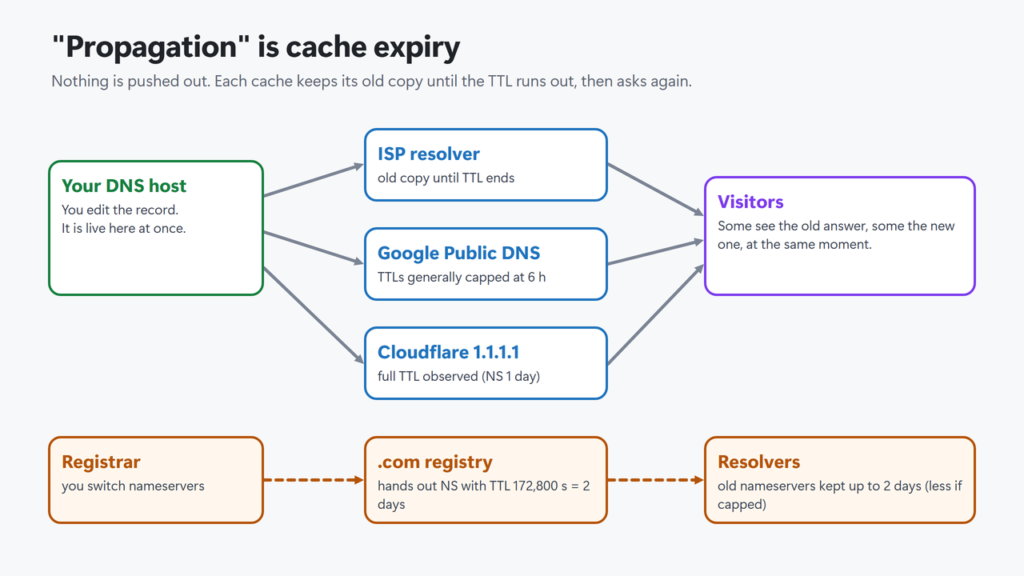
When you edit a DNS record, the change is live on your DNS host at once. The delay comes from everyone else’s copies. Internet providers, Google Public DNS, Cloudflare’s 1.1.1.1 and your own computer all cache DNS answers. RFC 1034, the core DNS standard, says the TTL “describes how long a RR can be cached before it should be discarded”, and a resolver uses a cached answer until then.
ICANN describes the same effect for a change at the very top of DNS: “Although the key change in the DNS is instantaneous, there is a time lag before each resolver sees it.” So “propagation” is really cache expiry. No server sends your new record out. Each resolver picks it up the next time it asks, after its old copy expires.
How long each kind of change takes
The wait depends on which record you change, because each record has its own TTL. These are this site’s TTLs on 18 November 2026. I asked Hostinger’s athena.dns-parking.com directly for the A, MX, NS and SOA records, and Google Public DNS for the CNAME and TXT records:
| What you change | Record | TTL on this site | Longest wait for a cached old copy |
|---|---|---|---|
| Website IP address | A / AAAA | 60 s | About 1 minute |
| www address | CNAME | 300 s | About 5 minutes |
| A name that didn’t exist yet | (negative answer) | 600 s (SOA) | About 10 minutes |
| SPF or a verification code | TXT | 3,600 s | About 1 hour |
| Email provider | MX | 14,400 s | About 4 hours |
| Nameservers (inside the zone) | NS | 86,400 s | About 1 day |
| Nameservers (at the .com registry) | NS referral | 172,800 s | About 2 days |
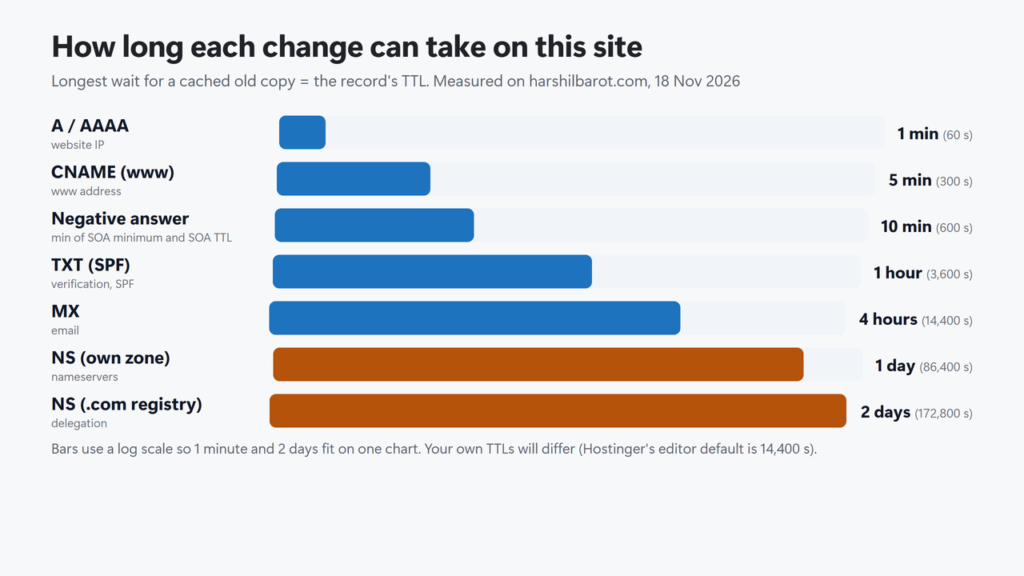
Your own TTLs are probably different. Hostinger’s help says the TTL field in its DNS editor “defaults to 14400 seconds”, which is 4 hours. So a record left at that default can stay cached for up to 4 hours when you later change it. (A brand-new name doesn’t wait for its own TTL; see the next paragraph.) Cloudflare gives proxied records a TTL of “Auto, which is set to 300 seconds”.
The “name that didn’t exist yet” row matters more than it looks. If you test shop.example.com before you create it, resolvers remember the “does not exist” answer. RFC 2308 sets that timer to the smaller of the SOA record’s MINIMUM field and the SOA’s own TTL. Here that is the smaller of 600 and 3,600 seconds, so 10 minutes. Create the record first, then test it.
Why nameserver changes take the longest
When you switch nameservers (for example, to point a domain at a new host; my guide shows how to change nameservers at Hostinger), the registrar sends the new names to the registry that runs the domain ending, such as .com. The registry’s servers then tell resolvers where your DNS lives, and they attach a TTL to that answer.
I asked one of the .com servers (a.gtld-servers.net) directly. It returned this site’s two nameservers with ttl = 172800 (2 days). Inside the site’s own zone the same NS records carry 86,400 seconds (1 day). So a resolver that cached the old nameservers just before your change can, in theory, keep using them for up to 2 days. Resolvers can also keep the old DNS host’s own NS records for that host’s TTL.
That 2-day figure is the .com case. Other endings, including country codes such as .uk or .in, set their own delegation TTL, and lowering the TTL in your own zone cannot shorten it. To see your ending’s value, ask one of its servers with -debug; for .com that is:
nslookup -debug -type=NS example.com a.gtld-servers.net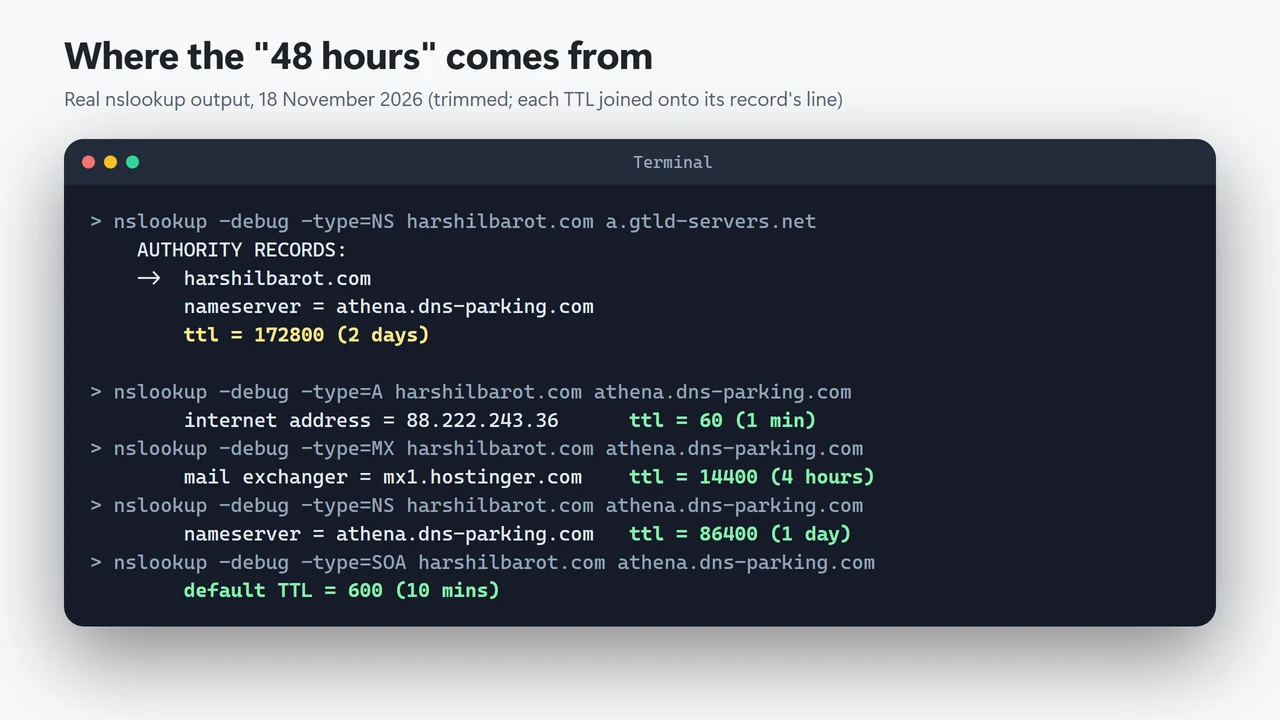
In practice many people see the change much sooner, for two reasons:
- Google Public DNS says cached TTLs “are generally limited to six hours even if the actual TTL is longer”. In my samples, Google never returned an NS TTL above 21,600 seconds (6 hours), while Cloudflare’s resolver returned the full 86,400.
- A resolver only holds the old answer if someone asked it recently. A quiet resolver that never cached your domain will fetch the new answer straight away.
Providers’ own guidance matches this range. Hostinger says to “allow up to 24 hours for propagation”. Cloudflare says to “wait up to 24 hours while your registrar updates your nameservers”. Namecheap says “up to 24 hours (more, in rare cases)”. None of these is a fixed rule; no DNS standard sets a propagation time.
Why different places show different answers
Each resolver caches on its own schedule, so two people can get different answers at the same moment. ICANN made the same point about a change to the root key: “Two users attempting to reach the same host at the same time may get different results if they are using different resolvers”.
You can see this even without a change. I asked Google and Cloudflare for this site’s records six times, a minute apart. Some answers counted down from a cached copy: Google’s MX TTL read 14,400, then 14,340, then later 14,097 seconds. Others came back at the full TTL again, because a big resolver runs many separate caches.
The A records changed every time: 12 answers, 12 different pairs of IP addresses. That is because this site sits behind a CDN that hands out many addresses. Every range I checked belongs to Hostinger. So if a propagation checker shows different IPs in different countries, that is not always a problem. Check that each IP belongs to your new host (my guide on how to find out who hosts a website shows how) before you worry.
How to check whether your change has gone through
Check from the source outwards. On Windows, nslookup takes an optional second parameter, the DNS server to ask, according to Microsoft’s documentation.
- 1. Ask your own DNS host. Take the nameserver names from your DNS host or registrar panel (a normal lookup may still return the old ones during a switch), then ask one of them directly. If this answer is wrong, waiting will not help: fix the record.
- 2. Ask public resolvers. Google (8.8.8.8) and Cloudflare (1.1.1.1) show what many visitors will see.
- 3. Ask your own computer. Run the lookup with no server, which uses your normal resolver.
nslookup example.com ns1.your-dns-host.com
nslookup -type=MX example.com ns1.your-dns-host.com
nslookup example.com 8.8.8.8
nslookup example.com 1.1.1.1
nslookup example.com
nslookup -type=NS example.com a.gtld-servers.net
The last line asks the .com registry which nameservers it hands out. Add -debug to any of these to see the TTL, as in the screenshot above.
Online propagation checkers are handy for a quick look across countries, but Cloudflare notes that “most of these tools use cached query results”, so they lag behind too. There is no single moment when propagation is “done” everywhere.
How to make DNS changes take effect faster
You can’t push a change to every resolver, but you can shorten the wait and clear the caches you control:
- Lower the TTL before a planned change. Set the record’s TTL to something short, such as 300 seconds, then wait at least as long as the old TTL before you make the real change. With Hostinger’s 4-hour default, do it the day before. Cloudflare’s lowest TTL is 60 seconds on non-Enterprise plans. Raise the TTL again afterwards. This helps A, CNAME, MX and TXT changes; it can’t shorten the registry’s TTL for a nameserver change.
- Flush Google Public DNS. Google’s Flush Cache page refreshes its cache “for common record types and most domain names”. You must solve a reCAPTCHA, it also flushes the nameserver delegation, and domains that use EDNS Client Subnet can’t be flushed.
- Purge Cloudflare 1.1.1.1. Cloudflare’s purge cache page lets you “refresh 1.1.1.1’s DNS cache for domain names”.
- Clear Windows’ cache. Run
ipconfig /flushdns. Microsoft says it “flushes and resets the contents of the DNS client resolver cache”. - Clear Chrome’s cache. Google’s Chromebook help says to go to
chrome://net-internals/#dnsand click Clear host cache. - On a Mac, I could not find an Apple page that documents a command to flush the DNS cache. Restart the Mac, or test from another device or another network (such as mobile data) instead.
Each flush only clears that one cache. Your visitors’ internet providers keep their own copies until the TTL runs out.
Keep the old hosting running for a few days
During the wait, some visitors reach the old server and some the new one. If you shut the old one down early, those visitors get errors. There is a second reason to wait if you are also moving DNS: RFC 8767 lets a resolver keep serving an expired record if it can’t reach the DNS servers it knows, and its example suggests holding stale data for “between 1 and 3 days”. So switching off the old DNS servers too soon can keep old answers alive.
So when you move hosts, keep the old hosting and the old DNS active for at least two or three days after the switch, and don’t edit content on the old copy. My WordPress migration guide walks through the full move, and the domain vs hosting guide explains which company holds which part.
Still seeing the old site after two days?
For a .com domain, after about 48 hours a wrong answer is rarely “slow propagation”. Check these instead:
- The record itself. Ask your DNS host directly (step 1 above). A typo in the IP address or the wrong DNS zone is a common cause.
- Nameservers at the registry. If you changed nameservers, ask the registry (for .com, a.gtld-servers.net) which ones it hands out. Cloudflare notes the registrar panel “does not show what the parent zone (the TLD) is actually returning”.
- www vs the bare domain. They are separate records. Updating one doesn’t update the other.
- Your own device. Flush the local and browser caches, and check that the hosts file has no old entry for the domain.
- A CDN in front. If a CDN proxies the site, update the origin address in the CDN, not just in DNS.
- SSL errors after the move. Many hosts issue the free certificate only after DNS points to them. See the free vs paid SSL guide for what to expect. To confirm the new certificate and its expiry date, see how to check SSL certificate expiration.
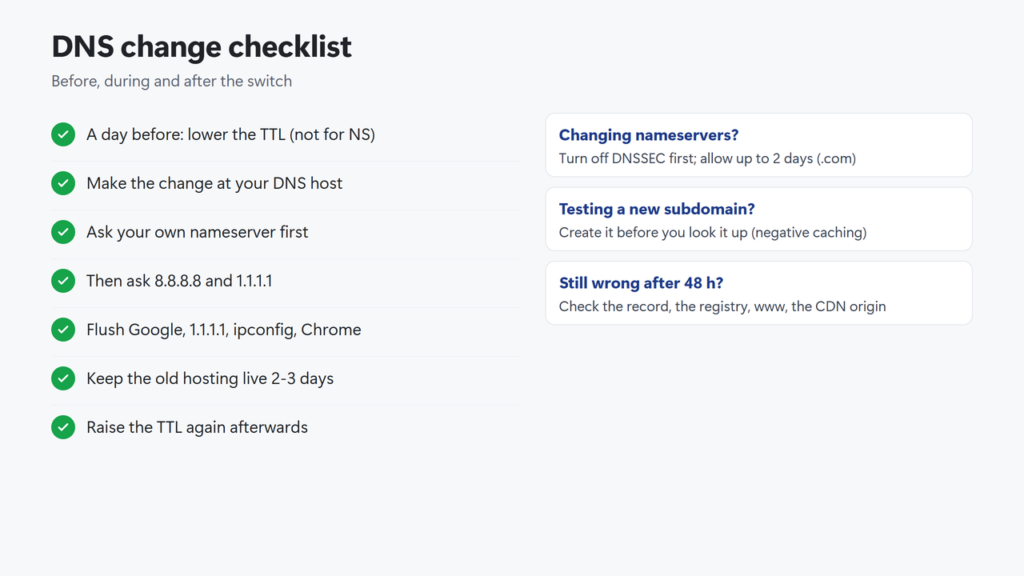
Checklist in text: a day before, lower the TTL (this does not help a nameserver change); make the change; check your DNS host’s answer; check Google and Cloudflare; flush your own caches; keep the old hosting live for a few days; raise the TTL again; if it’s still wrong after 48 hours, check the record, the registry, www and any CDN.
How long does DNS propagation take?
Usually minutes to a few hours, and up to about two days for a .com nameserver change. The wait is at most the TTL of the old record still held in caches. Nameserver changes are the slowest because the .com servers hand out nameserver records with a 2-day TTL; other endings set their own values.
Why does DNS propagation take up to 48 hours?
Because of caching. For .com domains, the registry gives out nameserver records with a TTL of 172,800 seconds, which is 2 days, so a resolver that cached the old nameservers may keep them that long. Many resolvers refresh sooner; Google Public DNS generally caps cached TTLs at six hours.
Can I speed up DNS propagation?
Only partly. For record changes, lower the TTL well before the change (it can’t shorten a nameserver change), then flush the caches you can reach: Google Public DNS, Cloudflare 1.1.1.1, your computer and your browser. Other providers’ caches expire on their own.
How do I check DNS propagation?
Ask your DNS host’s nameserver first with nslookup, then public resolvers such as 8.8.8.8 and 1.1.1.1. Online checkers give a wider view, but they also use cached results.
How long does a nameserver change take at Hostinger?
Hostinger asks you to allow up to 24 hours and says changes typically take effect within a few hours. The TTL the .com registry uses for nameserver records is 2 days, so for a .com domain a few resolvers may take longer.
Why do different DNS checkers show different IP addresses?
Each resolver caches on its own schedule, and sites behind a CDN return many IP addresses. If every address belongs to your new host, the change has worked.