
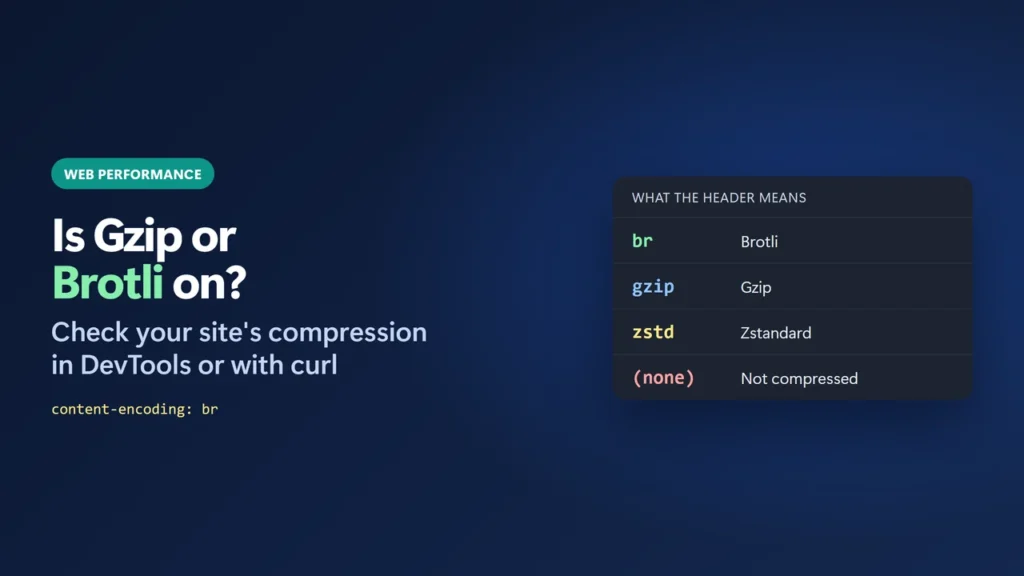
To check if Gzip or Brotli compression is enabled, open your site in Chrome, press F12, go to the Network tab, reload, click the page’s first request and look under Response Headers for content-encoding. br means Brotli, gzip means Gzip, zstd means Zstandard, and no header means the file was sent uncompressed. From a terminal, curl -s -o /dev/null -D - -H "Accept-Encoding: br, gzip" https://yoursite.com/ shows the same header (type curl.exe in Windows PowerShell).
Below are real measurements from 25 November 2026 (compression cut this site’s homepage by 68% and one CSS file by 87%), a trap that makes curl results wrong on sites with bot protection, and how to switch compression on.
Key takeaways
- The browser lists what it accepts in
Accept-Encoding; the server answers withContent-Encodingnaming what it used. - Brotli (br) usually beats Gzip on text; on the three sites I could compare fairly, Brotli files were 4% to 49% smaller than the Gzip versions of the same page.
- Compress HTML, CSS, JavaScript, JSON and SVG; don’t compress JPEG, PNG, WebP, video or ZIP files again.
- A CDN or bot-protection layer can answer curl with a challenge page, so confirm sizes in a real browser.
- Lighthouse 13 now reports an uncompressed page inside its “Document request latency” insight.
Table of Contents
- 1How Compression Works
- 2Real Measurements: How Much Compression Saves
- 3How to Check Compression
- 1. Chrome DevTools
- 2. curl
- 3. Lighthouse or PageSpeed Insights
- 4How to Turn On Gzip or Brotli
- 5What Not to Compress, and BREACH
- 6Does Compression Help Speed and SEO?
- 7Mistakes to Avoid
- How do I check if Gzip is enabled on my website?
- How do I know if Brotli is working?
- Is Brotli better than Gzip?
- Why does my site show no content-encoding header?
- Should I compress images with Gzip?
- What is zstd in content-encoding?
How Compression Works
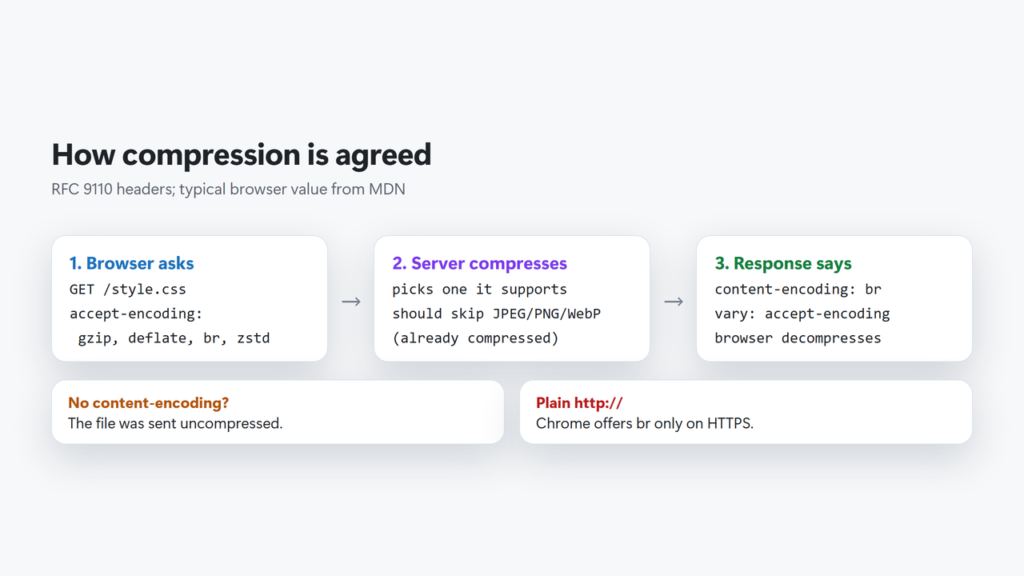
Every browser request carries an Accept-Encoding header listing the compression formats it can decode; MDN gives gzip, deflate, br, zstd as the typical value. The server picks one, compresses the file and labels it with Content-Encoding. RFC 9110 says Content-Encoding exists “to allow a representation’s data to be compressed without losing the identity of its underlying media type”, so a compressed CSS file is still CSS to the browser. The server should also send Vary: Accept-Encoding so caches keep the compressed and uncompressed copies apart.
| Format | Header value | Defined in | Browser support |
|---|---|---|---|
| Gzip | gzip | RFC 1952 (1996) | All browsers |
| Brotli | br | RFC 7932 (2016, from Google) | Chrome 50, Firefox 44, Safari 11 and later |
| Zstandard | zstd | RFC 8878 (2021); RFC 9659 (2024) for HTTP | Chrome and Edge 123, Firefox 126, Safari 26.3 (macOS 26.3 Tahoe) |
Chrome only offers Brotli on HTTPS connections; its Platform Status entry is titled “Accept-encoding: br on HTTPS connection”. A site still on plain HTTP won’t get Brotli in Chrome.
Real Measurements: How Much Compression Saves
On 25 November 2026 I requested five homepages with curl from my Windows 11 PC, once asking for Brotli, once for Gzip only and once with no compression, and compared the bytes received. For this site I measured in Chrome instead (reason below).
| Page | Uncompressed | Brotli | Gzip | Server sent when offered br |
|---|---|---|---|---|
| harshilbarot.com homepage (Chrome) | 194,279 B | 61,677 B (−68%) | — | br |
| harshilbarot.com block-library CSS (Chrome) | 140,829 B | 17,627 B (−87%) | — | br |
| wordpress.org | 178,451 B | 37,642 B (−79%) | 39,242 B (−78%) | br |
| www.cloudflare.com | 1,334,658 B | 155,024 B (−88%) | 301,828 B (−77%) | br |
| github.com | 537,466 B | — | 95,080 B (−82%) | gzip |
| example.com | 577 B | 334 B (−42%) | 400 B (−31%) | br |
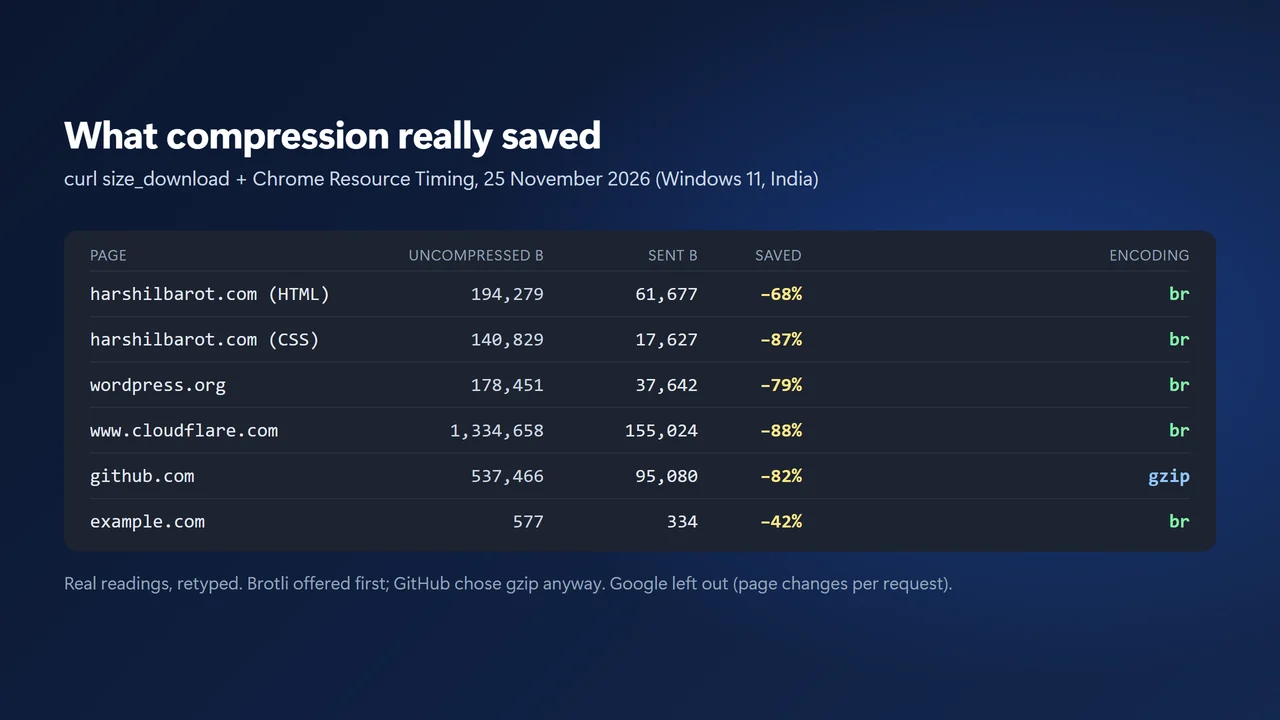
Brotli beat Gzip on the three sites in the table that offered both: 4% smaller on wordpress.org, 17% on example.com and 49% on Cloudflare’s large homepage. GitHub answered with Gzip even when Brotli was offered, which is allowed: MDN notes that whether a server uses a requested method “depends on server configuration and capabilities”. None of the five sites sent zstd to curl, even when I listed it first. I left Google out of the table: its homepage changed size between requests (its Brotli response was 68,715 bytes on one request and 67,423 on the next), so its sizes can’t be compared fairly. In that run its Gzip response (62,973 bytes) was actually the smaller one, so Brotli doesn’t win every time.
How to Check Compression
1. Chrome DevTools
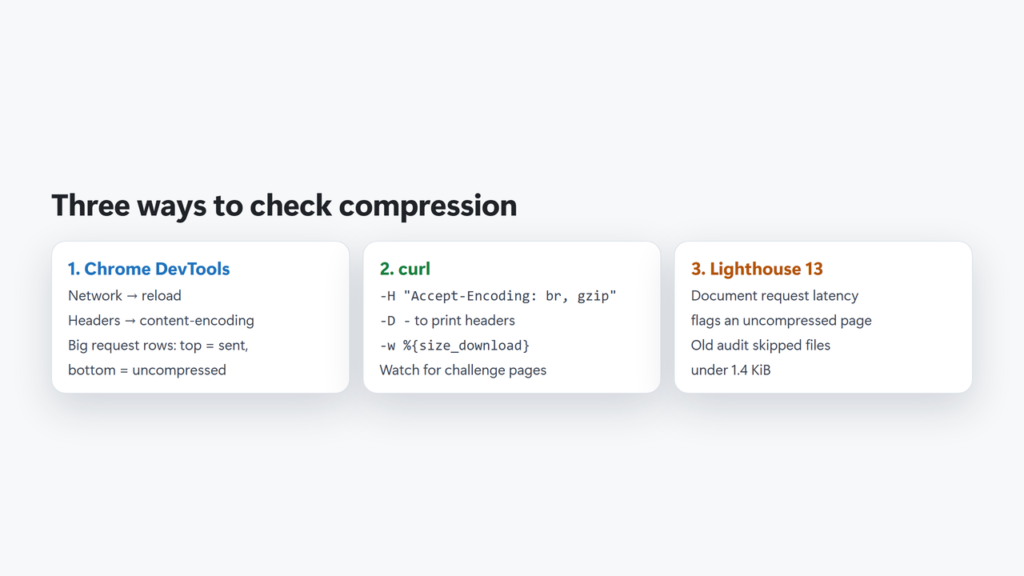
- Open the page, press F12 (Cmd+Option+I on Mac) and open the Network tab.
- Tick Disable cache and reload the page.
- Click the first request (the page itself), open Headers and find
content-encodingunder Response Headers. - To compare sizes, turn on Big request rows in the Network settings: Chrome’s docs say the top value in the Size column is what was sent over the network and the bottom value is the uncompressed size.
You can also right-click the column headers and add content-encoding as a column (Response Headers → Manage Header Columns) to see every file’s compression at once.
2. curl
curl -s -o /dev/null -D - -H "Accept-Encoding: br, gzip" https://yoursite.com/ | grep -i content-encodingOn Windows PowerShell, use curl.exe and findstr /i content-encoding instead of grep. To see how many bytes were sent, run curl -s -o /dev/null -H "Accept-Encoding: br, gzip" -w "%{size_download}\n" https://yoursite.com/; curl’s docs say size_download is the body “excluding headers”. Run it once with Accept-Encoding: identity to get the uncompressed size. This sends a normal GET; curl -I sends HEAD, which some servers answer differently. (More header checks: check HTTP status codes and headers.)
3. Lighthouse or PageSpeed Insights
Lighthouse’s old “Enable text compression” audit “has moved into the Document request latency insight as of Lighthouse 13”. That insight flags the main page if “the response was uncompressed”. The old audit ignored files under 1.4 KiB or with less than 10% possible savings, so small files never showed up.
How to Turn On Gzip or Brotli
| Where your site runs | What to do |
|---|---|
| Cloudflare | On by default. Cloudflare’s docs say it sends Gzip, Brotli and Zstandard to visitors, and lists defaults per plan (Zstandard on Free, Brotli on Pro and Business, Gzip on Enterprise), adjustable with Compression Rules on all plans. |
| Hostinger | Hostinger’s help says “The mod_gzip and mod_deflate modules are enabled by default” on Web and Cloud plans, but adds that you still need “to enable gzip with a plugin or by adding some lines of code to your .htaccess file”. I found no Hostinger help page on Brotli; this site got Brotli through Hostinger CDN. |
| LiteSpeed | LiteSpeed’s docs say Enable Compression and GZIP dynamic compression are “enabled by default at installation” (WebAdmin → Configuration → Server → Tuning); the server can also send Brotli, but I couldn’t confirm Brotli’s default setting. |
| Apache | mod_deflate: AddOutputFilterByType DEFLATE text/html text/css application/javascript …; Brotli needs mod_brotli (Apache 2.4.26+) with AddOutputFilterByType BROTLI_COMPRESS … |
| nginx | gzip on; plus gzip_types for CSS and JavaScript (text/html is “always compressed”) and gzip_vary on;. Brotli needs the separate ngx_brotli module. |
HOSTINGER
Brotli built in with Hostinger CDN
- Gzip supported on all Web and Cloud plans
- Brotli on every file I checked on this site
- CDN depends on your plan
For most WordPress sites, compression comes from the host or CDN rather than a plugin (background: what a CDN does and Hostinger CDN vs Cloudflare). If you change it, clear the cache on Hostinger or purge your CDN, then check again. If you use LiteSpeed Cache, purge it too after changing compression (LiteSpeed Cache settings).
What Not to Compress, and BREACH
MDN says compressing already compressed files such as “.zip or .jpeg, is usually not appropriate because it can increase the file size”, and recommends compression “for all files except already compressed ones like images, audio files and videos”. SVG is text, so compress it; JPEG, PNG, WebP, MP4 and ZIP should go out as they are.
Compression over HTTPS has one known risk. The BREACH attack can work when a page uses HTTP compression and reflects both user input and a secret, such as a CSRF token, in the same response. The BREACH researchers list mitigations including randomizing or masking secrets per request; Apache and nginx both warn about it in their docs. Pages that don’t mix user input and secrets in one response aren’t exposed this way, so for most blogs it isn’t a reason to switch compression off everywhere.
Does Compression Help Speed and SEO?
It cuts the bytes each visitor downloads, which matters most on slow mobile connections. Google’s PageSpeed tools flag an uncompressed page, but I found no Google statement that compression itself is a ranking factor. Treat it as one part of page speed, alongside a fast server response (how to reduce TTFB in WordPress), caching and HTTP/3. I didn’t run load-time tests for this guide, so I quote byte savings only.
Mistakes to Avoid
- Trusting curl on a protected site. On Hostinger CDN a faked browser user agent got a challenge page; other CDNs may block curl’s default one instead, so check the page title or size before trusting the numbers.
- Checking only the HTML. CSS and JavaScript files often matter more; check them in DevTools.
- Testing over http://. Chrome only offers Brotli on HTTPS.
- Compressing images again. It gains nothing and, per MDN, can make files bigger.
- Forgetting Vary: Accept-Encoding. Without it, a cache can serve compressed bytes to a client that can’t read them.
- Stacking plugins. If the host or CDN already compresses, a plugin adding it again only adds complexity; see WordPress speed plugins.
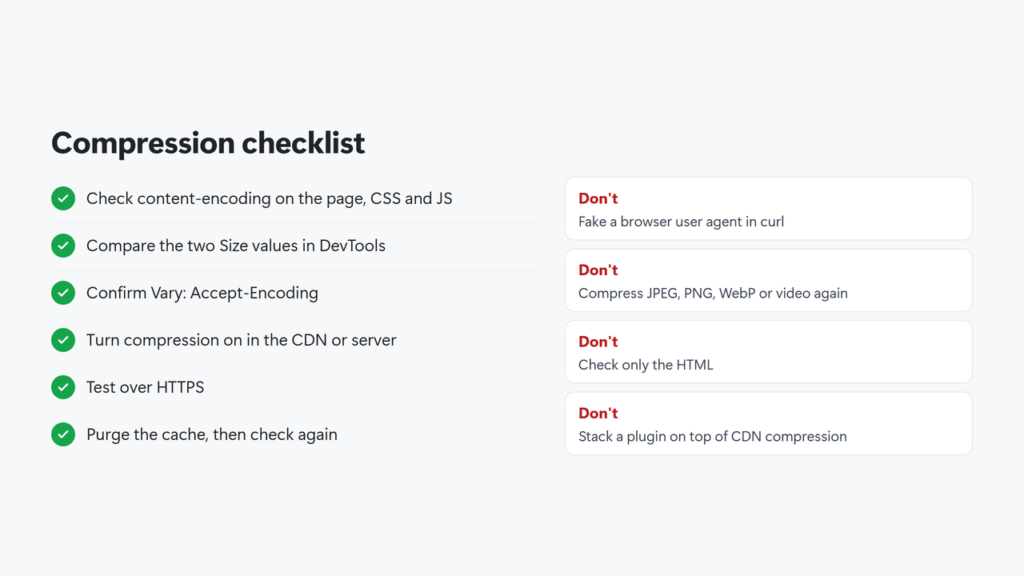
Checklist in text: check content-encoding in DevTools for the page, CSS and JavaScript; compare the two values in the Size column; confirm Vary: Accept-Encoding; turn compression on in the CDN or server; leave images and video alone; don’t fake a browser user agent in curl; purge the cache and recheck.
How do I check if Gzip is enabled on my website?
Open Chrome DevTools (F12), go to Network, reload, click the page request and look for content-encoding: gzip under Response Headers. Or run curl with -H “Accept-Encoding: gzip” -D – and look for the same header.
How do I know if Brotli is working?
The response header content-encoding: br means Brotli. Test over HTTPS, because Chrome only offers Brotli on HTTPS connections.
Is Brotli better than Gzip?
Usually for text files. In my tests on 25 November 2026, Brotli responses were 4% to 49% smaller than Gzip responses of the same pages on the three sites I could compare fairly. Browsers fall back to Gzip where Brotli isn’t offered.
Why does my site show no content-encoding header?
The server or CDN isn’t compressing that file type, the file is too small, or it’s an image or other format that is already compressed. LiteSpeed’s docs also note that unknown MIME types may not be compressed.
Should I compress images with Gzip?
No. JPEG, PNG and WebP are already compressed; MDN says compressing them again can increase the size. SVG is text and should be compressed.
What is zstd in content-encoding?
Zstandard, a newer format (RFC 8878). Chrome and Edge 123, Firefox 126 and Safari 26.3 can decode it, and Cloudflare can serve it.

Affiliate disclosure: some links on this page are affiliate links, so I may earn a commission if you buy, at no extra cost to you.