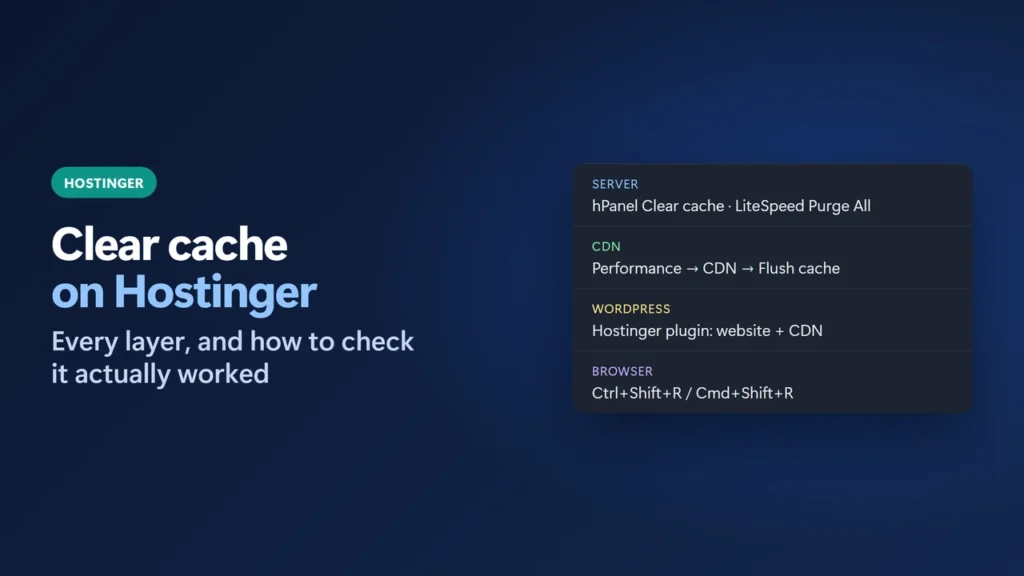
To clear cache on Hostinger for a WordPress site, open hPanel → Websites → Manage site → WordPress → Overview and click Flush Cache on the Core card (for custom PHP or HTML sites, Hostinger points to Clear cache on the Essentials card). If your site uses Hostinger’s CDN, also flush it under Performance → CDN → Flush cache. Inside WordPress, the Hostinger plugin’s Clear cache button clears both the website and Hostinger CDN cache, and the LiteSpeed Cache plugin’s Purge All clears its page cache. Then reload with Ctrl+Shift+R (Cmd+Shift+R on a Mac) so your own browser doesn’t show an old copy.
Below are the steps for each layer, plus a real test on this site on 21 November 2026: I clicked Clear cache and watched the cache headers change.
Key takeaways
- A Hostinger WordPress site can have up to four caches: LiteSpeed on the server, Hostinger CDN at the edge, object cache, and your browser.
- hPanel’s Cache Manager clears only the LiteSpeed server cache, not the CDN.
- Hostinger says a CDN flush clears the whole site within seconds and single URLs can’t be flushed separately.
- On this site, one test showed the Hostinger plugin’s Clear cache had taken effect by about 11 seconds (not yet at 3).
- Check with
curl -I: look forx-litespeed-cacheandx-hcdn-cache-status.
Table of Contents
- 1The Caches on a Hostinger Site
- 2Method 1: hPanel (Server Cache)
- WordPress sites: Flush Cache
- Custom PHP or HTML sites: Clear cache
- Cache Manager
- 3Method 2: Flush the Hostinger CDN
- 4Method 3: From WordPress
- The Hostinger plugin
- LiteSpeed Cache plugin
- 5Method 4: Your Browser
- 6A Real Test: Clearing This Site’s Cache
- Reading the headers
- 7Still Seeing the Old Version?
- 8Mistakes to Avoid
- How do I clear cache on Hostinger?
- How do I clear the Hostinger CDN cache?
- Does LiteSpeed Purge All clear the Hostinger CDN?
- How long does clearing Hostinger cache take?
- How do I know if a page is cached on Hostinger?
- Why do I still see the old version after clearing cache?
The Caches on a Hostinger Site
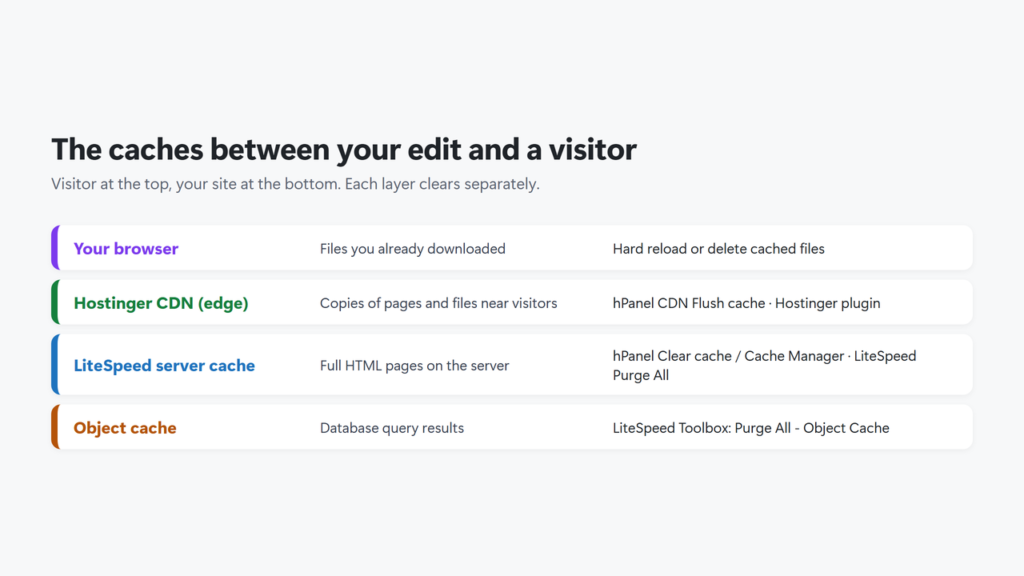
| Cache | What it stores | Where to clear it |
|---|---|---|
| LiteSpeed server cache | Full HTML pages, made by the LiteSpeed web server | hPanel WordPress → Overview → Flush Cache, Clear cache or Cache Manager; LiteSpeed Cache plugin Purge All |
| Hostinger CDN (hCDN) | Copies of pages and files at edge servers near visitors | hPanel Performance → CDN → Flush cache; Hostinger plugin Clear cache |
| Object cache | Database query results (Business plans and up, per Hostinger) | LiteSpeed Cache → Toolbox → Purge All – Object Cache |
| Your browser | Files you already downloaded | Hard reload, or delete cached images and files |
Most “my change isn’t showing” problems come from the first two. Clearing one doesn’t always clear the other: Hostinger’s own help says purging in the LiteSpeed Cache plugin “usually” clears the CDN copy too, and calls flushing the CDN “the reliable step”. (New to edge caching? See what a CDN is and Hostinger CDN vs Cloudflare.)
Method 1: hPanel (Server Cache)
WordPress sites: Flush Cache
Hostinger’s support article gives this route for WordPress: in the site’s dashboard open WordPress → Overview and click Flush Cache on the Core card. Hostinger doesn’t list exactly which caches it clears.
Custom PHP or HTML sites: Clear cache
- Log in to hPanel and open Websites.
- Hover over your site and click Manage site.
- On the Essentials card, click Clear cache.
Hostinger says Agency plans have this under the Settings card as Flush cache. The Essentials card also has No cache preview, which lets you view the site without the server cache while you test. (For a tour of the panel, see hPanel vs cPanel.)
Cache Manager
For more control, open Advanced → Cache Manager (or search for Cache Manager in the dashboard). Hostinger’s screenshot shows three options: an Automatic cache toggle (it switches the server cache on, refreshing it every 30 minutes; turning it off disables caching), Purge All under Purge Manually, and a Purge a specific URL field. Hostinger’s support article says Cache Manager controls only the LiteSpeed server cache, not the CDN or PHP’s OpCache.
Method 2: Flush the Hostinger CDN
- In hPanel, open Websites → Manage site.
- Go to Performance → CDN (Agency plans: CDN directly).
- Click Flush cache.
Hostinger’s support article says the flush clears the whole site within seconds and that “Individual URLs cannot be flushed separately.” Its docs page calls the button Purge cache and says it may take a few minutes, so allow a little time. If you’re editing a lot, turn on Development mode on the same page: the CDN skips its cache until you switch it off.
HOSTINGER
LiteSpeed server cache plus a built-in CDN
- Clear cache from hPanel, the LiteSpeed Cache plugin or the Hostinger plugin in WordPress
- Cache Manager can clear the server cache automatically every 30 minutes
- CDN Development mode skips the edge cache while you edit
Affiliate link. Features from Hostinger’s help pages, checked 21 November 2026; CDN and object cache depend on the plan.
Method 3: From WordPress
The Hostinger plugin
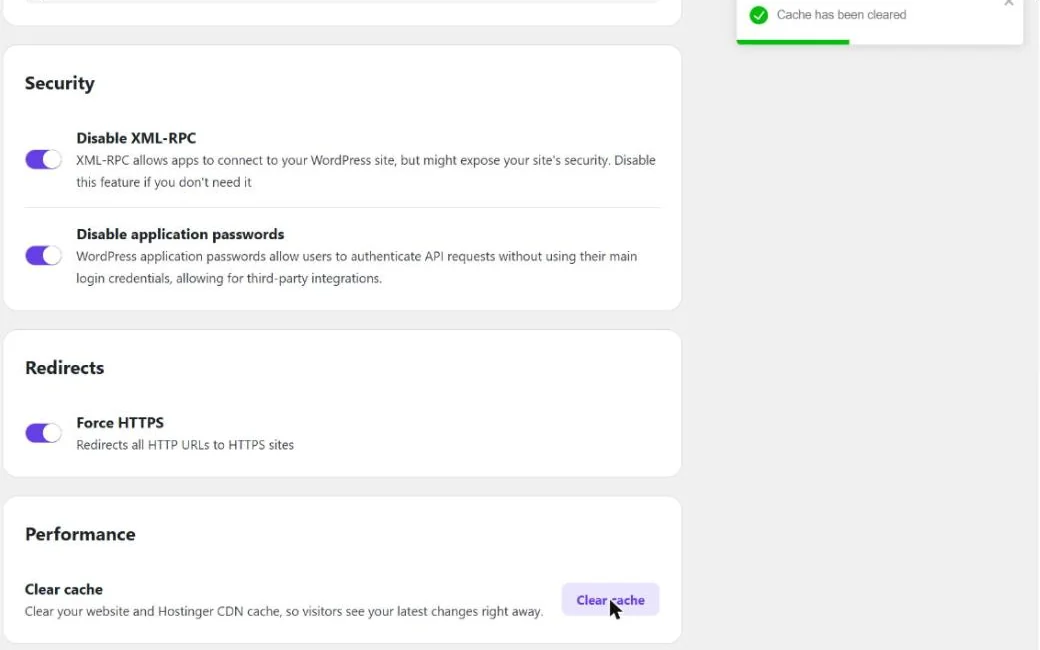
WordPress sites installed through Hostinger often include the Hostinger Tools plugin (“Hostinger” in the menu). On this site it sits at wp-admin → Hostinger → Tools, and under Performance it has a Clear cache button with the description “Clear your website and Hostinger CDN cache, so visitors see your latest changes right away.” The plugin’s changelog added hCDN purging in version 3.0.79 (7 October 2026).
LiteSpeed Cache plugin
Hover over the LiteSpeed icon in the admin bar and choose Purge All, or on any front-end page choose Purge this page – LSCache. For more options, open LiteSpeed Cache → Toolbox → Purge. Here is that screen on this site (LiteSpeed Cache 7.9.3):
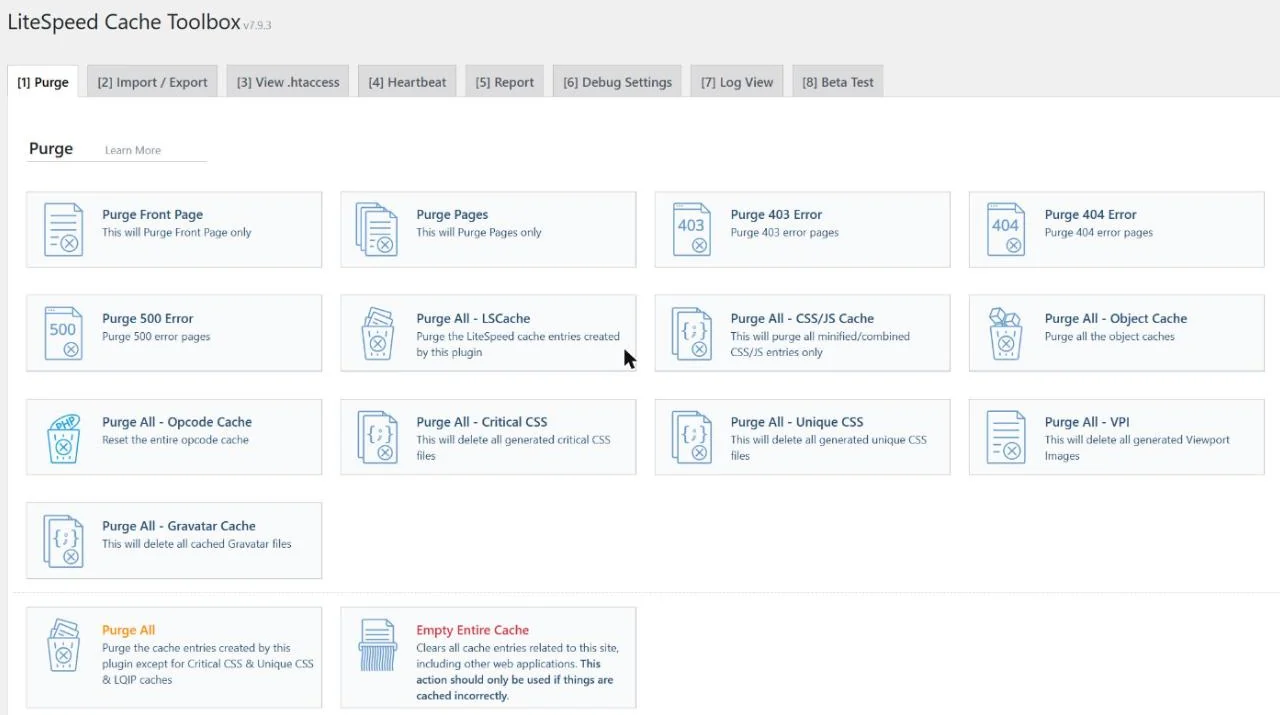
| Button | What it clears (from the plugin’s own text) |
|---|---|
| Purge All | “the cache entries created by this plugin except for Critical CSS & Unique CSS & LQIP caches” |
| Purge All – LSCache | “the LiteSpeed cache entries created by this plugin” (pages) |
| Purge Front Page / Purge Pages | The home page only / WordPress Pages only |
| Purge All – CSS/JS Cache | Minified and combined CSS/JS files |
| Purge All – Object Cache | The object cache |
| Empty Entire Cache | “all cache entries related to this site, including other web applications”; the plugin says to use it only “if things are cached incorrectly” |
To purge just a few URLs, LiteSpeed’s docs describe a Purge By… option (category, post ID, tag or URL list). If you manage sites from the command line, Hostinger lists wp litespeed-purge all for the plugin and wp cache flush, WP-CLI’s object-cache flush (run over SSH from the site’s folder).
Method 4: Your Browser
- Hard reload: Ctrl+Shift+R or Shift+F5 in Chrome on Windows, Cmd+Shift+R on a Mac. In Firefox, Ctrl+F5 or Ctrl+Shift+R.
- Chrome: More → Delete browsing data → choose a time range → tick Cached images and files → Delete data.
- Firefox: Settings → Privacy and security → Browsing data → Clear browsing data → When: Everything → tick only Temporary cached files and pages → Delete.
Unticking cookies keeps you logged in. (Google’s own step list mentions cookies too; ticking only the cache option is my suggestion, because it’s all you need here.) An incognito or private window is a quick way to see the site without your browser’s cache.
A Real Test: Clearing This Site’s Cache
On 21 November 2026 I checked this site’s home page with curl -I (how to check HTTP headers and status codes), clicked Clear cache in the Hostinger plugin, and checked again:
| When | x-litespeed-cache | x-hcdn-cache-status | Age |
|---|---|---|---|
| Earlier that evening (19:10) | hit | HIT | 4560 s |
| About 5 s before the click | hit | MISS | (none) |
| About 3 s after clicking Clear cache | hit | HIT | 4661 s (old copy still served) |
| About 11 s after (two requests) | miss | MISS | none, then 1 s |
| The request right after | hit | HIT | 0 s (fresh copy) |
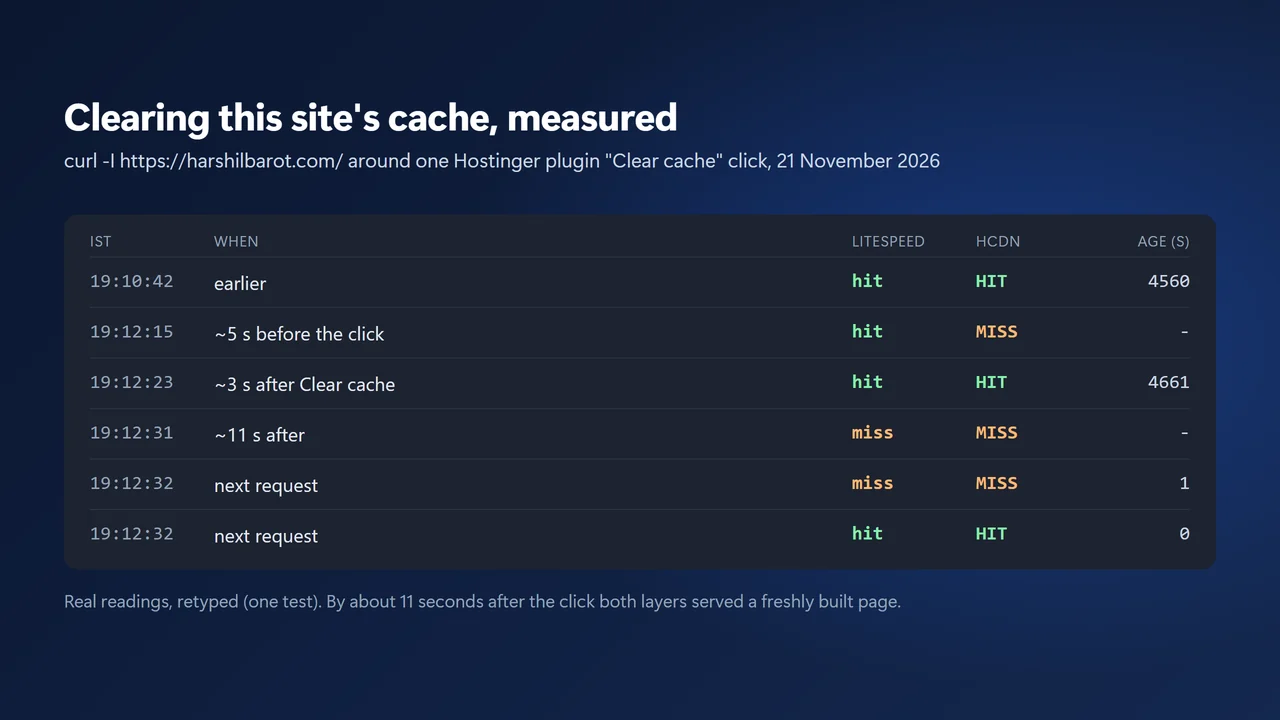
So in this one test the clear wasn’t instant, but it was quick: not yet done at 3 seconds, and by about 11 seconds after the click both the LiteSpeed page cache and the CDN were serving a freshly built page. Two more things the readings showed. A request with a random query string (/?nocache=…) returned miss and MISS, which is a handy way to see an uncached copy (each new query string creates its own cache entry, so use it only for occasional checks). And at one point a page was a LiteSpeed hit but a CDN MISS: the layers keep separate copies, and the request IDs ended in different edge numbers, which suggests different CDN edge servers can be at different points.
Reading the headers
curl -sI https://yourdomain.com/ | grep -iE "x-litespeed-cache|x-hcdn-cache-status|^age"

x-litespeed-cache: hit
Age: 0
x-hcdn-cache-status: HIT
x-litespeed-cache: hit: served from LiteSpeed’s cache;missmeans it was just built and stored.x-hcdn-cache-status: Hostinger lists eight values, including HIT, MISS, EXPIRED, BYPASS and DYNAMIC. Right after a flush you’ll see MISS or DYNAMIC.Age: seconds since the CDN stored the copy. A large number after a flush means you’re still seeing the old one.
On Windows PowerShell, use curl.exe -sI https://yourdomain.com/ | findstr /i "cache age".
Still Seeing the Old Version?
- Clear both the server cache and the CDN, then wait a minute.
- Hard reload, or open a private window.
- Check you’re on the right address (www vs non-www, http vs https).
- If only CSS or JavaScript looks old, use Purge All – CSS/JS Cache in LiteSpeed Cache.
- If you’re logged in, LiteSpeed may show you a different version from visitors; check logged out.
- Editing a lot? Turn on CDN Development mode so the CDN stops caching while you work.
- Using Cloudflare in front of Hostinger? Hostinger says to purge it in Cloudflare’s dashboard as well.
- On Hostinger’s CDN page, check the CDN status is active before relying on a flush.
Mistakes to Avoid
- Clearing only one layer. Server cache and CDN are separate.
- Using Empty Entire Cache as a habit. The plugin reserves it for when “things are cached incorrectly”.
- Deleting the LiteSpeed block from .htaccess to “clear” cache. Hostinger lists it as a method, but it removes the LiteSpeed Cache plugin’s server rules rather than purging the cache; a purge button is safer.
- Clearing cache every few minutes. Every clear makes the next visitors wait for a fresh build.
- Testing while logged in. Check the logged-out version visitors get.
Checklist in text: clear the server cache (hPanel WordPress → Overview → Flush Cache, Essentials Clear cache for non-WordPress sites, or LiteSpeed Purge All); flush the Hostinger CDN (Performance → CDN, or the Hostinger plugin’s Clear cache); hard reload; check the headers with curl; use CDN Development mode for long editing sessions. More about the host in my Hostinger review.
How do I clear cache on Hostinger?
For WordPress, open hPanel → Websites → Manage site → WordPress → Overview and click Flush Cache (custom PHP or HTML sites use Clear cache on the Essentials card). If you use Hostinger CDN, also flush it under Performance → CDN. In WordPress, the Hostinger plugin’s Clear cache clears both.
How do I clear the Hostinger CDN cache?
Go to Websites → Manage site → Performance → CDN and click Flush cache. Hostinger says it clears the whole site within seconds; single URLs can’t be flushed separately.
Does LiteSpeed Purge All clear the Hostinger CDN?
Hostinger says purging in the LiteSpeed Cache plugin usually clears the CDN copy too, but calls flushing the CDN the reliable step. The Hostinger plugin’s Clear cache button clears both.
How long does clearing Hostinger cache take?
In one test on this site, the Hostinger plugin’s Clear cache had reached the home page by about 11 seconds. Hostinger’s docs say a CDN purge can take a few minutes.
How do I know if a page is cached on Hostinger?
Run curl -I on the URL and look at x-litespeed-cache (hit or miss), x-hcdn-cache-status (HIT, MISS and others) and Age.
Why do I still see the old version after clearing cache?
Your browser may be showing its own copy. Hard reload with Ctrl+Shift+R, or open a private window, and check that both the server cache and the CDN were cleared.

Affiliate disclosure: some links on this page are affiliate links, so I may earn a commission if you buy, at no extra cost to you.