WordPress shows “Briefly unavailable for scheduled maintenance. Check back in a minute.” while an update runs. If the message stays after the update has finished or failed, a leftover file called .maintenance in your WordPress root folder is almost always the cause. Make sure no update is still running, delete that file over SFTP or your host’s File Manager, and the site comes back. Then finish the update that was interrupted.
This guide explains what the file does, how to remove it safely, why the message can sometimes stay after the file has gone, and how to avoid it next time.
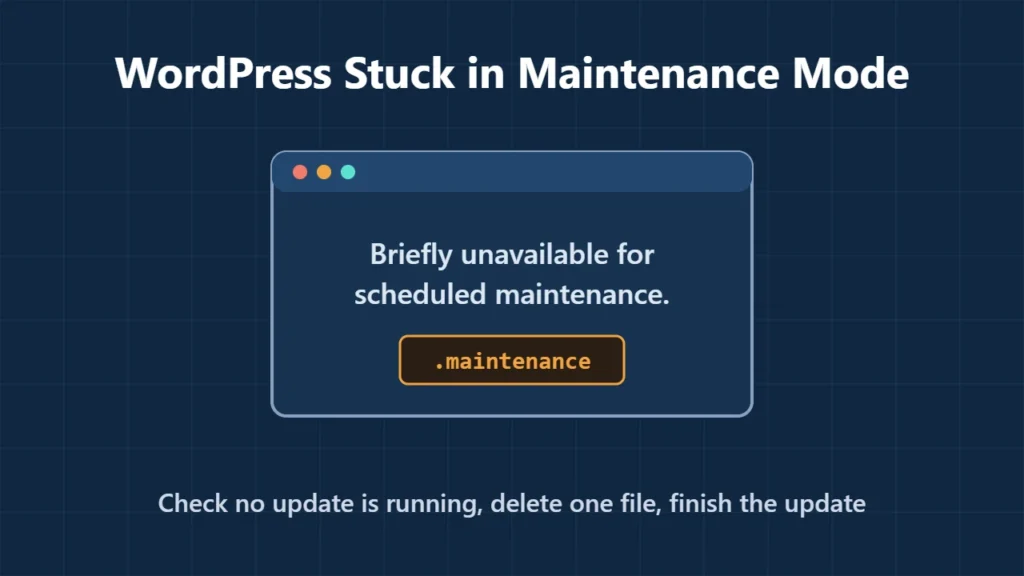
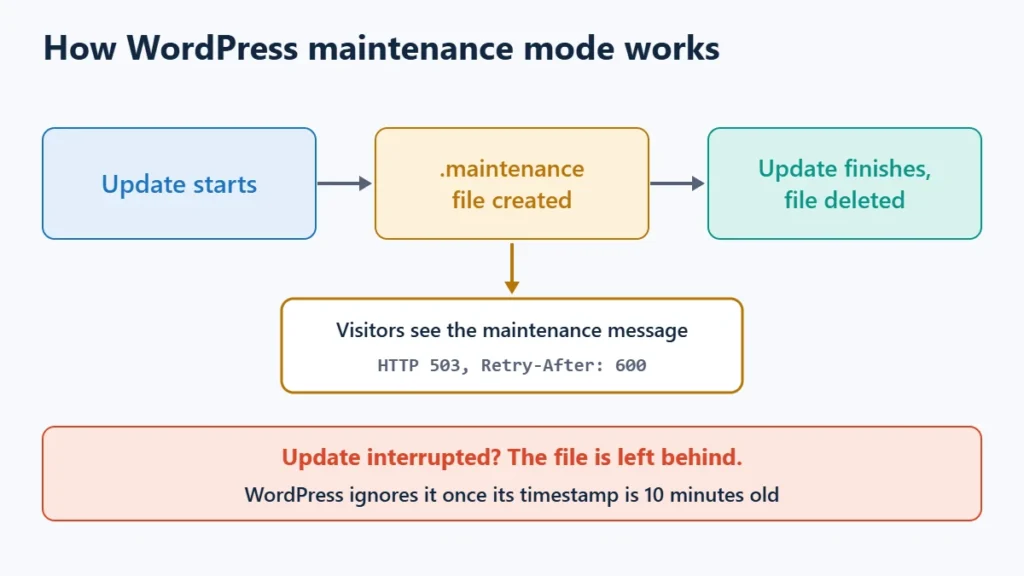
Table of Contents
- 1Why WordPress Gets Stuck in Maintenance Mode
- Which updates turn on maintenance mode
- 2Step 1: Make Sure No Update Is Still Running
- 3Step 2: Delete the .maintenance File
- 4Step 3: Finish the Interrupted Update
- 5Still Seeing the Message After Deleting the File?
- 6How to Avoid Getting Stuck Next Time
- 7Frequently Asked Questions
- Is it safe to delete the .maintenance file?
- Where is the .maintenance file?
- I can’t find a .maintenance file. Why is the site still in maintenance mode?
- Does maintenance mode hurt SEO?
- Can I put WordPress into maintenance mode on purpose?
Why WordPress Gets Stuck in Maintenance Mode
Before WordPress replaces files during an update, it writes a small file named .maintenance to the folder that holds wp-config.php. The file contains one line of PHP that records when the update started, in this form:
<?php $upgrading = 1794560000; ?>The number is a Unix timestamp. While the file exists, every page request gets the maintenance message instead of your site. When the update finishes, WordPress deletes the file. If the update stops halfway, the file can be left behind. Common reasons include:
- The browser tab was closed, or the connection dropped, during the update.
- The server hit a time or memory limit while it was unpacking files.
- A plugin or theme update failed, for example because of a compatibility problem or wrong file permissions.
- Many plugins or themes were updated at once, which makes the update run longer.
Which updates turn on maintenance mode
Not every update does. In the WordPress 7.1 code:
| Update type | Turns on maintenance mode? |
|---|---|
| WordPress core update | Yes, always |
| Plugin update | Only if the plugin is active, or on a multisite network |
| Theme update | Only for the active theme or its parent theme, or on a multisite network |
| Translation update | No |
So if the site went into maintenance mode, look at what was being updated at the time: WordPress core, an active plugin or your active theme. That is the update you need to check afterwards.
Step 1: Make Sure No Update Is Still Running
WordPress’s documentation says to remove the file only once you’ve confirmed the update is no longer running. Deleting it in the middle of a core update lets visitors load a site whose files are half replaced. Large updates on slow hosting can take a few minutes, so wait before you act.
A simple check: open .maintenance and read the timestamp. Paste the number into any Unix timestamp converter to see when the update started. If it was a few minutes ago, wait. If it was a long time ago and nothing is happening, the update has stopped and the file is safe to delete.
Step 2: Delete the .maintenance File
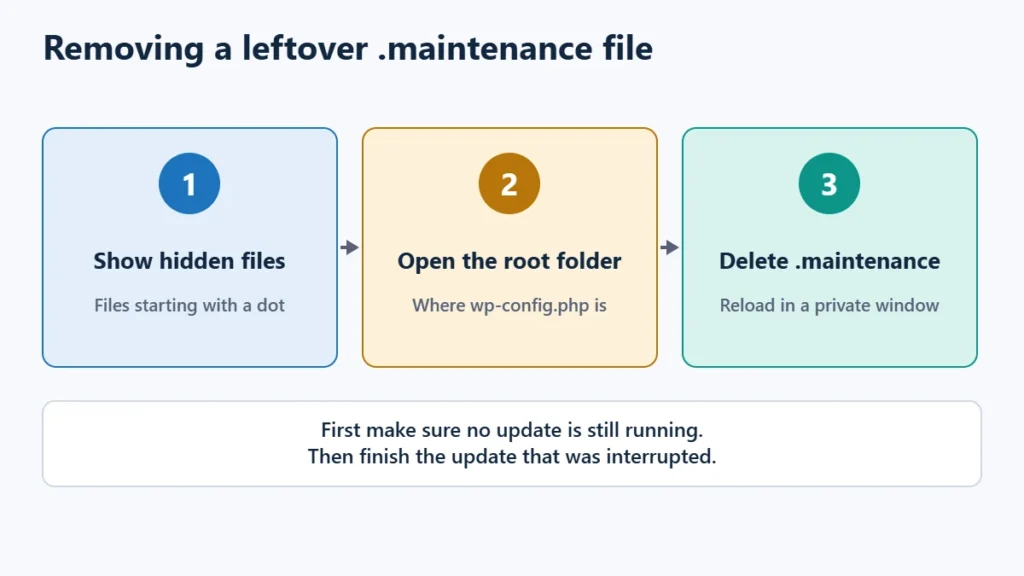
- Connect with SFTP, or open your host’s File Manager.
- Go to your WordPress root folder: the one that contains
wp-config.php,wp-adminandwp-content. On many hosts it is calledpublic_html. - Turn on hidden files. Names that start with a dot are hidden by default in most FTP programs and file managers, which is why people often can’t find the file.
- Delete
.maintenance. Downloading a copy first is not needed. It holds nothing but the timestamp. - Reload the site in a private window, so your browser’s cache doesn’t show you the old message.
If you have SSH access and WP-CLI, you can check and switch off maintenance mode from the WordPress folder instead:
wp maintenance-mode status
wp maintenance-mode deactivate
Step 3: Finish the Interrupted Update
Deleting the file brings the site back, but it doesn’t finish the update. Do this straight away:
- Core update: open Dashboard → Updates. If WordPress still offers the same version, run the update again. The “Updating WordPress” documentation says to try again if necessary after removing the file.
- Plugin update: open the Plugins screen. Check the plugin is still installed and active, and that its version number changed. If the update is still offered, run it again for that plugin alone.
- Theme update: open Appearance → Themes and check the active theme and its version.
Since WordPress 6.3, plugin and theme updates keep a temporary copy of the old version in wp-content/upgrade-temp-backup/ and try to restore it if an update fails. That makes a half-installed plugin less likely, but it is still worth checking.
If the dashboard says “Another update is currently in progress.”, WordPress is holding a lock to stop two core updates running at once. It is stored in the database as an option called core_updater.lock, and WordPress treats a core update lock older than 15 minutes as expired. Waiting 15 minutes and trying again is the safe fix. Removing the option by hand is only for people comfortable editing the database, after a backup.
Still Seeing the Message After Deleting the File?
There is a detail most guides miss. WordPress only obeys the file for 10 minutes. In the 7.1 code, if the timestamp inside .maintenance is 10 minutes old or more, WordPress ignores the file and loads the site normally. So a leftover file can block the site for 10 minutes at most. If you still see a maintenance message long after that, or after deleting the file, something else is serving it:
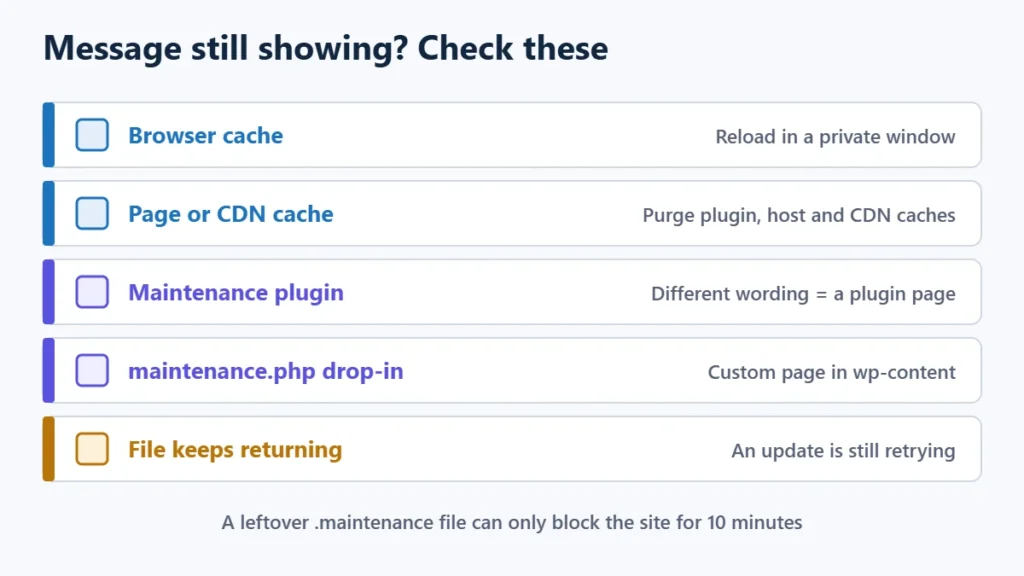
- A cached copy. WordPress sends its maintenance message with headers that tell browsers and caches not to store it, but some caching layers ignore that. Purge your caching plugin, your host’s server cache and any CDN. On LiteSpeed servers, see how to purge LiteSpeed Cache.
- A maintenance or “coming soon” plugin. Many plugins show their own maintenance page, often with different wording. If the message isn’t the exact WordPress text quoted above, look for a setting in such a plugin, or rename its folder in
wp-content/plugins/to switch it off. - A custom maintenance page. If a file called
maintenance.phpexists inwp-content, WordPress shows it instead of the default message. It only appears while.maintenanceis active, so it explains the look of the page but not why it persists. - The file keeps coming back. If
.maintenancereappears with a new timestamp, an update is still being retried, for example by WordPress’s background updates. Wait for it, or check the Updates screen. - Host-level maintenance. Some hosts and control panels have their own maintenance switch that serves a page before WordPress loads. Check your hosting dashboard.
If the site now shows a different error instead of the maintenance message, the failed update probably broke something. A “critical error” message points to a plugin or theme crash: see the critical error guide. A plain server error page is covered in how to fix the 500 Internal Server Error.
How to Avoid Getting Stuck Next Time
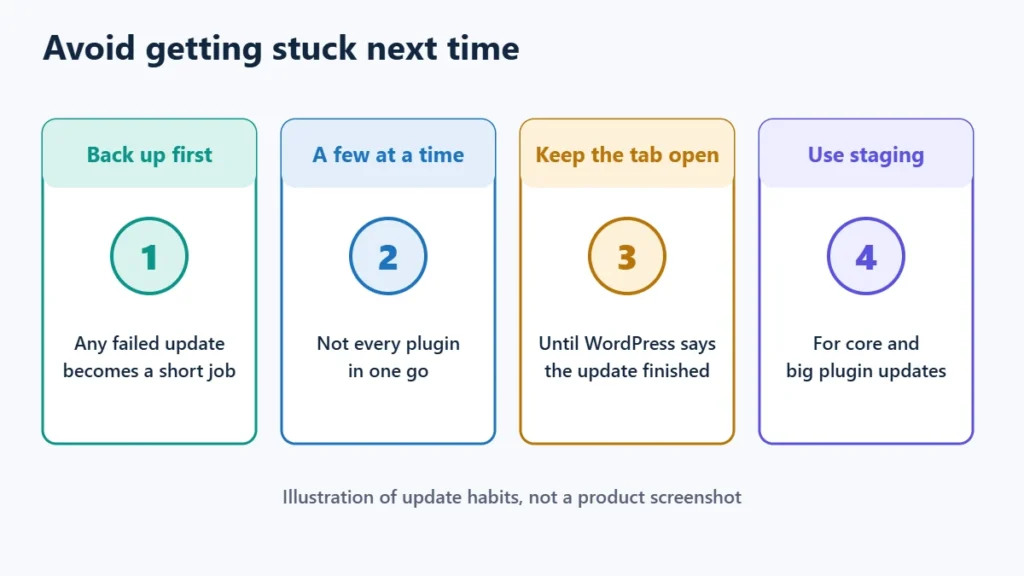
- Back up first. A recent backup turns any failed update into a short job.
- Update a few items at a time. Bulk-updating many active plugins keeps the site in maintenance mode longer and makes it harder to tell which one failed.
- Keep the tab open until WordPress reports that the update has finished.
- Check compatibility before major updates, especially after a PHP upgrade. See how to update PHP safely.
- Use staging for WordPress core and large plugin updates if your host offers it.
- Watch resource limits. If updates often stop halfway, the server may be running out of time or memory. Ask your host, or consider whether your plan still fits the site.
Frequently Asked Questions
Is it safe to delete the .maintenance file?
Yes, once the update has stopped. The file only holds a timestamp. WordPress creates and deletes it on its own during updates, and its documentation tells you to delete a leftover one.
Where is the .maintenance file?
In the WordPress root folder, next to wp-config.php. It is a hidden file, so turn on “show hidden files” in your FTP program or File Manager.
I can’t find a .maintenance file. Why is the site still in maintenance mode?
Then WordPress core isn’t showing the message. Clear your caches and check for a maintenance or coming soon plugin, or a maintenance switch in your hosting panel.
Does maintenance mode hurt SEO?
Not for a short time. WordPress sends the message with a 503 status and a Retry-After header of 600 seconds, which tells search engines the outage is temporary and to come back in about 10 minutes. A site stuck for days is a different matter, so fix it promptly.
Can I put WordPress into maintenance mode on purpose?
Yes. With WP-CLI, wp maintenance-mode activate turns it on and wp maintenance-mode deactivate turns it off. Most site owners use a maintenance plugin instead, because it can show a branded page and let logged-in admins keep working.