
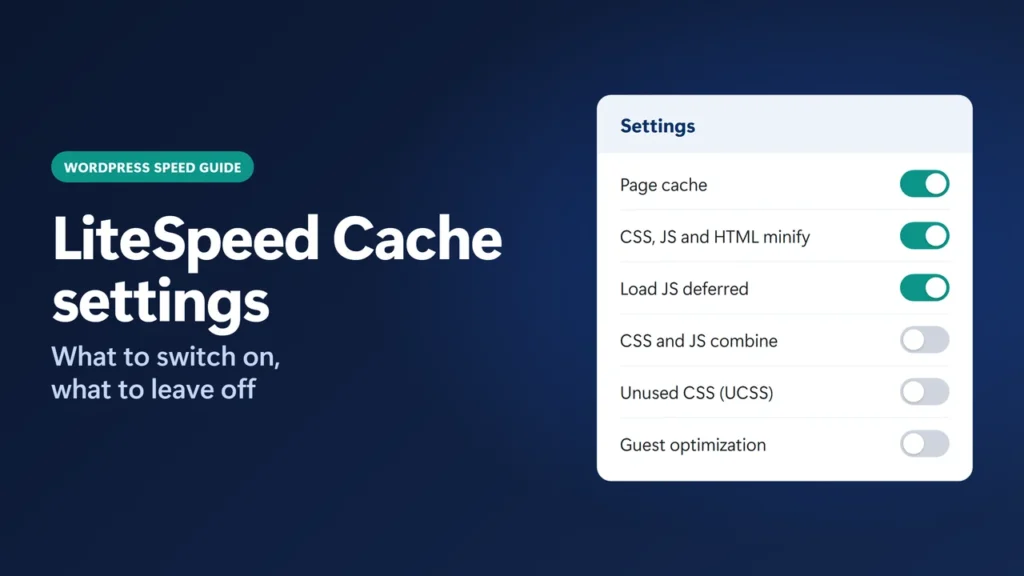
The best LiteSpeed Cache settings for most WordPress sites are simple: keep page caching on, turn on CSS, JS and HTML minify, set Load JS Deferred to Deferred, and leave CSS Combine, JS Combine, UCSS, Critical CSS, JS Delayed and Guest Optimization off until you can test them one at a time. LiteSpeed’s own Advanced (Recommended) preset gets you most of the way in one click. It needs a free QUIC.cloud connection, and it also turns on Guest Mode and Guest Optimization, which I would switch off again.
That advice is boring on purpose. The risky settings are the ones that rewrite how your CSS and JavaScript load, and they break things you will not notice while logged in. This guide shows the exact settings this website uses, why each one is on or off, and how to check that caching is really working.
How I worked this out: this website runs on Hostinger, which uses LiteSpeed web servers, with the LiteSpeed Cache plugin (version 7.9.2). Every “This site” value below was read from this site’s own dashboard on 23 October 2026. The timing numbers come from 30 requests I ran with curl on the same day. Plugin facts come from LiteSpeed’s official documentation and its wordpress.org changelog. I have not tested every setting on every theme, so treat the “test first” settings as exactly that.
Key takeaways
- Page caching is the setting that matters most. It only works on a LiteSpeed server or through QUIC.cloud’s CDN.
- Minify CSS, JS and HTML, and defer JavaScript. These are low risk on most sites.
- Combine, UCSS, Critical CSS, JS Delayed and Guest Optimization need testing. They can break layouts and scripts for visitors while the site looks fine to you.
- Check the
x-litespeed-cacheresponse header. hit means the page came from cache. - On this site, cached pages answered in a median of 73 ms and uncached pages in 519 ms.
Table of Contents
- 1What LiteSpeed Cache Actually Does
- 2Before You Change Any Setting
- 3The Quickest Safe Start: Presets
- 4The Settings This Site Uses, Section by Section
- Cache tab
- If you run WooCommerce
- Object cache and browser cache
- CSS settings
- JavaScript settings
- HTML settings
- Media settings: why lazy load is off here
- Image Optimization, CDN and Crawler
- 5Settings to Leave Off Until You Can Test Them
- 6How to Check That LiteSpeed Cache Is Working
- What caching did on this site
- 7How to Test a Risky Setting Safely
- 8Common LiteSpeed Cache Problems and Fixes
- My changes do not show up on the live site
- The layout broke after I turned on an optimization
- Menus, sliders or forms stopped working
- The site looks fine to me but visitors report problems
- I see no x-litespeed-cache header at all
- 9LiteSpeed Cache vs Other Speed Plugins
- 10LiteSpeed Cache Settings Checklist
- 11Frequently Asked Questions
- What are the best LiteSpeed Cache settings for WordPress?
- Does LiteSpeed Cache work without a LiteSpeed server?
- Which LiteSpeed Cache preset should I use?
- Should I turn on Guest Mode in LiteSpeed Cache?
- Should I use LiteSpeed lazy load or WordPress lazy load?
- How do I know if a page is cached by LiteSpeed?
- Can I use LiteSpeed Cache with WP Rocket?
What LiteSpeed Cache Actually Does
LiteSpeed Cache for WordPress (LSCWP) is a free plugin from LiteSpeed Technologies. It has more than 7 million active installs on wordpress.org. It does two different jobs, and it helps to keep them apart.
- Page caching. The server saves a finished copy of each page. The next visitor gets that copy straight away, so WordPress, PHP and the database do no work for that request.
- Optimization. Minifying files, deferring scripts, image optimization, lazy loading and similar features that change the page itself.
The catch is in the first job. LiteSpeed’s installation guide says caching does not work without a LiteSpeed server or QUIC.cloud CDN. On Apache or Nginx hosting, the optimization features still work, but there is no page cache. So before you tune anything, make sure your host runs LiteSpeed. Hostinger says its hosting platform runs on LiteSpeed Web Server, and the x-litespeed-cache header on this site confirms the page cache is active on its plan.
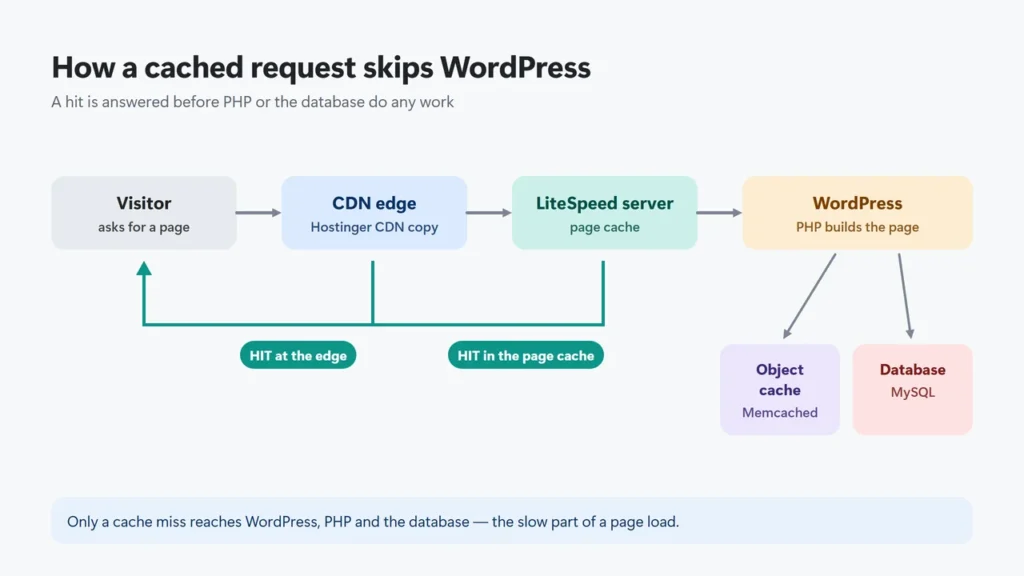
On this site there are three layers. Hostinger’s CDN keeps copies of pages at edge locations. Behind it, the LiteSpeed server keeps the page cache. Behind that, an object cache (Memcached) keeps the results of database queries, which helps on pages that cannot be cached, such as the WordPress dashboard.
Before You Change Any Setting
Five minutes of preparation saves hours of guessing later.
- Confirm the server. Open your site logged out, then check the response headers (the steps are further down). If you never see an
x-litespeed-cacheheader, page caching is not active. - Know your way back. When you apply a preset, LiteSpeed backs up your current settings first, and you can restore them from the History section of the Presets page. If you change settings by hand, export them first from Toolbox → Import / Export.
- Test logged out. Logged-in users are served differently. Use a private browser window for every check.
- Purge after each change. Use Purge All from the LiteSpeed menu in the admin bar, so you test the new setting and not an old cached page.
- Change one thing at a time. If you turn on five settings and the menu breaks, you will not know which one did it.
The Quickest Safe Start: Presets
LiteSpeed Cache has a Presets page with five levels. Each level includes everything in the one before it. Here is what each adds, based on the plugin’s own descriptions in version 7.9.2.
| Preset | What it adds | Risk (as LiteSpeed describes it) |
|---|---|---|
| Essentials | Default cache, higher TTL, browser cache. No QUIC.cloud account needed. | No risk |
| Basic | Image optimization and mobile cache. Needs QUIC.cloud. | Low risk |
| Advanced (Recommended) | Guest Mode and Guest Optimization, CSS/JS/HTML minify, font display optimization, JS defer, DNS prefetch, Gravatar cache, remove query strings, remove emoji, remove noscript tags | Unlikely to cause conflicts |
| Aggressive | CSS and JS Combine, asynchronous CSS with Critical CSS, unused CSS removal (UCSS), lazy load for iframes | May work out of the box, but test |
| Extreme | Lazy load for images, viewport images (VPI), JS Delayed, inline CSS/JS added to combine | Almost certainly needs testing and exclusions |
Every preset above Essentials needs a QUIC.cloud connection, as each preset card says. For most sites, Advanced (Recommended) is a sensible starting point. My one change would be Guest Mode and Guest Optimization, which it switches on. I keep both off on this site, for reasons explained below. If you prefer to set things by hand, the next section shows every setting I use.
The Settings This Site Uses, Section by Section
These are the real settings on harshilbarot.com, read from the dashboard on 23 October 2026. The site uses the GeneratePress theme, which is light to begin with, so it needs fewer aggressive tweaks than a page-builder site would.
Cache tab
Find these under LiteSpeed Cache → Cache → [1] Cache.
| Setting | This site | My advice |
|---|---|---|
| Enable Cache | On | Always on. This is the whole point of the plugin. |
| Cache Logged-in Users | On | Fine to leave on. LiteSpeed stores these pages in a private cache per user session. |
| Cache Commenters | On | Leave on. |
| Cache REST API | On | Leave on unless a plugin shows stale data. |
| Cache Login Page | On | Leave on. |
| Cache Mobile | On | Off by default. Leave it off unless your theme serves different HTML to phones; it creates an extra cache copy of each page. It is on here at the time of writing; with a responsive theme like GeneratePress it is not needed. |
On the [3] Purge tab, this site has Purge All On Upgrade switched off. LiteSpeed’s documentation recommends leaving it on, so that an updated plugin or theme never serves pages built with the old version. For most sites, follow LiteSpeed’s advice here. The Auto Purge Rules For Publish/Update are set to purge the front page, home page, archives and related pages when a post changes. LiteSpeed advises against selecting “All pages” in most cases.
The [2] TTL tab sets how long cached copies live. In version 7.9.2 the public, front page, feed and REST TTLs default to 604800 seconds (one week) and the private TTL to 1800 seconds. A fresh install caches 404 pages for 3600 seconds and 500 errors for 600 seconds; LiteSpeed warns that caching 500 pages can hide a real WordPress problem. The defaults suit most blogs, so leave them unless you have a reason to change them.
If you run WooCommerce
LiteSpeed Cache automatically excludes WooCommerce’s Cart, Checkout and My Account pages from caching, based on the pages set in WooCommerce’s own settings, so check that those page settings are correct. LiteSpeed also highly recommends turning on ESI for WooCommerce stores, which lets the cart widget stay personal while the rest of the page is cached. ESI is not available on OpenLiteSpeed servers.
Object cache and browser cache
Object Cache (Cache → [6] Object) is on here, using the Memcached method that Hostinger provides. Hostinger says object cache is available on its Business plan and higher, and is enabled by default when the LiteSpeed Cache plugin is installed. On other hosts, only turn it on if your host gives you Redis or Memcached; the plugin connects to one but does not provide it.
Browser Cache (Cache → [7] Browser) is on. It tells browsers to keep static files such as images, CSS and JavaScript, so returning visitors download less. LiteSpeed recommends a TTL of one year (31557600 seconds).
CSS settings
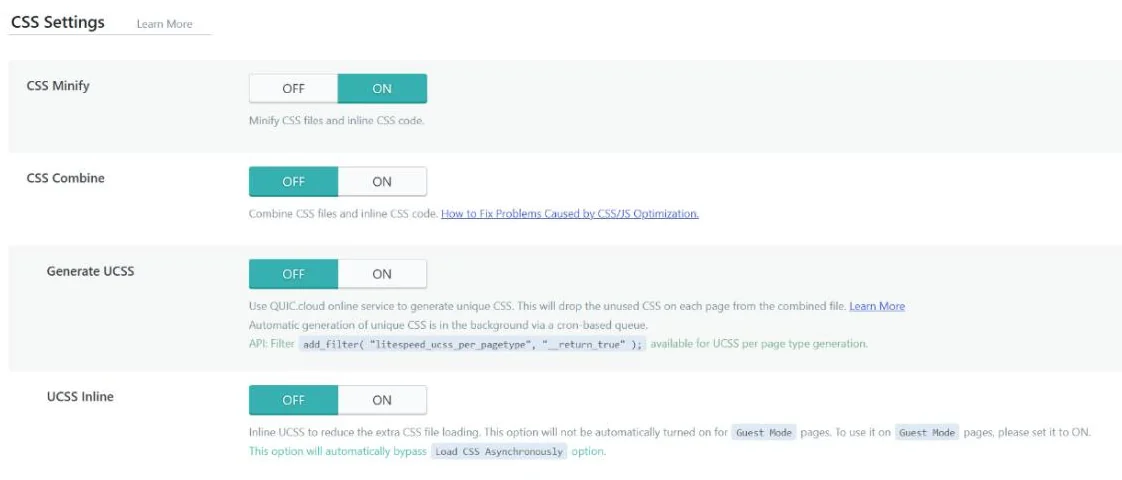
These are in LiteSpeed Cache → Page Optimization → [1] CSS Settings.
| Setting | This site | My advice |
|---|---|---|
| CSS Minify | On | Safe on most sites. Removes spaces and comments. |
| CSS Combine | Off | Test first. It merges files into one, which can change the order styles load in. |
| Generate UCSS | Off | Test first. Uses QUIC.cloud credits and can create a lot of files. |
| Load CSS Asynchronously | Off | Test first. Without Critical CSS from QUIC.cloud (a fee may apply), CSS will not load asynchronously at all; if the critical CSS is incomplete, pages can flash unstyled. |
| Font Display Optimization | Swap | Safe. Text shows in a fallback font while web fonts load. |
JavaScript settings
These are in Page Optimization → [2] JS Settings. The exclude list is on the [8] Tuning tab.
| Setting | This site | My advice |
|---|---|---|
| JS Minify | On | Safe on most sites. |
| JS Combine | Off | Test first. LiteSpeed warns it may cause JS errors or layout problems with some themes and plugins. |
| Load JS Deferred | Deferred | Deferred is the safe middle ground. Scripts run once the HTML has loaded. |
| JS Deferred / Delayed Excludes | A short list | Add a script here if deferring it breaks something, such as a slider or a menu. |
The third option for Load JS Deferred is Delayed. It holds scripts back until the plugin detects user activity, such as a key press or mouse movement. That can make speed test scores look much better, but anything that should run on page load, like a cookie banner or an analytics script, may run late or not at all for some visitors. LiteSpeed’s documentation tells you to test Delayed mode first.
HTML settings
These are in Page Optimization → [3] HTML Settings.
HTML Minify is on, and so are DNS Prefetch Control and Remove Noscript Tags. All three are low risk. Remove WordPress Emoji is off on this site by choice; LiteSpeed notes that visitors on modern browsers will not notice a difference if you turn it on, so it is a safe switch on most sites.
Media settings: why lazy load is off here
These are in Page Optimization → [4] Media Settings. This is the group people get wrong most often. Lazy Load Images is off on this site, and that is deliberate. WordPress already lazy-loads images natively. LiteSpeed’s documentation says that when you turn on its own lazy load, WordPress’s native lazy loading is disabled and the plugin takes over. If the plugin then lazy-loads the main image at the top of the page, your Largest Contentful Paint (LCP) gets slower, not faster.
LiteSpeed’s fix for that is Viewport Images (VPI), which works out which images are above the fold so they load straight away. But VPI only works when Lazy Load Images is on, and it is generated by QUIC.cloud. The same goes for Add Missing Sizes, which adds width and height to images: it only works with Lazy Load Images on. If your theme and editor already output image sizes, as WordPress does for images added through the block editor, you can leave the whole group off.
Image Optimization, CDN and Crawler
- Image Optimization needs a QUIC.cloud connection. This site has the next-gen format set to WebP, but automatic optimization requests are switched off. LiteSpeed’s documentation says the standard image queue is free and unlimited, and a faster queue has a monthly quota.
- CDN: the Cloudflare API and CDN Mapping settings are off, because Hostinger’s own CDN sits in front of this site. Use one CDN, not two stacked on each other. If you use BunnyCDN or another pull CDN, that is where CDN mapping comes in.
- Crawler is off. The crawler visits your pages to keep the cache warm, but it uses server resources. LiteSpeed’s own documentation says it does not recommend enabling the crawler on shared hosting unless the server has enough capacity. On control-panel hosting it is off by default and only the server admin can enable it.
- Database → Manage can clean revisions, auto drafts, trashed posts, spam and trashed comments, and transients. Those deletions are permanent, and LiteSpeed’s page does not tell you to back up first, so take a full database backup yourself before you click Clean All.
Settings to Leave Off Until You Can Test Them
Every setting in this list can make a speed score look better. Every one can also break something real. That does not mean never use them. It means turn them on one at a time, on a staging copy if you have one, and check the page properly afterwards.
| Setting | What can go wrong |
|---|---|
| Guest Mode + Guest Optimization | Serves a default version of the page first, then swaps in the right one. LiteSpeed warns it can show wrong content briefly, adds cache copies, uses QUIC.cloud quota and “can hide real site problems in speed tests”. |
| CSS Combine / JS Combine | Changes the order files load in. Can break layouts or scripts. |
| Generate UCSS | Strips CSS it thinks the page does not use. Menus, pop-ups and tabs that add CSS classes later can lose their styling. |
| Load CSS Asynchronously (CCSS) | Pages can flash unstyled if the critical CSS is wrong or missing. |
| Load JS Deferred: Delayed | Scripts wait for user activity, so analytics, banners and sliders can run late. |
| Lazy Load Images + VPI | Can delay the main image and hurt LCP if VPI is missing or wrong. |
One real example. On another WordPress site I manage, LiteSpeed’s Guest Optimization, together with a second plugin that also delayed scripts, broke jQuery for every logged-out visitor. Guest Optimization had also replaced the site’s own JavaScript settings for guests, so the saved settings did not show what visitors were actually getting. The site looked perfect to me because I was logged in. That is why every test in this guide is done in a private window, and why you should never run two script-delay features at once.
How to Check That LiteSpeed Cache Is Working
The plugin adds a response header to every page it handles. Here is how to read it in Chrome:
- Open your site in a private window, so you are logged out.
- Press F12 to open DevTools, and click the Network tab.
- Reload the page and click the first row, which is the page itself.
- Under Response Headers, find
x-litespeed-cache.
miss means the page was not in the cache yet and has just been stored. Reload, and it should change to hit, which means it came from the cache. If you see neither, LiteSpeed’s documentation says there is a configuration problem. You can also check from a terminal:
curl -sI https://example.com/ | grep -i x-litespeed-cacheOn Windows, use this instead. Typing curl.exe rather than curl matters, because in Windows PowerShell 5.1 curl is a different command and fails:
curl.exe -sI https://example.com/ | findstr /i x-litespeed-cacheRun it twice. The second result should say hit. On this site there is also an x-hcdn-cache-status header from Hostinger’s CDN, so you can see both layers at once. If your site sits behind a CDN, read the CDN’s own cache header for edge hits: LiteSpeed notes that some CDN settings can make x-litespeed-cache show miss even though the server is caching.
What caching did on this site
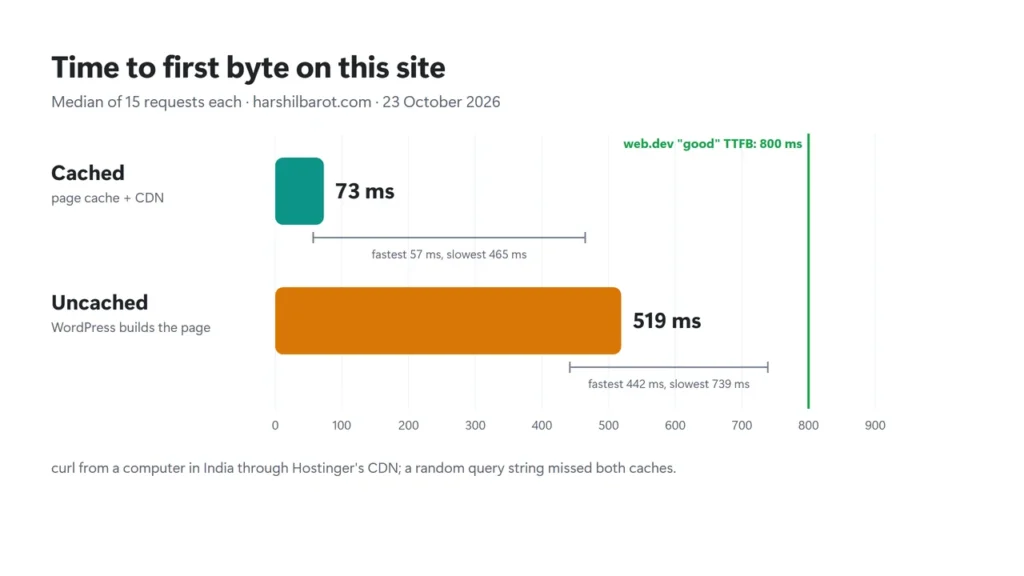
I measured the time to first byte (TTFB) of one article on this site, my local SEO checklist, on 23 October 2026. I sent 15 normal requests, which the cache answers, and 15 requests with a random query string added. Both caches treat each of those as a new URL, so every one is a miss and WordPress builds the page.
| Request type | Median TTFB | Fastest | Slowest |
|---|---|---|---|
| Cached (page cache + CDN) | 73 ms | 57 ms | 465 ms |
| Uncached (WordPress builds the page) | 519 ms | 442 ms | 739 ms |
Cached pages came back about seven times faster. Both results are inside Google’s “good” range on web.dev, which is 0.8 seconds or less for TTFB, but the cached number leaves far more room for everything else the page has to load. Your numbers will differ with your host, your theme, your plugins and where your visitors are. Also note that web.dev’s threshold is meant for real-user data, while these are lab numbers from one location, so treat the comparison as rough. It is still worth measuring your own site the same way.
One more detail from the headers: 14 of the 15 cached requests were answered by Hostinger’s CDN edge (x-hcdn-cache-status: HIT). The one request answered by the LiteSpeed server alone took 307 ms. That is a single sample, and two CDN hits were similarly slow (301 and 465 ms), so it proves little on its own. What the headers do show is that the 73 ms median mostly reflects the CDN edge.
How to Test a Risky Setting Safely
When you want to try one of the “test first” settings, follow the same loop every time:
- Note your starting point: run PageSpeed Insights on two or three typical pages and save the results.
- Turn on one setting and save.
- Click Purge All. If your host has its own CDN, purge that too.
- Open the pages in a private window. Click the menu, open any pop-ups, submit a form, and if you run a shop, add something to the cart.
- Open the browser console (F12, then Console) and look for red errors.
- Check on a phone, not only on a desktop.
- Run PageSpeed Insights again. Keep the setting only if the page still works and the result is better.
If something breaks, turn the setting off and purge again. For JavaScript problems, you can often keep the setting on and add the broken script to the matching Excludes box instead.
Common LiteSpeed Cache Problems and Fixes
My changes do not show up on the live site
Purge All, then check again in a private window. If your host runs its own CDN, that cache is separate. On this site, an edited text file (llms.txt) once stayed old on Hostinger’s CDN even after a WordPress cache purge, and clearing the CDN cache in hPanel fixed it. If you are wondering what that file is, see my llms.txt for WordPress guide.
The layout broke after I turned on an optimization
Turn off CSS Combine, UCSS and Load CSS Asynchronously first, since those change how styles load. Purge, and check again. If minify alone causes it, which is rare, turn CSS Minify off too.
Menus, sliders or forms stopped working
This is nearly always JavaScript. If Guest Optimization is on, turn it off first and purge, because it overrides your individual JavaScript settings for logged-out visitors. Then set Load JS Deferred to Off to confirm the cause, switch it back to Deferred, and add the affected script to JS Deferred / Delayed Excludes. Check JS Combine too, and never run LiteSpeed’s script delay and another plugin’s script delay at the same time.
The site looks fine to me but visitors report problems
You are probably seeing the logged-in version. Test in a private window or with a different browser. Guest Mode and Guest Optimization only affect logged-out visitors, so they are the first settings to check.
I see no x-litespeed-cache header at all
Either the server is not LiteSpeed, caching is turned off, or the page is excluded. Check the Enable Cache setting and your Do Not Cache lists. On a non-LiteSpeed host, you will need a different page cache plugin or QUIC.cloud’s CDN.
LiteSpeed Cache vs Other Speed Plugins
If your host runs LiteSpeed, the free LiteSpeed Cache plugin is usually the right page cache, because it uses the server’s own cache. On other hosts, a plugin like WP Rocket or FlyingPress handles page caching inside WordPress instead. Perfmatters is different: it does not cache pages, it removes scripts and features you do not need, so it can sit alongside LiteSpeed Cache. NitroPack is an all-in-one cloud service.
The rule that matters: run one page cache. Two caching plugins fighting over the same pages cause more problems than they solve. If you are still choosing a host, my Hostinger review covers how this site runs on LiteSpeed hosting day to day.
LiteSpeed Cache Settings Checklist
Save this checklist for the next site you set up. It is grouped by menu section.
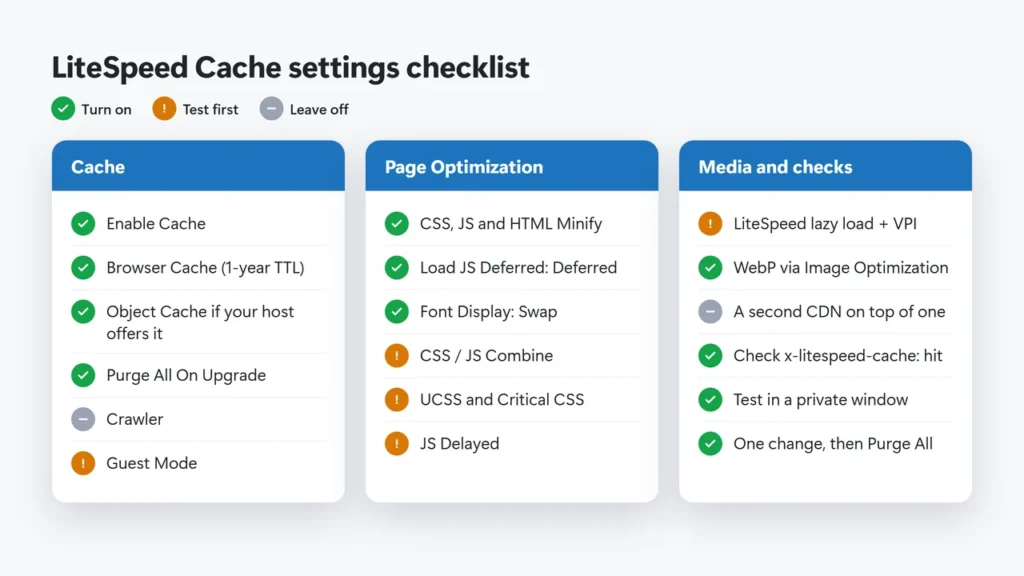
Turn on: Enable Cache; Browser Cache with a one-year TTL; Object Cache if your host offers it; Purge All On Upgrade; CSS, JS and HTML Minify; Load JS Deferred set to Deferred; Font Display set to Swap; WebP through Image Optimization.
Test first: Guest Mode; CSS and JS Combine; UCSS and Critical CSS; JS Delayed; LiteSpeed lazy load with Viewport Images.
Leave off: the Crawler on shared hosting, and a second CDN on top of one you already use.
Always: check for x-litespeed-cache: hit, test in a private window, and change one setting at a time, then Purge All.
You can read more about how I review products, including what I test myself and what I take from official sources.
Frequently Asked Questions
What are the best LiteSpeed Cache settings for WordPress?
For most sites: page cache on, CSS, JS and HTML minify on, Load JS Deferred set to Deferred, and browser cache on. Leave CSS/JS Combine, UCSS, Critical CSS, JS Delayed and Guest Optimization off until you have tested them one at a time. The Advanced (Recommended) preset is a good starting point, but it needs a QUIC.cloud connection and turns on Guest Mode and Guest Optimization, so switch those two off.
Does LiteSpeed Cache work without a LiteSpeed server?
Partly. LiteSpeed’s documentation says page caching does not work without a LiteSpeed server or QUIC.cloud CDN. The optimization features, such as minify and image optimization, still work on Apache or Nginx hosting.
Which LiteSpeed Cache preset should I use?
Advanced (Recommended) suits most sites, but it needs a QUIC.cloud connection and turns on Guest Mode and Guest Optimization. Switch those two off unless you have tested them. Aggressive and Extreme add combine, UCSS, Critical CSS, lazy load and JS Delayed, and LiteSpeed itself says those need testing and exclusions.
Should I turn on Guest Mode in LiteSpeed Cache?
Only after testing. Guest Mode serves a default version of each page first, and Guest Optimization applies the most aggressive optimizations to logged-out visitors. LiteSpeed warns this can show wrong content briefly and hide real problems in speed tests.
Should I use LiteSpeed lazy load or WordPress lazy load?
WordPress lazy-loads images by itself. If you turn on LiteSpeed’s lazy load, it replaces the WordPress version, and you should also set up Viewport Images so the main image is not delayed. On this site, LiteSpeed’s lazy load is off.
How do I know if a page is cached by LiteSpeed?
Check the x-litespeed-cache response header in your browser’s DevTools while logged out. hit means the page came from cache; miss means it was just stored.
Can I use LiteSpeed Cache with WP Rocket?
Not for page caching. Running two page caches causes conflicts. If your host runs LiteSpeed, use LiteSpeed Cache for caching, and only add a non-caching tool such as Perfmatters if you need it.