
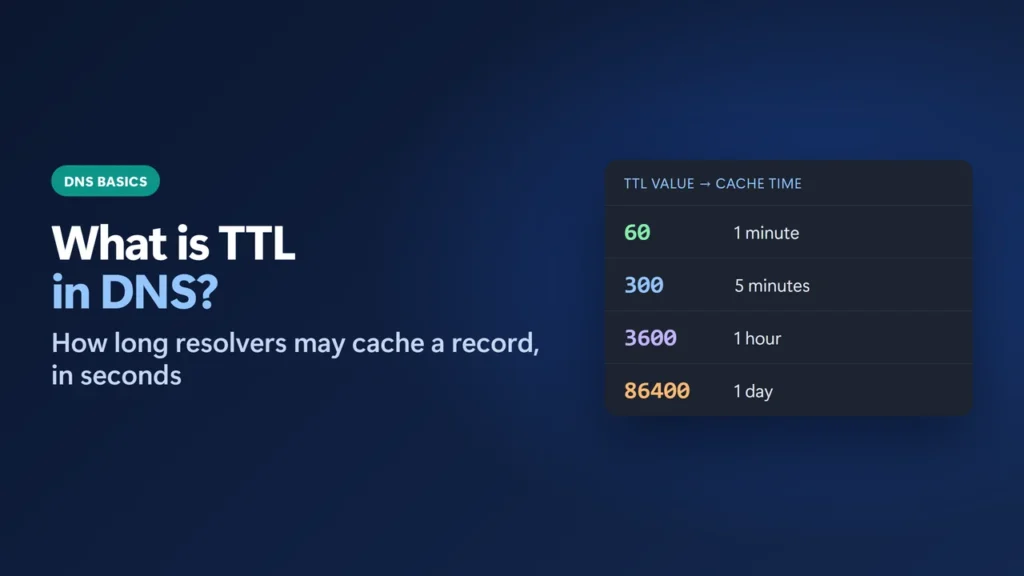
TTL in DNS (time to live) is the number of seconds a DNS record may be kept in a cache before a resolver has to ask the domain’s authoritative nameserver again. A record with a TTL of 3600 can be reused for up to one hour; a TTL of 60 for one minute. A low TTL makes changes reach visitors faster but causes more lookups. A high TTL means fewer lookups but slower changes. Most sites do well with 300 to 3600 seconds. Before a planned change, lower the TTL at least one old TTL ahead (for example, four hours ahead if it is now 14400).
Below I explain what the number controls, show real TTLs I measured on 19 November 2026 (including this site’s own records), list the defaults at common DNS providers, and show how to check and choose a TTL.
Key takeaways
- TTL is measured in seconds. 300 = 5 minutes, 3600 = 1 hour, 86400 = 1 day.
- A resolver shows the remaining TTL, which counts down. I watched 1.1.1.1 go from 60 to 40 in 20 seconds.
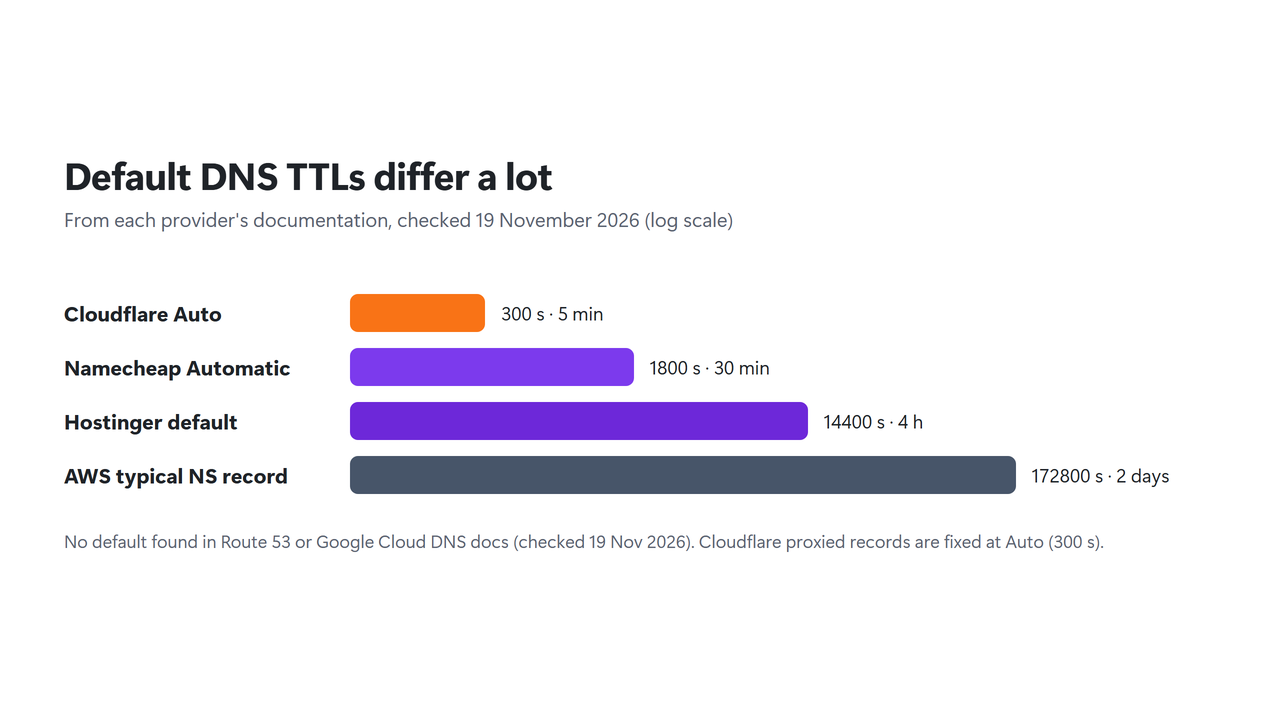
- Defaults differ: Cloudflare Auto is 300 s, Namecheap Automatic is 1800 s, Hostinger is 14400 s.
- Before moving a site or email, lower the TTL and wait out the old TTL before you change the record.
- The TTL is a maximum, not a promise: resolvers may drop a record sooner, and some may briefly reuse an expired copy if your nameserver can’t be reached.
Table of Contents
- 1What TTL Means in DNS
- 2Real TTLs I Measured
- 3What TTL Should You Use?
- Default TTLs at common DNS providers
- 4How to Check a Record’s TTL
- Windows: PowerShell
- Windows: nslookup
- macOS and Linux: dig
- 5How to Lower TTL Before a Change
- Changing nameservers is different
- 6Negative Caching: Why a New Subdomain Can Take Time
- 7TTL Limits in the DNS Standards
- 8Mistakes to Avoid
- What is TTL in DNS?
- What is a good TTL for DNS records?
- Is a lower TTL better?
- What does TTL 300 mean?
- How do I check the TTL of a DNS record?
- Why does the TTL keep changing when I check it?
- Does lowering TTL speed up nameserver changes?
What TTL Means in DNS
Every DNS record (A, AAAA, CNAME, MX, TXT, NS and so on) carries a TTL field. RFC 1035, the original DNS standard, defines it as “the time interval that the resource record may be cached before the source of the information should again be consulted”. A value of zero means the answer may be used for that one lookup and “should not be cached”.
Here is what happens when someone visits your site:
- Their device asks a recursive resolver (their ISP’s, or a public one such as 1.1.1.1 or 8.8.8.8) for your domain’s address.
- If the resolver has no fresh copy, it asks your domain’s authoritative nameserver, which returns the record and its TTL.
- The resolver stores the answer and counts the TTL down. Until it reaches zero, everyone using that resolver gets the cached copy.
- When the TTL runs out, the next lookup goes back to the authoritative server and picks up any change.
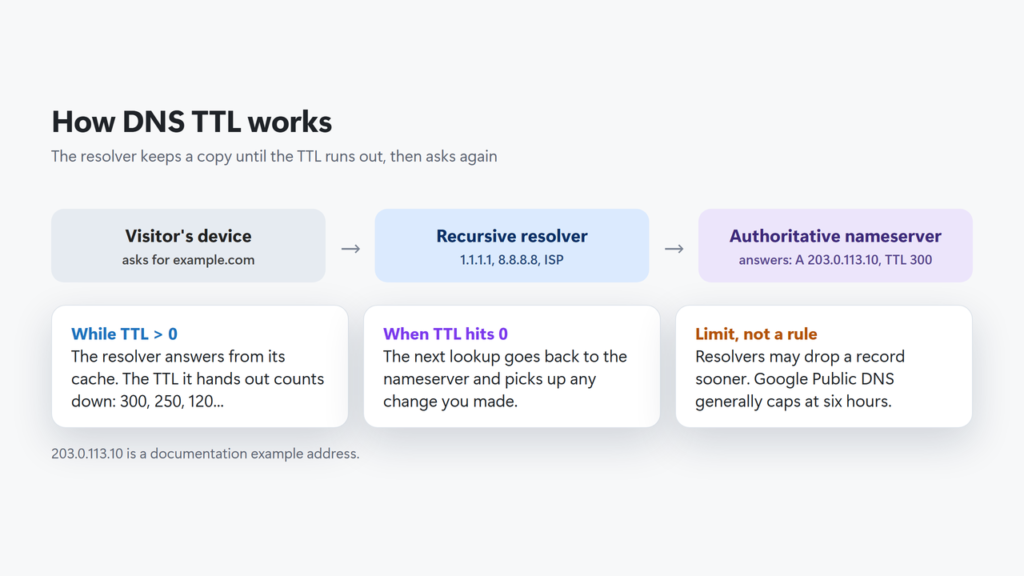
So the TTL is a limit you set for other people’s caches. RFC 2181 puts it this way: “The TTL specifies a maximum time to live, not a mandatory time to live.” A resolver may drop your record earlier. Google Public DNS, for example, says cached TTLs are “generally limited to six hours even if the actual TTL is longer.”
traceroute uses). This article is only about the DNS field.Real TTLs I Measured
On 19 November 2026, from my PC in India, I queried this site’s DNS records directly from its authoritative nameserver, then asked two public resolvers for the same A record twice, 20 seconds apart. I used PowerShell’s Resolve-DnsName on Windows 11.
| Record (harshilbarot.com) | TTL from the authoritative server | In plain terms |
|---|---|---|
| A and AAAA (website address) | 60 | 1 minute |
| TXT | 3600 | 1 hour |
| SOA | 3600 | 1 hour |
| MX (email) | 14400 | 4 hours |
| NS (nameservers) | 86400 | 1 day |
The pattern is typical: the address records that point to the server are short (this site runs behind Hostinger’s CDN, and the public resolvers returned different addresses from the ones the nameserver gave me, which fits a CDN, though Hostinger doesn’t document its TTL choice); the mail and nameserver records, which rarely change, are much longer. (If you are curious how a CDN sits in front of a site, see Hostinger CDN vs Cloudflare.)
Then the countdown. Cloudflare’s 1.1.1.1 returned the A record with a TTL of 60, and 20 seconds later the same addresses with a TTL of 40. That is the resolver telling you how long its copy has left. Google’s 8.8.8.8 returned 60 both times. Google’s Public DNS performance notes say DNS servers are “typically deployed behind load balancers” that send queries to different machines, each with its own cache (Google then describes how it reduces this). That is the likely reason two lookups can show unrelated values. With wikipedia.org on 1.1.1.1 I saw 109, then 94 fifteen seconds later, then 168, never above the 180 its own nameserver returned.
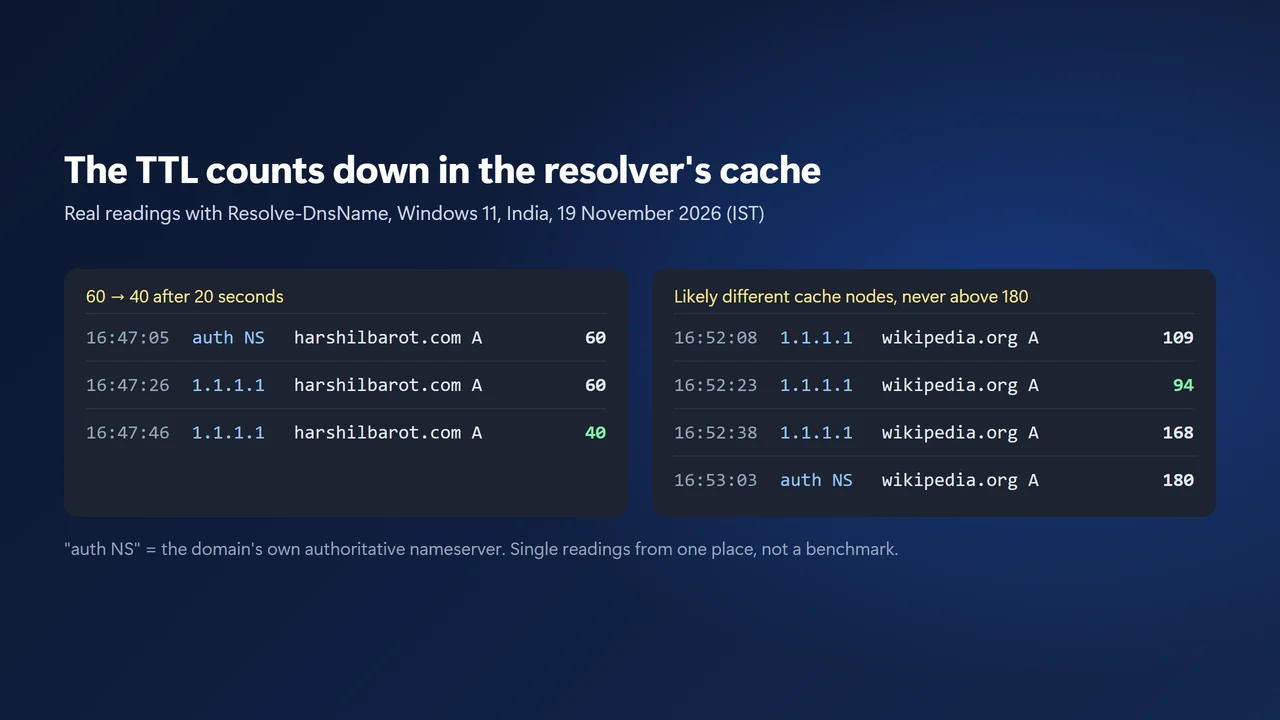
These are single readings from one location on one afternoon, not a benchmark. They show how TTL behaves; they don’t show how every resolver in the world behaves.
What TTL Should You Use?
There is no single correct value. The trade-off, in Cloudflare’s words: “Longer TTLs speed up DNS lookups by increasing the chance of cached results, but a longer TTL also means that updates to your records take longer to go into effect.” AWS adds that a longer TTL means fewer queries, which on Route 53 also “lowers your bill”.
| Situation | Sensible TTL | Why |
|---|---|---|
| Change planned in the next day or two | 300 (5 min) or lower | Changes reach most caches within minutes |
| Normal website A/CNAME records | 300 to 3600 | Fast enough to change, few extra lookups |
| MX, TXT (SPF, DKIM) records | 3600 or more | They change rarely |
| NS records | 86400 or more | AWS calls 172800 (two days) typical |
| Records behind a proxy or CDN | Often fixed by the provider | Cloudflare proxied records are fixed at Auto (300 s) |
Very low TTLs are not free. Each time a cached record expires, the next visitor’s resolver has to ask your nameserver again before the page can start loading, and Google notes that the “trend towards lower DNS TTL values means that resolutions need more frequent lookups.” Don’t set 60 seconds everywhere just in case. Keep low TTLs for records you are about to change, or that a CDN manages for you.
Default TTLs at common DNS providers
| Provider | Default | Range or rule |
|---|---|---|
| Cloudflare (DNS only) | Auto = 300 s | 60 s to 1 day (30 s minimum on Enterprise) |
| Cloudflare (proxied) | Auto = 300 s | Can’t be changed |
| Namecheap BasicDNS/PremiumDNS/FreeDNS | Automatic = 1800 s | Choices of 1, 5, 20, 30 or 60 minutes (shown in minutes); ALIAS 60 to 300 s |
| Hostinger | 14400 s | Range not stated in its help |
| AWS Route 53 | Not stated | Suggests 300 s before a change; NS typically 172800 s |
| Google Cloud DNS | Not stated | A positive whole number (the console has a unit menu; gcloud and the API use seconds); maximum not stated |
How to Check a Record’s TTL
Windows: PowerShell
Resolve-DnsName prints a TTL column. Add -Server to choose which resolver or nameserver to ask:
Resolve-DnsName example.com -Type A -Server 8.8.8.8

Name        Type TTL Section IPAddress
----        ---- --- ------- ---------
example.com    A 300  Answer 104.20.23.154
example.com    A 300  Answer 172.66.147.243
That output is copied from my run on 19 November 2026. To see the TTL your own server publishes, put the authoritative nameserver after -Server. Run Resolve-DnsName yourdomain.com -Type NS first to find it.
Windows: nslookup
Plain nslookup hides the TTL. Add -debug, as Microsoft’s documentation shows, and look for the ttl = line under ANSWERS:
nslookup -debug -type=A wikipedia.org 1.1.1.1

    ANSWERS:
    ->  wikipedia.org
        internet address = 103.102.166.224
        ttl = 27 (27 secs)
macOS and Linux: dig
dig yourdomain.com A +noall +answer prints one line per record. The number after the name is the TTL in seconds, in the order name, TTL, class, type, data, as in an RFC 1035 zone file. Add @1.1.1.1 to ask a specific resolver, or +ttlunits to show it as “5m” or “1h”. (dig isn’t installed on my Windows PC, so I don’t show a sample here.)
Asking several resolvers in different places is also how propagation checkers work; see how long DNS propagation takes for that side of it.
How to Lower TTL Before a Change
This is where TTL matters most: moving to a new host, switching email providers, or changing nameservers. The rule from both AWS and Namecheap is the same: lower the TTL first, then wait for the old value to run out.
- Note the current TTL of the records you will change (say 14400, four hours).
- Lower it to 300 seconds at your DNS provider. AWS suggests 300 for ordinary records.
- Wait at least the old TTL. Resolvers that cached the record before step 2 keep it for up to four more hours. AWS’s migration guide calls this step “Wait for the old TTL to expire”.
- Make the change: new IP, new MX, new CNAME.
- Check from a couple of public resolvers. With a 300 TTL, most caches pick it up within minutes.
- Raise the TTL again once everything works.
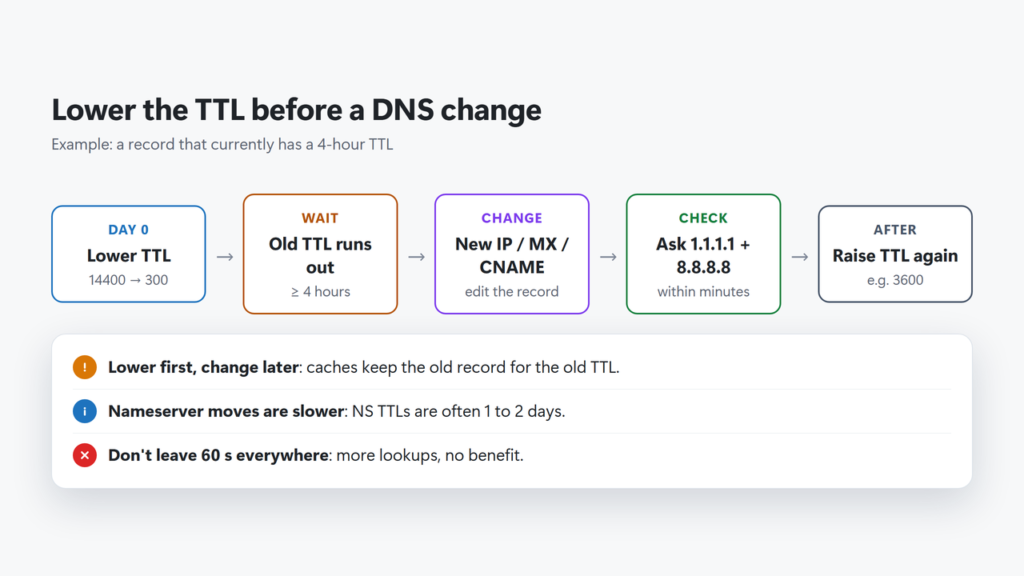
The common mistake is doing steps 2 and 4 together. Lowering the TTL only affects caches that fetch the record after you lowered it. Anyone who cached the old record still holds it for the old TTL.
Already changed it and some people still see the old site? You can’t clear other people’s resolver caches, but you can clear your own computer’s DNS cache (your operating system’s documentation explains how). Google Public DNS also has a public Flush Cache page for its own resolver. For everyone else, the old copy goes away when its TTL runs out.
Changing nameservers is different
If you move the whole domain to a new DNS provider, the NS records are what count, and they usually have long TTLs. AWS says the typical NS TTL is 172800 seconds (two days) and recommends 60 to 900 seconds during a migration. It also warns that some resolvers cache the NS TTL from the parent zone (the registry), so that TTL must be reduced too. That is why a nameserver change can take a day or two to settle everywhere, even when your own records have short TTLs. Step-by-step: how to change nameservers at Hostinger.
Negative Caching: Why a New Subdomain Can Take Time
If someone looked up a name before it existed, for example shop.yourdomain.com, the resolver caches the “no such name” answer too. RFC 2308 says that answer’s TTL is the smaller of the SOA record’s MINIMUM field and the SOA record’s own TTL. On wikipedia.org, the SOA TTL and its MINIMUM (shown as DefaultTTL in PowerShell) were both 3600, so a resolver could remember “doesn’t exist” for up to an hour. The fix is simple: create the record before you test it or share the link.
TTL Limits in the DNS Standards
For the curious, the TTL is a 32-bit number of seconds. RFC 2181 set the maximum at 2,147,483,647 (about 68 years) and said values with the top bit set should be treated as zero. RFC 8767 (2020) updated that: such values are now treated as positive and capped, with a recommended cap of 604,800 seconds (7 days), which “reflects the current practice of major modern DNS resolvers.” RFC 2181 also says all records in one set, such as two A records for the same name, must share the same TTL. RFC 8767 also lets a resolver keep answering with an expired record when it can’t reach your nameserver (“serve stale”), using a TTL of 30 seconds as recommended, so a TTL is a maximum in normal conditions, not an absolute guarantee. In practice, keep TTLs well under a day for anything you might change.
Mistakes to Avoid
- Lowering the TTL at the same moment as the change. Lower it first and wait out the old TTL.
- Leaving TTLs at 60 forever. More lookups, slightly slower first visits, no benefit when nothing changes.
- Expecting a proxied Cloudflare record to use your TTL. Cloudflare sets it to Auto (300 seconds), and you can’t edit it.
- Testing a subdomain before you create it. The “doesn’t exist” answer gets cached too.
- Blaming TTL for every delay. Your computer and browser keep their own caches. Cloudflare notes that your local DNS cache “may take longer to update”.
- Confusing DNS with hosting. TTL only controls how long the address is cached, not where the site lives (domain vs hosting explains the split; to see which servers a domain points to, find out who hosts a website).
What is TTL in DNS?
TTL (time to live) is the number of seconds a DNS record may be cached by resolvers before they must ask the authoritative nameserver again. A TTL of 3600 means up to one hour.
What is a good TTL for DNS records?
For most website records 300 to 3600 seconds works well. Lower it to about 300 at least one old TTL before a planned change, and use longer values such as 3600 or more for MX, TXT and NS records that rarely change.
Is a lower TTL better?
Only when you need changes to spread fast. A lower TTL means more DNS lookups, so keep very short TTLs for records you are about to change or that a CDN manages.
What does TTL 300 mean?
A TTL of 300 means resolvers may keep the record for up to 300 seconds, which is five minutes, before checking again. It is Cloudflare’s Auto value.
How do I check the TTL of a DNS record?
On Windows run Resolve-DnsName yourdomain.com and read the TTL column, or nslookup -debug. On macOS or Linux run dig yourdomain.com +noall +answer; the number after the name is the TTL.
Why does the TTL keep changing when I check it?
A resolver shows how many seconds its cached copy has left, so the number counts down. Big public resolvers can also run many separate caches, so repeat lookups can show different values.
Does lowering TTL speed up nameserver changes?
Partly. Lower the NS TTL in advance if your provider allows it, but some resolvers use the NS TTL from the registry, so a nameserver change can still take a day or two.