VPN split tunnelling lets you choose which apps or addresses use the VPN and which use your normal connection. It is useful when the VPN gets in the way, such as reaching a printer, a banking site that blocks VPNs, or a local streaming service, while still protecting everything else. The catch is that anything outside the tunnel is not protected.
This guide explains how split tunnelling works, the two modes, the risks and how to set it up.
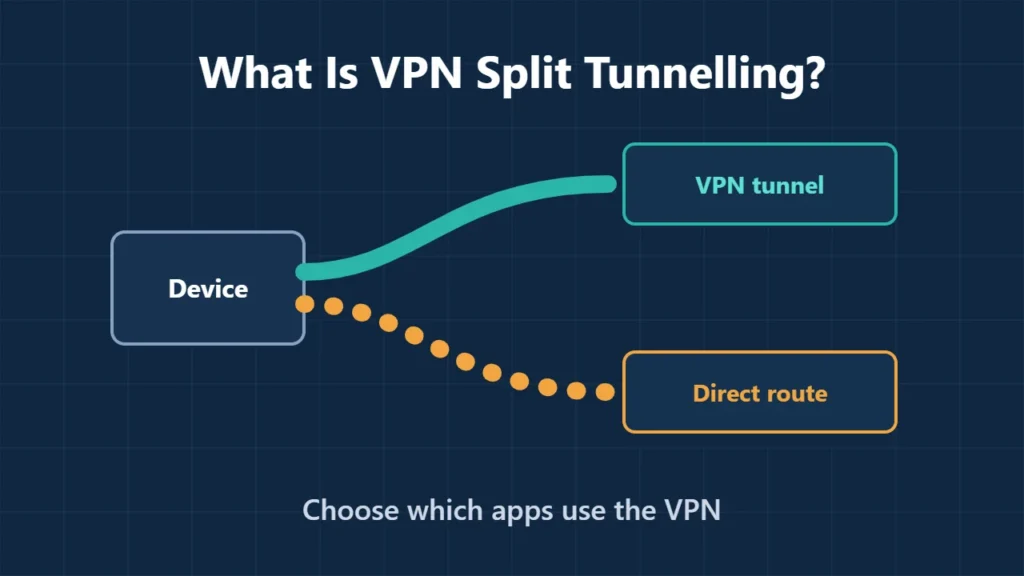
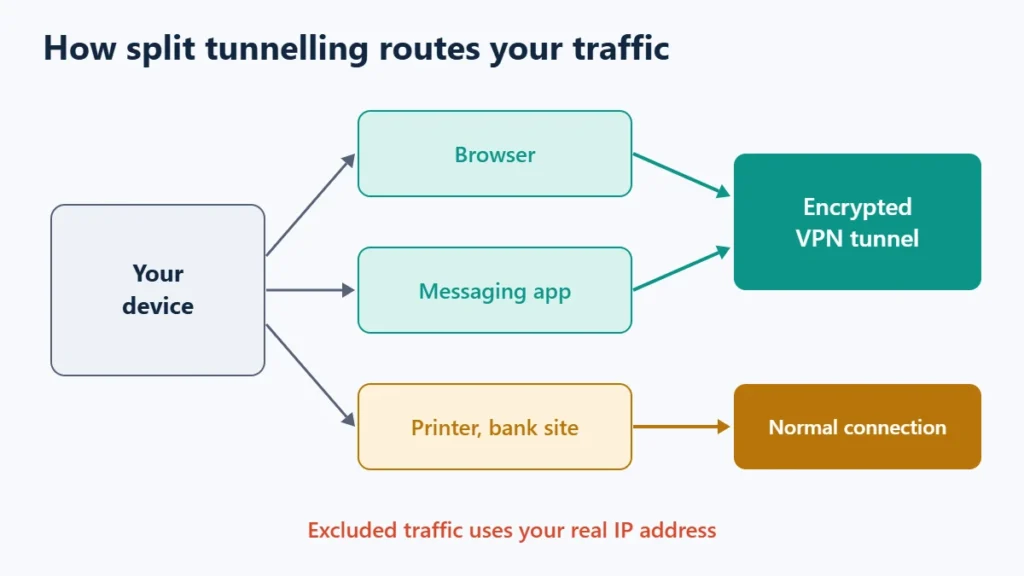
Table of Contents
- 1How Split Tunnelling Works
- 2Exclude Mode vs Include Mode
- 3When Split Tunnelling Is Useful
- 4The Risks
- 5How to Set It Up
- 6Which VPNs Offer It
- 7Frequently Asked Questions
- Is split tunnelling safe?
- Should I use exclude or include mode?
- Is split tunnelling available on free VPNs?
- Does split tunnelling make my VPN faster?
How Split Tunnelling Works
Normally a VPN sends all your device’s traffic through its encrypted tunnel. Split tunnelling divides it: chosen traffic goes through the VPN, and the rest uses your ordinary internet connection, with your real IP address.
Exclude Mode vs Include Mode
| Mode | What goes through the VPN | Best for |
|---|---|---|
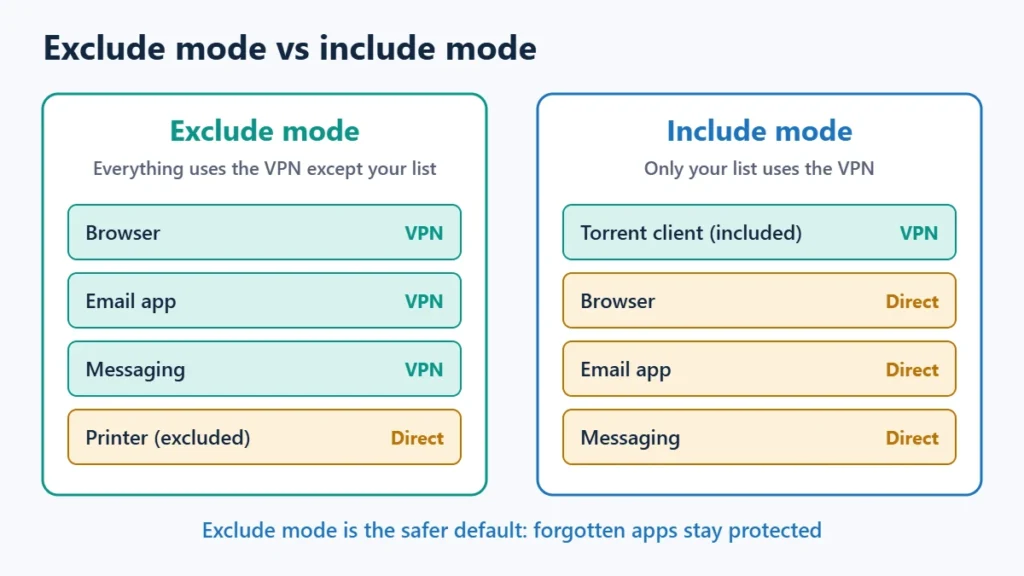
| Exclude | Everything except the apps and IP addresses you list | Most people: protect by default, carve out exceptions |
| Include | Only the apps and IP addresses you list | Protecting one or two apps, such as a browser or torrent client |
Proton VPN lets you add apps or IPv4 and IPv6 addresses to either list, including whole address ranges in CIDR notation. Exclude mode is the safer default, because anything you forget to list stays protected.
When Split Tunnelling Is Useful
- Local devices, such as printers, network storage or smart TVs, that you cannot reach through the VPN.
- Sites that block VPNs, such as some banking or government services.
- Local services that need your real location while the rest of your browsing stays private.
- Speed-sensitive apps, such as video calls or games, where you choose to skip the extra hop.
The Risks
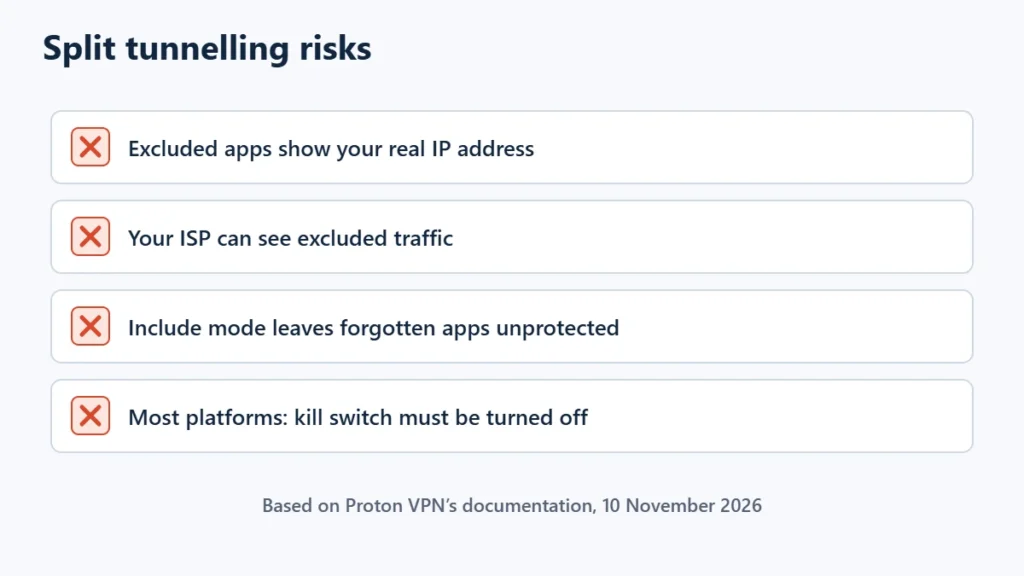
- Excluded traffic is not protected. It uses your real IP address and is visible to your internet provider and the local network.
- Include mode can leave gaps. Any app you forget to add stays outside the VPN.
- Kill switch conflicts. Proton VPN says split tunnelling is not compatible with its kill switch on most platforms, so you would turn the kill switch off. Windows is the exception, where both can run together. See what a VPN kill switch does.
How to Set It Up
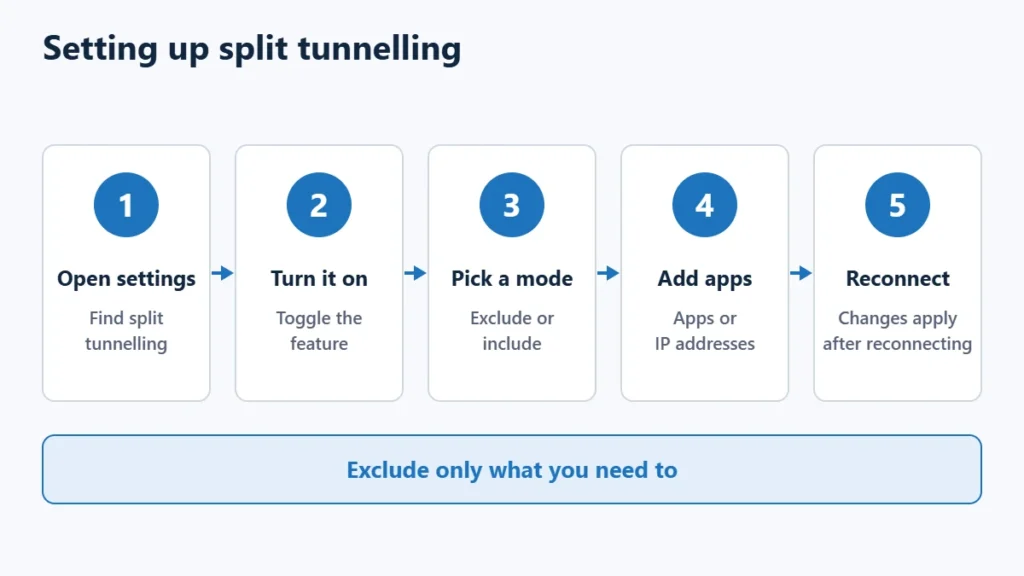
- Open your VPN app’s settings and find split tunnelling.
- Turn it on and choose exclude or include mode.
- Add the apps or IP addresses for that list.
- Reconnect the VPN. Proton notes that changes only take effect after reconnecting.
Which VPNs Offer It
| VPN | Split tunnelling |
|---|---|
| Proton VPN | Paid plans; Windows, macOS, Linux GUI app, Android, Android TV and browser extension |
| NordVPN | Yes, per this site’s review |
| CyberGhost | Yes, on all plans, per this site’s review |
Proton’s list of platforms for split tunnelling did not include iOS on 10 November 2026, so iPhone users may not have the option. The best VPN services comparison covers other features, and you can see Proton VPN’s plans. Affiliate link: I may earn a commission at no extra cost to you.
Frequently Asked Questions
Is split tunnelling safe?
It is safe for the traffic inside the VPN. Traffic you exclude is not protected, so only exclude what you need to.
Should I use exclude or include mode?
Exclude mode for most people, because everything stays protected unless you choose otherwise.
Is split tunnelling available on free VPNs?
Not always. Proton VPN offers it on paid plans only.
Does split tunnelling make my VPN faster?
It can for the apps you exclude, because they skip the VPN. Apps inside the tunnel are unaffected.

Affiliate disclosure: some links on this page are affiliate links, so I may earn a commission if you buy, at no extra cost to you.